


A simulator copies only a device's software, while an emulator copies the software and hardware. Learn how both compare with real devices, and when to use each.
You can test mobile apps on real devices or on virtual ones: emulators and simulators. The key difference: a simulator copies only the device's software, while an emulator copies both the software and the hardware.
Mobile testing checks that an app meets its functional, visual, performance, and security requirements. It catches bugs such as sign-up issues, payment errors, or broken navigation before release. You can test by hand with manual mobile testing or with automation, guided by a mobile testing strategy.
Choosing the right test devices affects cost, speed, and accuracy. This guide compares all three and explains when to use each.
What is an emulator?
An emulator is software that copies both the hardware and the software of a device. It translates the device's processor instructions into ones your computer can run. That's why emulators are more realistic but slower. The Android Emulator in Android Studio is the best-known example.
Emulators are also available in the cloud, through cloud mobile testing services that offer virtual Android devices.
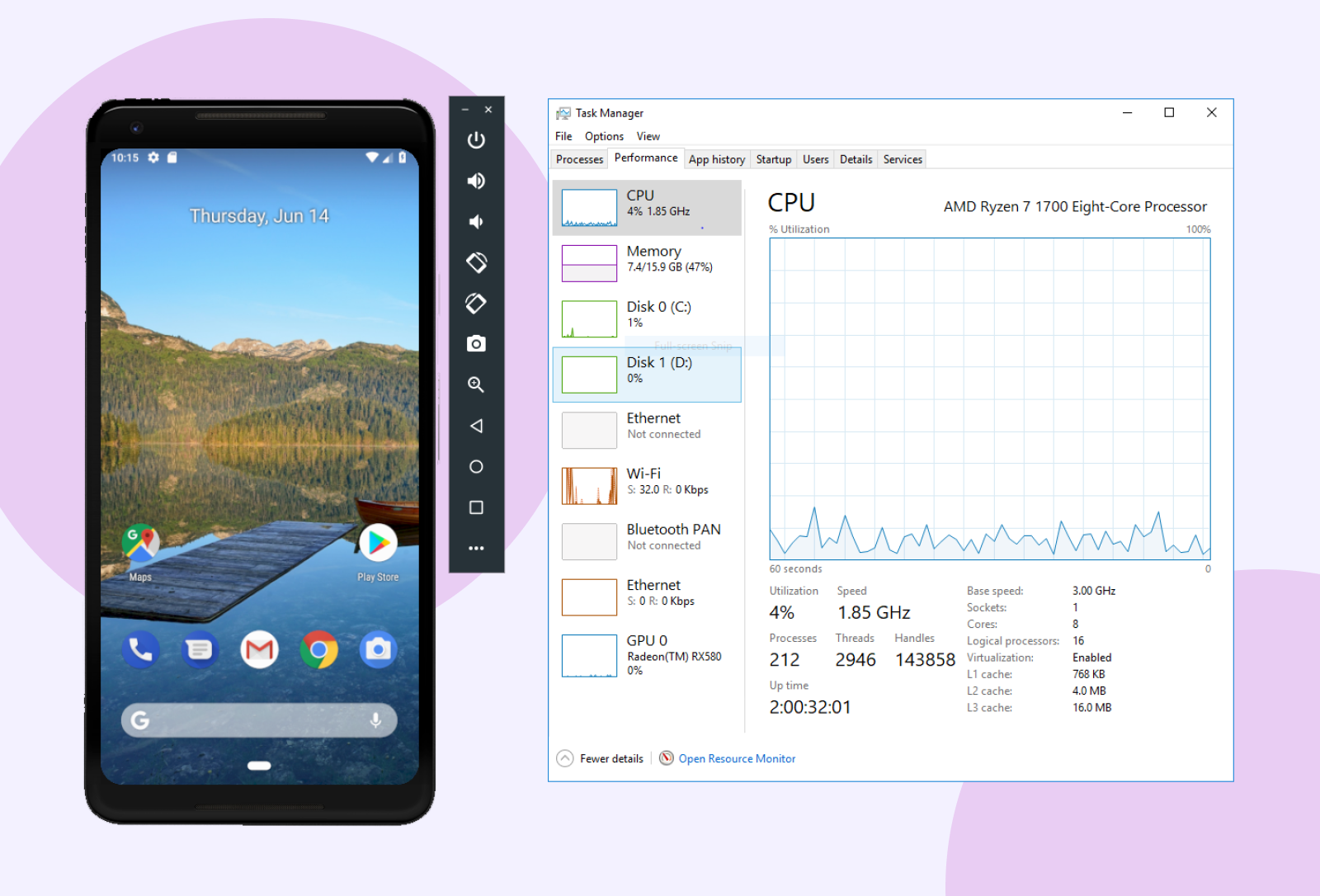
Figure: Example of the Android Emulator
What is a simulator?
A simulator copies only a device's software behavior, not its hardware. Apple's iOS Simulator, which comes with Xcode on a Mac, is the main example.
The iOS Simulator only runs on macOS. Because it doesn't copy hardware, you can't test things like battery state, motion sensors, or cellular interrupts on it.
Emulator vs. simulator: a comparison
1. How emulators and simulators are alike
Emulators and simulators both give you virtual devices on your computer. Both let you run tests quickly across many device and OS combinations without buying hardware.
Advantages
- Lower cost: much cheaper than buying and maintaining physical devices for every device, OS, and browser combination.
- Easy access: quick to set up and available whenever you need them during development.
- Parallel testing: you can launch several at once to test many OS versions and devices in parallel.
- Consistent results: a controlled environment gives you repeatable test conditions.
Disadvantages
- Limited realism: they can't perfectly copy the hardware and software of a real device.
- Hardware features: the camera, battery life, and GPS give more accurate results on real devices.
- UI and UX limits: they can't fully reproduce how a real device feels, such as touch sensitivity and physical buttons.
2. Emulator vs. simulator: key differences
Both copy a mobile device, but they work differently:
Aspect | Emulator | Simulator |
|---|---|---|
Definition | Copies both software and hardware | Copies only software behavior |
Performance | Slower, because it copies the hardware | Faster, because it skips the hardware |
Best for | Fuller testing that includes hardware interactions | Testing the software on its own |
Ease of use | More complex to set up | Easier to set up |
Development stage | Useful early and late in development | Most useful early in development |
What is a real testing device?
A real testing device is a physical phone or tablet. Testers use it exactly as a customer would to find bugs. You can also run automated tests on it with a framework such as Appium for mobile apps or Selenium for mobile web.
Each real device is its own test environment, so teams need one device for every environment they want to cover. That usually means many models, OS versions, and screen sizes.
Advantages
- Testing on real devices is more reliable, because you can test almost any real-world scenario.
- Real devices show real battery behavior, incoming interruptions, and exact colors and brightness.
- They let you test usability, such as screen resolution and how the app looks and feels.
Disadvantages
- Real devices are expensive.
- There are so many models that covering them all is hard, especially on a tight schedule.
Emulators and simulators vs. real devices

Aspect | Virtual devices (emulator and simulator) | Real devices |
|---|---|---|
Accuracy | Less accurate, since they can't copy everything | More accurate |
Speed | Faster to set up and run | Slower to set up and run |
Cost | Cheaper, and often free | Expensive to buy and maintain |
Debugging | Easier, with built-in tools | Harder |
User interaction | Limited touch and gesture realism | Real touch, feel, and gestures |
Virtual devices can't copy everything. Push notifications, incoming calls, and battery behavior need a real device. Real devices, in turn, are slower to set up and harder to debug.
When to use real devices vs. virtual devices
Each type fits a different phase of testing. Following these mobile testing guidelines helps you meet your requirements.
1. Early testing
Use virtual devices early. They make debugging faster, cost less than buying phones, and let you test many devices and networks quickly.
2. Final testing
Use real devices before release. They give the most accurate results. Run performance, network, smoke, interoperability, and sanity testing, and much of your regression testing, on real devices.
Test type | Virtual devices (emulator and simulator) | Real devices |
|---|---|---|
Functional testing | ✓ | ✓ |
Mobile web testing | ✓ | ✓ |
UI/UX testing | ✓ | ✓ |
Hardware dependence (GPS, CPU) | ✓ | |
Display testing (pixels, resolutions) | ✓ | |
Touch gestures (scroll, zoom in, zoom out) | ✓ |
Usually, teams start with virtual devices and switch to real devices just before release. Sometimes it's best to use both at once. For example, security and permission checks should run on both, because virtual devices may not copy the security prompts of real phones exactly.
Wrapping up
Most teams use both. Start on emulators and simulators for fast, cheap early testing. Move to real devices before release for hardware, performance, and touch testing.

Katalon Test Cloud gives you on-demand, secure browsers and mobile devices in the cloud, so you don't have to build and maintain your own device lab.
You can upload your mobile app and run tests on it. See Katalon Docs for step-by-step instructions. Katalon Studio supports no-code, low-code, and full-code test creation, so both new and experienced testers can write tests their way.
Then schedule automated test runs on iOS and Android devices in Katalon Test Cloud. Learn more in our guide to Katalon Test Cloud.
Frequently asked questions
The primary difference is that emulators replicate both the software and hardware configuration of a mobile device, while simulators only mimic the software features without representing the hardware.
Emulators and simulators are cost-effective, easily available for setup, support parallel testing across various operating system versions and device combinations, and ensure repeatable and consistent testing results.
Virtual devices have limited realism as they cannot perfectly simulate all hardware and software characteristics of actual devices. They also have limitations for testing hardware-specific functions (like camera, battery life, GPS) and accurately capturing true UI/UX elements such as touch sensitivity.
Real testing devices are best utilized in the final phase of testing, right before application release, as they provide more accurate results for real-time scenarios. They are essential for performance testing, network feasibility, smoke testing, interoperability, sanity testing, and a significant part of regression testing.
Combining virtual devices and real devices is the best approach for an effective mobile testing strategy. Virtual devices excel in early development stages for speed and debugging, while real devices are critical for comprehensive final validation in real-world conditions, leading to cost and time savings and a better return on investment.



Test everything. Ship with confidence.
From generating test cases to spotting failures, Katalon's AI works across your entire pipeline, automatically.
