


How to test a mobile app by hand: the step-by-step process, a device matrix, a copyable checklist, Android and iOS differences, common traps, and a mobile bug report template.
A checkout can pass on the team's own phones over office Wi-Fi and still fail for a customer on an older Android phone with battery saver on, or on an iPhone where location access was turned off in Settings. Manual mobile testing is how you find those failures before your users do.
This manual mobile testing tutorial covers the process step by step, how to choose devices, emulators vs real devices, a copyable checklist, Android and iOS differences, common traps, and how to report a mobile bug. It uses one running example: an online store's mobile app on Android and iOS, and its checkout flow (add to cart, sign in, enter an address, pay with a test card, and get the order confirmation and a push notification).
What is manual mobile testing?
Manual mobile testing is checking a mobile app by hand on phones, tablets, emulators, or simulators. A tester runs test cases and explores freely to find functional, usability, visual, and device-specific bugs that scripts tend to miss, such as a swipe that doesn't register, a button hidden behind the keyboard, or a crash after an incoming call.
Manual doesn't mean tool-free. Testers still use emulators, device clouds, screen recorders, and log viewers. The difference is that a person drives the app and judges the result.
Manual testing is the better choice on mobile for:
- New or changing features: exploratory sessions find bugs nobody has written a test for yet.
- Look and feel: layout, gestures, animations, and whether a flow makes sense to a real user.
- Hardware: camera, biometrics, GPS, and push notifications on real devices.
- Real-world conditions: interruptions, weak networks, low battery, and permissions changed in Settings.
- One-off checks: a check you'll run once or twice isn't worth scripting.
Where this page fits:
- Manual testing covers the discipline in general, on any platform.
- Mobile testing covers mobile quality as a whole, including automation.
- This guide covers doing it by hand on Android and iOS.
Manual vs automated mobile testing
In practice, teams use both. The question is which check goes where.
Aspect | Manual | Automated |
|---|---|---|
Best for | Exploratory, visual, and usability checks; new features | Stable smoke and regression checks that run every build |
Speed per run | Slower; limited by people and devices | Faster once written; runs in parallel |
Cost over time | Steady cost per run | Upfront cost to write, lower cost per run |
Finding bugs | Finds new, unexpected bugs | Catches regressions in known behavior |
Maintenance | Testers adapt on the fly when the UI changes | Scripts need updates when the UI changes |
Gestures and hardware | Real touch, camera, biometrics, and sensors | Possible, but harder to set up and keep stable |
Judgment | A person decides whether it looks and feels right | Checks only what the script asserts |
The rule of thumb: judgment checks stay manual, and repeatable checks that run every build move to automation. The last sections of this guide cover that hand-off.
How to test a mobile app manually, step by step
In short: set scope and risks, pick devices from a device matrix, install the build, run your test cases on a click path, run a time-boxed exploratory session, log defects with evidence, then retest fixes and rerun the smoke pass.
1. Set scope and risks
Start from the test plan and test strategy: which flows are in scope for this build, what changed, and where a bug would hurt most. Write or update test cases in a consistent test case template.
Example: the store's new saved-card feature changes checkout, so payment, sign-in, and order confirmation are high risk for this build.
2. Pick devices and OS versions
Choose devices from a device matrix built on your own analytics (next section), not from the phones the team happens to own.
Example: the smoke pass runs on 1 recent iPhone, 1 iPhone on the oldest supported iOS, 1 recent Android flagship, and 1 entry-level Android phone on the oldest supported Android version.
3. Install the build
On Android, install the APK directly or use an internal testing track. On iOS, install through TestFlight, or run the app in the Xcode Simulator for early checks. A device cloud can take an app upload too. The platform sections below cover the details.
Example: testers install build 412 from the internal track and from TestFlight, and confirm the version number on the About screen.
4. Run the test cases on a detailed click path

A click path is the step-by-step route through the app's screens: what you tap, in which order, and where each tap leads. It lets any tester repeat the same sequence, which makes results comparable across devices. Comparing the click path to the app's screens also shows areas nobody has tested, and when a bug appears, the path is the reproduction. For a worked set of sign-in cases you can adapt for mobile, see these test cases for a login page.
Example: Home, search "running shoes", open product, select size, add to cart, cart, checkout, sign in, address, pay, confirmation.
5. Run a time-boxed exploratory session
Exploratory testing goes beyond the happy path. Give each session a charter (a mission, an area, and a time box) and take notes as you go. Two charters for the store app:
- Explore checkout on a slow, unstable network on an entry-level Android phone for 45 minutes.
- Explore sign-in and order tracking on an iPhone after turning off notification and location access in Settings, for 30 minutes.
6. Log defects with evidence
Report each bug with the device, OS, build, network, steps, and a screen recording. The bug report template later in this guide lists every field.
7. Retest fixes and rerun the smoke pass
When fixes land, retest each one on the device where it failed, then rerun the smoke pass on the new build so a fix doesn't break something nearby.
How to choose devices: build a device matrix
Android runs on a wide range of device models, and iPhones and iPads come in many sizes, so you need a short list that covers your users. Build it from your analytics:
Slot | What to pick | Why it's there | Tier |
|---|---|---|---|
Newest OS | A current flagship on the newest Android and iOS versions | Where your newer users are | 1 |
Oldest supported OS | The oldest Android and iOS versions you still support | Older APIs and layouts break first here | 1 |
Entry-level Android | A low-RAM, low-storage phone | Memory pressure, slow starts, background kills | 1 |
Top manufacturers | 2 or 3 Android brands your users have | Manufacturer skins change settings, notifications, and battery behavior | 2 |
Smallest and largest screens | A compact phone and a large phone or tablet | Clipped text, hidden buttons, stretched layouts | 2 |
Notch or Dynamic Island | A recent iPhone | Safe areas and status bar overlap | 2 |
Next OS beta | The next Android or iOS beta, before it ships | Catch breaking changes before users upgrade | Pre-release |
Tier 1 runs on every build. Tier 2 joins for the full pass before release. Refresh the matrix every quarter as your analytics change.
How to manually test mobile apps at scale
- Prioritize by usage: run Tier 1 on every build and add Tier 2 only before release.
- Share click paths: every tester follows the same click path, so results from different devices compare.
- Use a device cloud for the long tail: cover the models and OS versions you don't own without buying them.
- Split the work by device, not by feature: each tester takes a set of matrix rows and runs the same smoke pass.
Emulators, simulators, real devices, or a device cloud?
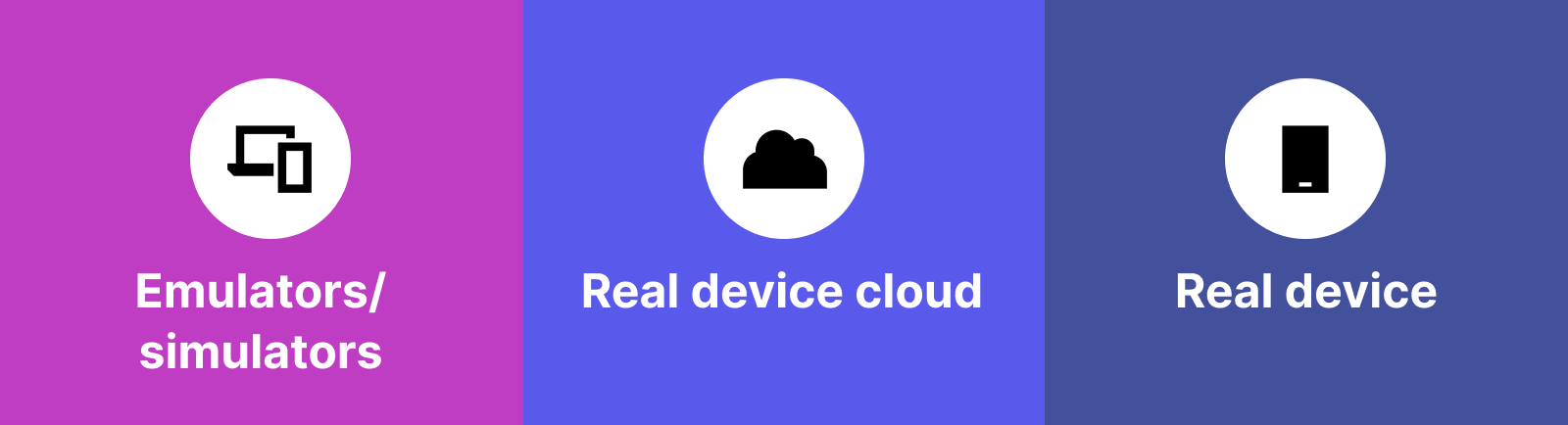
An emulator copies both the hardware and software of a device (the Android Studio emulator is the common example). A simulator copies only the software behavior (the Xcode Simulator for iOS). Each option has a place:
Option | Good for | Misses | Cost |
|---|---|---|---|
Android emulator | Early checks, many OS versions and screen sizes, fast setup | Real performance, battery, heat, and manufacturer skins | Free with Android Studio |
iOS Simulator | Early layout and flow checks on many iPhone and iPad sizes | Runs on your Mac's hardware, so memory, battery, heat, and some hardware features differ from a real iPhone | Free with Xcode, needs a Mac |
Real devices in-house | Touch, sensors, camera, real networks, and sign-off | Coverage is limited to what you buy and maintain | Purchase and upkeep |
Real device cloud | Many real devices and OS versions on demand, remote access | Physical handling such as SIM swaps on shared devices | Subscription |
Use emulators and simulators to find layout and logic bugs early, then sign off on real devices or a real device cloud before release. You can set up Android virtual devices with the AVD Manager. For a deeper comparison, see emulator vs simulator vs real device.
Manual mobile testing tools by category
You don't need a long tool list to test by hand. You need one tool in each category:
Category | What it's for | Examples |
|---|---|---|
Emulators and simulators | Early checks across OS versions and screen sizes | Android Studio emulator, Xcode Simulator |
Real devices or a device cloud | Sign-off on real hardware, real networks, and the long tail of models | In-house devices, a real device cloud |
Build distribution | Getting test builds onto testers' devices | Android internal testing or direct APK install, TestFlight |
Screen recording and logs | Evidence for bug reports | Built-in screen recording, adb logcat on Android, Xcode or Console on a Mac for iOS |
Network control | Slow, unstable, and offline conditions | Airplane mode, device developer settings, throttling in a device cloud |
Test management and bug tracking | Test cases, run results, and defects in one place | A test management tool linked to your bug tracker |
For automation frameworks and device clouds side by side, see our list of mobile testing tools.
Manual mobile testing checklist
The areas below cover the main types of manual mobile testing: functional, usability and UI, compatibility, interruption, network, permission, performance, accessibility, and security testing.
Use the checklist in 2 tiers. The smoke pass covers the rows marked "Every build" and runs on each new build, so keep it short. The full pass covers every row and runs before release. Rows marked "blocks release" stop a release if they fail.
Copy the tables into your test case template or test management tool and replace the store examples with your own flows. For mobile websites and responsive pages, pair this with our guide on how to test websites manually.
Installation and updates
Check | How to verify | When |
|---|---|---|
Fresh install and first launch | Install, open, and complete onboarding on a clean device | Every build (blocks release) |
Upgrade from the store version | Install the live store version, sign in, add to cart, then install the new build over it | Pre-release (blocks release) |
Data kept after upgrade | Sign-in, cart, and settings survive the upgrade with no crash on first launch | Pre-release (blocks release) |
Uninstall and reinstall | Reinstall and confirm the app starts clean and sign-in works | Pre-release |
Release build sanity | Release build, not debug; production API; correct version number; crash reporting on | Pre-release (blocks release) |
Functional
Check | How to verify | When |
|---|---|---|
Sign in and sign out | Valid and invalid credentials, password reset, sign out clears the session | Every build (blocks release) |
Search and browse | Search, filters, sorting, and empty results | Every build |
Cart | Add, remove, change quantity; cart persists after closing the app | Every build |
Checkout and payment | Address, test card, order confirmation, and confirmation email | Every build (blocks release) |
Push notifications | Order notification arrives and opens the right screen | Pre-release |
Deep links | A product link from email or chat opens the right screen, signed in or not | Pre-release |
UI and gestures
Check | How to verify | When |
|---|---|---|
Small and large screens | No clipped text or hidden buttons on the smallest and largest devices in the matrix | Pre-release |
Safe areas | Content clears the notch, Dynamic Island, and navigation bar | Pre-release |
Keyboard | The keyboard doesn't cover the active field; the next field is reachable | Every build |
Gestures | Tap, swipe, long press, pinch, and pull to refresh respond as designed | Pre-release |
Rotation and split screen | Rotate mid-checkout; use split screen or a foldable if supported; no lost input | Pre-release |
Dark mode and language | Dark mode readable; long translated strings fit; currency and date formats correct | Pre-release |
Interruptions
Check | How to verify | When |
|---|---|---|
Incoming call | Take a call mid-payment, then return to the app | Pre-release (blocks release) |
Notifications | A notification from another app arrives mid-checkout; tap it and come back | Pre-release |
Lock and unlock | Lock the screen on the payment page, unlock, and continue | Every build |
Background and return | Switch to another app for a few minutes, then return; state is kept | Every build |
App killed in the background | Open several heavy apps so the OS closes yours, then reopen; the app restores or restarts cleanly | Pre-release |
Network conditions
Check | How to verify | When |
|---|---|---|
Airplane mode mid-action | Turn on airplane mode while paying; the app shows a clear error | Pre-release (blocks release) |
Slow or unstable network | Throttle to a slow connection; loading states and timeouts are handled | Pre-release |
Wi-Fi to cellular handoff | Walk out of Wi-Fi range or switch networks mid-checkout | Pre-release |
Retry and double tap | Tap Pay twice on a slow network; only one order is created | Pre-release (blocks release) |
Reconnect | Go offline and back online; cart and order status are correct | Pre-release |
Permissions
Check | How to verify | When |
|---|---|---|
Allow | Grant location, camera, and notifications; features work | Every build |
Deny | Deny each permission; the app explains what is unavailable and keeps working | Pre-release (blocks release) |
Deny permanently | On Android 11 and later, deny twice (older versions: tick "Don't ask again"); on iOS, deny once; the app doesn't loop on the prompt | Pre-release |
Only this time or limited | Choose "Only this time" (Android 11 and later) or limited access where offered; reopen later | Pre-release |
Revoked in Settings | Turn a permission off in Settings while the app is running, then return | Pre-release (blocks release) |
Recovery path | Turn the permission back on from Settings; the feature works without reinstalling | Pre-release |
Battery and performance
Check | How to verify | When |
|---|---|---|
Cold start | Time the first launch after a restart on the entry-level device | Pre-release |
Long lists | Scroll a long product list; no stutter or blank images | Pre-release |
Long session | Use the app for 20 minutes; watch battery drain and device heat | Pre-release |
Low battery and battery saver | Turn on battery saver; background refresh and notifications still behave as designed | Pre-release |
Low storage | Fill the device close to full; the app handles failed downloads and saves | Pre-release |
Accessibility
Check | How to verify | When |
|---|---|---|
Screen reader | Complete checkout with TalkBack (Android) and VoiceOver (iOS) | Pre-release |
Labels | Every button and image has a meaningful spoken label | Pre-release |
Large text | Set the largest font size or Dynamic Type; text wraps and buttons stay usable | Pre-release |
Touch targets | Buttons are large enough to tap without hitting their neighbors | Pre-release |
Contrast | Text and icons are readable in light and dark mode | Pre-release |
Security and privacy basics
Check | How to verify | When |
|---|---|---|
Session handling | Sign out clears the session; a closed and reopened app respects the session timeout | Every build (blocks release) |
Deep links and sign-in | A deep link to the account or order page asks for sign-in when signed out | Pre-release (blocks release) |
Sensitive screens | Card details are masked; the app switcher hides sensitive screens if your policy requires it | Pre-release |
Data on the device | No passwords or card numbers in logs or plain-text files | Pre-release |
Tracking prompt | If the app tracks users, test both answers to the iOS tracking prompt | Pre-release |
Android vs iOS: the same checks, side by side
Check | Android | iOS |
|---|---|---|
Getting test builds | Install an APK directly (for example adb install) or use a Google Play internal testing track | TestFlight for internal and external testers; the Xcode Simulator for early checks |
Back navigation | System back button or back gesture | In-app back button and swipe from the left edge |
Permission prompts | On Android 11 and later: "Only this time" for location, microphone, and camera, and 2 denials count as "don't ask again". Older versions show a "Don't ask again" checkbox instead | The system remembers the first answer; after that, changes happen in Settings |
Screen reader | TalkBack | VoiceOver |
Text size | Font size and display size settings | Dynamic Type |
Logs | adb logcat or Logcat in Android Studio | Xcode or the Console app on a Mac |
Screen recording | Built-in screen recorder or adb shell screenrecord | Screen recording from Control Center |
Background behavior | Manufacturer battery settings can stop background work | The OS can close background apps under memory pressure |
Android manual testing specifics
Android's main challenge is variety: many manufacturers, screen sizes, and OS versions in use at the same time.
- Installing builds: install with adb install after turning on developer options and USB debugging, or open the APK file on the device after allowing installs from that source (the "install unknown apps" setting). A Google Play internal testing track is closer to how users get the app. Android's adb documentation covers install and screen recording.
- Manufacturers and battery settings: test on the 2 or 3 brands your users have. Manufacturer skins change settings menus, notification behavior, and battery optimization, which can stop background work such as order-status updates.
- Entry-level devices: a low-RAM phone shows slow starts, dropped frames, and the app being closed in the background far sooner than a flagship.
- Back button and gestures: check that system back goes where users expect at every step of checkout, and doesn't exit the app mid-payment.
- Runtime permissions: on Android 11 and later, users can choose "Only this time" for location, microphone, and camera, and if a user denies a permission twice, Android stops showing the prompt; older versions show a "Don't ask again" checkbox instead. Revoking a permission in Settings ends the app's process, and Android can reset permissions for apps that go unused for a few months. All of this is in Android's permissions guide, which also gives the adb commands to reset permission flags between test runs.
- Logs and video: capture logs with adb logcat and record the screen with the built-in recorder or adb shell screenrecord.
- Accessibility: run key flows with TalkBack on, and with the largest font and display size.
Store app example: start a card payment on an entry-level phone, switch to the banking app to approve it, and check that checkout restores correctly if Android closed the store app in the meantime.
iOS manual testing specifics
iOS has fewer device models, but its own rules for builds, permissions, and gestures.
- Getting builds: TestFlight distributes beta builds to up to 100 internal testers and up to 10,000 external testers, who install through the TestFlight app. Distributing through TestFlight needs an Apple Developer Program membership, and the first build for external testers goes through App Review. For early checks, the Xcode Simulator runs builds on a Mac.
- Simulator vs iPhone: the Simulator runs on your Mac's hardware, so performance, memory, battery, and heat differ from a real iPhone. Check camera, biometrics, and push notifications on a real device before sign-off.
- Permission prompts: for camera and microphone, iOS asks once. Apple's camera and microphone authorization guide says the system remembers the answer, and later changes happen in Settings. To see the prompt again, test on a fresh install, and test changes made in Settings while the app is running.
- Tracking prompt: if the app asks to track users, test both answers to the App Tracking Transparency prompt, and test with tracking requests turned off in Settings, where the prompt doesn't appear at all.
- Gestures and navigation: swipe from the left edge to go back, and check that it doesn't drop form input mid-checkout.
- Safe areas: check every screen on an iPhone with a notch or Dynamic Island, and on the smallest supported iPhone.
- Accessibility: run key flows with VoiceOver, and with the largest Dynamic Type size.
- Logs and video: use screen recording from Control Center, and Xcode or the Console app on a Mac for device logs.
Store app example: open the payment sheet on the smallest supported iPhone with the largest Dynamic Type size, and check that the Pay button is still visible and tappable.
Common traps in manual mobile testing
These are the gaps that let mobile bugs ship even when every test case passed:
Trap | What it looks like | How to catch it |
|---|---|---|
Testing only on the team's phones | Bugs reported by users on older or cheaper devices | Build the device matrix from analytics, with an entry-level Android |
Signing off on emulators only | Camera, push, or performance bugs after release | Sign off on real devices or a real device cloud |
Skipping the oldest supported OS | Crashes on older OS versions you still support | Put the oldest supported OS in Tier 1 |
Fresh installs only | Crashes or lost data after users update | Upgrade from the store version with real data before each release |
Fast office Wi-Fi only | Spinners, duplicate orders, and timeouts on real networks | Throttle the network and test the handoff to cellular |
Assuming a permission stays granted | Crashes or blank screens after a user turns access off | Revoke each permission in Settings mid-session |
Ignoring interruptions | Lost input after a call, a notification, or a background kill | Run the interruption table on every release |
Bug reports without device details | Developers can't reproduce the bug | Use the bug report template with a screen recording |
No click path | Results that can't be repeated or compared | Write the click path into each test case |
Testing the wrong build | Bugs that only appear in the store build, or a staging API in production | Run the release build sanity checks on the exact build you submit |
How to report a mobile bug
Mobile bugs are often device-specific, so a report without the device details is hard to reproduce. Copy this template:
Field | What to include | Example |
|---|---|---|
Title | Where, what, and on which platform | Checkout: Pay button hidden by keyboard on small Android screens |
Device | Make and model, plus screen size | Example Brand Model X, 6.1-inch screen, 3 GB RAM |
OS | OS version, plus the API level on Android | Android 11 (API level 30) |
App build | Version, build number, and environment | 5.2.0 (412), staging |
Network | Wi-Fi, cellular, or throttled | Throttled to a slow connection |
Settings | Language, font size, dark mode, battery saver, if relevant | Largest font size |
Steps | Numbered steps from the click path | Cart, Checkout, Address, tap card number field |
Expected vs actual | What should happen and what happened | Pay button visible; Pay button covered by the keyboard |
Frequency | Always, sometimes, or once | Always |
Evidence | Screen recording, screenshot, and logs | Recording and logcat attached |
Then classify the bug so the team can triage and analyze it later:
- Severity: high, medium, or low impact on the user.
- Priority: high, medium, or low urgency to fix.
- Reproducibility: reproducible, intermittent, or can't reproduce.
- Root cause: coding error, design flaw, configuration issue, or user error.
- Bug type: functional, performance, usability, security, or compatibility.
For what happens after you file it, see the bug life cycle.
When to move mobile checks into automation
Once a check is stable and runs on every build, automate it. Keep the checks that need a person's judgment manual. For the store app:
Check | Keep manual or automate |
|---|---|
Install, sign in, add to cart, and smoke checkout | Automate; they run every build |
Regression checks on stable screens | Automate and add them to the regression testing suite |
Exploratory sessions on new features | Keep manual |
Visual polish, gestures, and accessibility judgment | Keep manual, with automated checks where they help |
For the automation side, frameworks, and how manual and automated testing fit together, see our guide to mobile testing. If you're preparing for a QA role, these mobile testing interview questions cover both.
Manual mobile testing on real devices with Katalon
If you don't want to buy and maintain every device in your matrix, Katalon TestCloud gives you real Android and iOS devices in the cloud.
- Live Testing on real devices: with the TestCloud Native Mobile App add-on (a mobile native app subscription), you start a live session from Katalon True (Device Cloud > Mobile App) or the Cloud Web App, choose Android or iOS, upload your app, and pick the brand, device, and OS version. You then use the real device by hand. See the Live Testing docs.
- Session tools that map to the checklist: network throttling (2G, 3G, LTE) for the network table, GPS location and IP geolocation for location-based features and regional checks, rotation for the UI table, time zone and keyboard language for localization, camera image injection and biometric authentication for hardware checks, and screenshots and session video for bug evidence.
- Device coverage: the supported environments page lists the current Android and iOS devices and OS versions.
- Recording results: in Katalon TestOps manual test runs, testers record step results and comments, attach screenshots, recordings, and logs from a device session as evidence, and report a Jira or Azure DevOps defect from a step when that integration is set up.
- Hand-off to automation: when a check is stable, Katalon Studio automates Android and iOS tests on local emulators, simulators, physical devices, or TestCloud devices, and its Smart Mobile Recorder records your interactions to create mobile test objects. The mobile quick start covers the setup. During an automated TestCloud run, Live Interaction lets a tester take over the device by hand, for example to enter a one-time code.
See how Katalon supports mobile app testing across manual and automated runs.
Frequently asked questions
Manual mobile testing is checking a mobile app by hand on phones, tablets, emulators, or simulators. A tester runs test cases and explores freely to find functional, usability, visual, and device-specific bugs that scripts tend to miss, such as broken gestures, layouts that break on small screens, or crashes after an interruption.
Set the scope and risks for the build, pick devices from a device matrix, install the build, run the test cases on a detailed click path, run a time-boxed exploratory session, log bugs with the device, OS, build, network, and a screen recording, then retest fixes and rerun the smoke pass.
Install the APK or an internal testing build, and test on your users' main manufacturers plus an entry-level device. Check the back button and gesture, runtime permissions (including "Only this time" and revoking access in Settings), battery settings, and TalkBack. Capture logs with adb logcat and record the screen for bug reports.
Distribute builds through TestFlight, use the Xcode Simulator for early checks, and sign off on real iPhones for camera, biometrics, and push notifications. Test permission prompts on fresh installs and changes made in Settings, swipe-back navigation, safe areas around the notch or Dynamic Island, VoiceOver, and Dynamic Type.
There's no fixed number. Build a tiered device matrix from your analytics: the newest and oldest supported OS on each platform, an entry-level Android, your top manufacturers, and the smallest and largest screens. Run Tier 1 on every build and add Tier 2 before release.
Build a tiered device matrix from your analytics, share the same click paths across testers so results compare, run Tier 1 on every build and Tier 2 before release, and use a real device cloud for models you don't own. Move stable checks that run every build into automation.
Installation and updates, core functional flows, UI and gestures, interruptions, network conditions, permissions, battery and performance, accessibility, and security basics. Split it into a short smoke pass for every build and a full pass before release, and mark the checks that block a release.
Functional, usability, UI and gesture, compatibility across devices and OS versions, interruption, network, permission, performance and battery, accessibility, and basic security testing. The checklist in this guide groups its checks by these types.

Test everything. Ship with confidence.
From generating test cases to spotting failures, Katalon's AI works across your entire pipeline, automatically.
