


UI testing checks that an app's interface looks, behaves, and responds as intended. Learn the benefits, a UI testing checklist, common challenges, manual vs. automated approaches, popular tools, and best practices.
UI testing is the practice of validating an application's user interface (UI), the part users see and interact with, to ensure it looks, behaves, and responds as intended.
It covers all visual and interactive components, confirming they meet design specifications, function correctly, and provide a smooth, intuitive experience. Effective UI testing makes sure that buttons, forms, layouts, and dynamic elements work properly and remain consistent across browsers, screen sizes, and devices.
Benefits of UI Testing
- Better User Experience: Prevents issues like broken buttons and incorrect links that confuse users.
- Higher Product Quality: Ensures the app looks good and works smoothly.
- Consistent Design & Branding: Keeps the UI aligned with brand guidelines.
- Improved Usability & Accessibility: Makes the app easy to use for everyone, including people with disabilities.
Read More: Accessibility Testing: A Detailed Guide
UI Testing vs. GUI Testing

UI testing is a broader term compared to GUI (Graphical User Interface) testing.
- UI includes all ways a person interacts with a machine, both graphical and non-graphical.
- GUI refers only to visual, graphical interaction on screens.
From this perspective, testing how well a keyboard interacts with a website counts as UI testing, but not GUI testing.
UI Testing Checklist
- Layout & Design: UI tests verify that layout elements like alignment, fonts, colors, and spacing follow the design system.
- Navigation: Ensures menus, buttons, and links work correctly and navigate to the right pages.
- Forms & Inputs: Validates text fields, dropdowns, checkboxes, and input validation behavior.
- Responsiveness: Checks how the interface adapts to different screen sizes and devices.
- Cross-Browser Compatibility: Confirms consistent performance across major browsers such as Chrome, Firefox, Safari, and Edge.
- Buttons & Links: Ensures all buttons and links are interactive, responsive, and visually consistent.
- Images & Icons: Detects broken images and checks alt text for accessibility compliance.
- Error Messages & Notifications: Validates clarity, accuracy, and correct triggers for error states and notifications.
- Accessibility: Supports checks for keyboard navigation, screen reader compatibility, ARIA attributes, and color contrast.
- Performance: Helps monitor page load times, interaction delays, and overall responsiveness.
UI Testing Challenges
- Frequent UI Changes: Continuous updates can break tests, requiring regular maintenance.
- Cross-Browser & Device Compatibility: Testing must cover various screen sizes and browsers.
- Flaky Tests: Animations, timing, or minor delays can cause inconsistent results.
- Accessibility Testing Complexity: Meeting accessibility standards requires extra effort and careful validation.
- Automation Difficulties: Dynamic or visually complex UI elements can be challenging for automated tools.
Types of UI Testing
There are several ways we can categorize our UI testing activities:
Category | Activity |
|---|---|
Test the functionality of UI elements to see if they work as expected. | |
Test the visual aspects of the UI, including overall design, layout and alignment, color schemes, typography, graphical elements and icons, component styling (buttons, inputs, checkboxes), responsiveness across screen sizes, and consistency across browsers and platforms. | |
Usability Testing | Manually interact with the UI to evaluate how intuitive and easy it is for end users, considering ease of navigation, clarity of instructions, and opportunities to help users complete tasks faster. |
Accessibility Testing | Evaluate how accessible the UI is for users with disabilities, including keyboard accessibility, screen reader compatibility, color contrast, alt text for non-text elements, and accessible image and video formats. |
Manual UI Testing vs Automated UI Testing
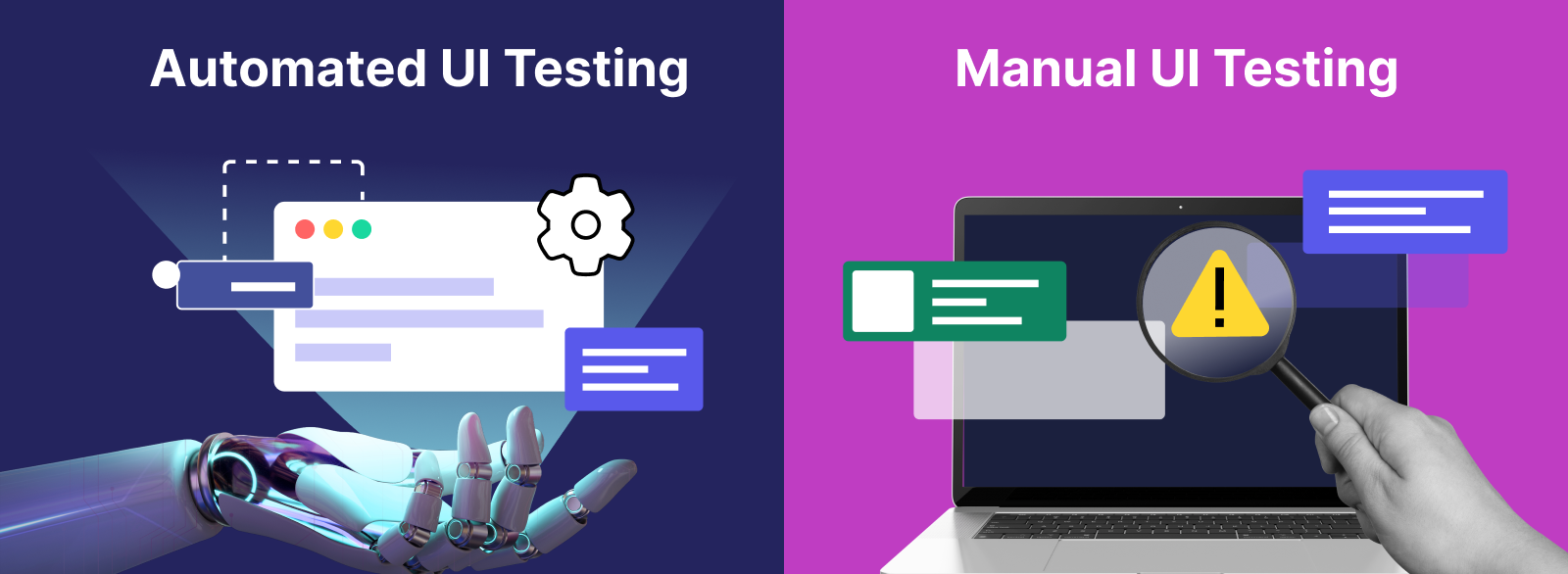
Similar to other types of testing, there are 2 major ways to do UI testing: automated testing and manual testing.
1. Automated UI Testing
Automated UI testing uses test scripts to interact with the UI. Testers run the scripts and analyze the results.
Benefits:
- Runs tests quickly, saving time and effort.
- Eliminates human error with precise execution.
- Increases test coverage for more scenarios and UI components.
- Supports regression testing to catch issues after updates.
- Scales easily for complex and multi-platform testing.
Challenges:
- Requires time and expertise to set up automation frameworks or tools.
- Dynamic UI elements (e.g., shopping cart icons) can be tricky to test.
- Test scripts need frequent updates when the UI changes.
- Can miss subtle UI issues that require human judgment.
Read More: Top 15+ Best Automation Testing Tools for UI Testing
2. Manual UI Testing
Manual UI testing is performed by a human tester without automation tools. They plan, execute, and document results manually, often using spreadsheets or simple tracking tools.
Benefits:
- Flexible, adapting well to dynamic UI changes.
- Human intuition catches subtle issues that automation may overlook.
Challenges:
- Time-consuming, especially for complex workflows.
- Prone to human error and inconsistent results.
- Difficult to scale as application size increases.
Read More: From Manual To Automation Testing: 5 Essential Steps
Popular UI Testing Tools and Frameworks
1. Selenium: Open-Source Automation Testing Framework

Selenium is a widely used open-source framework for automating UI tests. It supports multiple operating systems (Linux, macOS, Windows) and browsers such as Chrome, Firefox, Edge, Safari, and headless browsers.
Key features:
- Supports Java, C#, Python, JavaScript, Ruby, PHP, and more.
- Compatible with Chrome, Firefox, Edge, Safari, and others.
- Enables parallel and cross-browser test execution on local or remote machines.
- Integrates with major CI/CD tools and additional testing frameworks.
2. Katalon: AI-Powered Visual Testing Tool

Katalon is a complete software quality platform that simplifies UI testing across web, mobile, and API environments.
With Katalon, QA teams can:
- Manage test planning, authoring, execution, reporting, and analytics in one platform.
- Create automated UI tests for multiple platforms and run them across diverse environments.
- Use AI-assisted test case recommendations, synthetic data generation, and automatic maintenance.
Key features:
- A unified platform for functional and visual testing.
- AI-powered features like Layout Comparison and Text-to-text Comparison.
- Cloud test environments for a wide range of devices.
- Self-healing capabilities for visual tests.
- Smooth integration with CI/CD tools (Jenkins, GitLab, Bamboo).
Download Katalon and Start UI Testing
3. Cypress

Cypress is a modern automation tool built specifically for web testing. It supports JavaScript-based frameworks and runs directly inside the browser, allowing fast execution and deeper access to UI components.
Key features:
- Captures detailed test snapshots.
- Supports in-depth debugging with standard developer tools.
- Controls network traffic, timings, server responses, and function behavior.
- Integrates with a dashboard service for test insights.
- Offers real-time support and active community resources.
Read More: Katalon vs Cypress: A Detailed Comparison
UI Testing Best Practices
- Apply the shift-left testing approach to detect UI issues early.
- Define what UI aspects and functionalities need to be tested.
- Cover functionality, usability, responsiveness, accessibility, and compatibility.
- Test both positive and negative scenarios for complete coverage.
- Use consistent test data to check variations and edge cases.
- Automate repetitive UI tests to improve efficiency and speed.
- Conduct cross-browser and cross-device testing to ensure consistent UX.
Frequently asked questions
UI testing verifies that UI elements and visuals (buttons, forms, menus, layouts, dynamic components) look and behave as intended, delivering a seamless, intuitive user experience across browsers, devices, and screen sizes.
A complete UI testing checklist typically covers layout/design, navigation, forms & input validation, responsiveness, cross-browser compatibility, buttons & links, images/icons (incl. alt text), error messages/notifications, accessibility (keyboard, screen readers, ARIA, contrast), and basic UI performance (load time/interaction delays).
Not exactly. Your article notes UI testing is broader: UI includes graphical and non-graphical interactions, while GUI testing focuses only on graphical screen interactions. Example: keyboard interaction can count as UI testing but not GUI testing.
Common pain points include frequent UI changes (test maintenance), cross-browser/device coverage, flaky tests (animations/timing), accessibility complexity, and automation difficulty with dynamic or visually complex elements.
Use automation for speed, coverage, and regression testing (repeatable checks after updates). Use manual testing for flexibility and catching subtle visual/usability issues that require human judgment—especially when UIs change often or require exploratory validation.
Your guide groups UI testing into: Functional UI testing (elements work correctly) Visual testing (layout, typography, colors, alignment, responsive visuals) Usability testing (how intuitive it feels for users) Accessibility testing (keyboard, screen readers, contrast, alt text, etc.)
The article highlights: Selenium (open-source, cross-browser, multi-language, CI/CD integration, parallel runs) Katalon (unified platform for planning→execution→reporting with AI features like layout/text comparison and self-healing; web/mobile/API) Cypress (JS-first web testing inside the browser, snapshots, strong debugging, network control, dashboard insights)


Test everything. Ship with confidence.
From generating test cases to spotting failures, Katalon's AI works across your entire pipeline, automatically.
