


Data-driven testing runs the same test logic against many sets of input data. Learn how it works, its benefits, how to set it up in Katalon Studio, and how to build your own framework in Selenium with Apache POI.
As a software tester, at one point or another you definitely will run into repetitive and time-consuming test scenarios. A simple example is testing the Login page, where you need to test dozens of credential pairs to account for all of the scenarios, especially the invalid credential scenarios. In such cases, you need data-driven testing. To do data-driven testing, you need a data-driven testing framework.
You can build a data-driven testing framework in Selenium. The idea is to store test data in external sources like spreadsheets or databases and dynamically feed this data into Selenium scripts during test execution.
Why does this matter? You can test your application across many user inputs, browsers, and platforms while reducing maintenance effort. Data-driven frameworks make data-driven testing much easier, saving time and resources and improving the quality of your software.
In this article, we’ll explain the concept of a data-driven framework in-depth and then provide you with the code for such a framework in Selenium.
What is Data-driven Testing?
Data-driven testing (DDT) is a testing method where you execute the same test scenario across a wide range of data input. Instead of creating separate test scripts for each input data, DDT allows you to reuse your test code. Its primary goal is to validate application behavior under a wide range of input conditions, focusing on executing the same test logic using multiple data sets to ensure the application behaves accurately in different scenarios.
At its core, DDT is a process with the following four steps:
- Reading input data from external data sources such as spreadsheets, CSV files, or databases.
- Entering the input data into the AUT (application under test) using automated test scripts and variables.
- Comparing the actual output with the expected results.
- Repeating the same test logic for each data set.
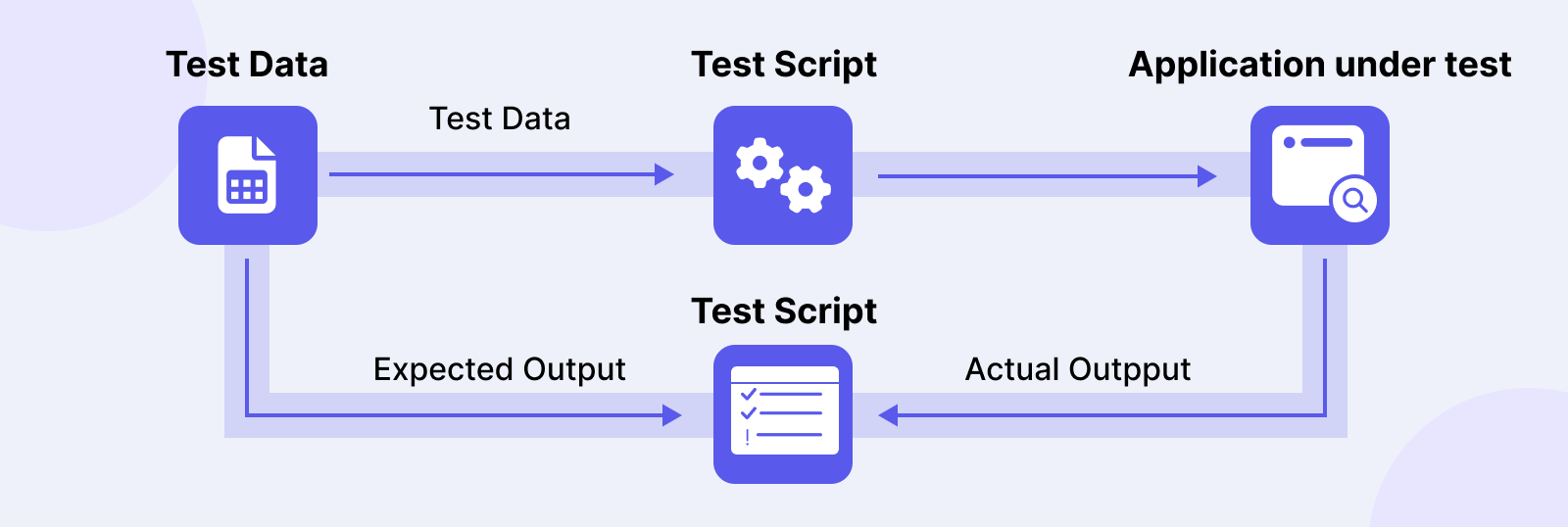
Imagine testing a login functionality where you want to check various scenarios: valid login, invalid login, login with different user roles, and so on. Instead of writing separate scripts for each scenario, DDT lets you input different usernames and passwords from your data source, automatically running the tests for all combinations.
Benefits of Data-driven Testing
For software testers, DDT brings a variety of benefits:
- Efficiency: By systematically adding new cases by updating the data source rather than writing new test scripts from the beginning, DDT significantly reduces the effort required to maintain and expand test suites.
- Reusability: Testers are allowed to reuse the same test scripts with different sets of test data during regression testing. This means they do not have to create separate scripts for each test case, reducing redundancy and maintenance efforts.
- Maintenance: Since test data is stored externally, any changes to test data can be made without changing the test script. This simplifies maintenance and reduces the risk of introducing errors when making updates.
- Scalability: As the application grows and more test scenarios are required, testers can simply add more data to their external sources without modifying the test script itself, which makes the framework highly scalable.
- Collaboration: As the framework is already established, different team members can work on test data and test scripts concurrently, leading to better collaboration and development.
- Faster test execution: By running the same test logic with multiple data sets in a batch, this framework can improve test execution speed, especially when combined with parallel execution.
- Test coverage: Using various data sets, QA teams can test a wider range of scenarios, including edge cases and boundary conditions, which can improve the overall test coverage.
As a whole, DDT provides better flexibility, maintainability, and scalability for test automation efforts. Indeed, it helps QA teams streamline the testing process and improve efficiency by separating test data from test script logic.
Data-driven Testing Framework in Selenium
Selenium can be used to create a data-driven testing framework. With Selenium, you can build the backbone for efficient and scalable data-driven testing that lets your team manage test data easily, improving the reliability and maintainability of automated tests.
The key components of this framework include:
- Test script: Test scripts are the core of the automation process and should be designed to be reusable and independent of specific data values. Specifically, these are the Selenium WebDriver scripts that interact with the web application under test.
- Test data: Test data includes the input values, expected results, and any other data required for test execution. This is the dynamic element of the framework and can be stored in various formats, including CSV files, Excel spreadsheets, or databases. Each row in the data source represents a unique set of inputs for your test script.
- Parameterization: Test data is fed into the test script as parameters. These parameters replace the hard-coded values in the script, allowing it to adapt to different scenarios. To illustrate, if you are testing a login page, parameters could include usernames and passwords.
- Reporting and logging: To monitor and report the test execution, comprehensive logging and reporting mechanisms are required, which can help in tracking test execution, identifying failures, and generating meaningful reports for analysis.
Overall, a data-driven framework makes test automation more efficient. Whether you're testing web applications, APIs, or mobile apps, mastering the data-driven framework will strengthen your Selenium test automation.
Read More: 6 Common Types of Software Test Automation Frameworks
Data-driven Testing Examples
Imagine that you are the tester of an established e-commerce company. Your goal is to ensure that the checkout process is working as expected, so you want to run a test to see if users can authenticate their account successfully on your website. We can immediately see that this test scenario poses several challenges:
- How do we ensure that we cover all possible user authentication scenarios, when there are so many variations of email, passwords, social media accounts, etc. to be checked?
- Users tend to enter their address in a highly inconsistent manner, so how do we make sure that their address formats are valid so that no issues occur during the shipping process?
- What are the conditions for valid/invalid card payments?
- What are the promotional codes/coupons available at the moment and how do we make sure that they cause no conflicts with each other?
Those challenges can easily be addressed with data-driven testing. Instead of manually typing in specific values for each scenario (which is essentially a hard-coding approach), we can simply prepare the test data for all of the possible scenarios in one database, with each row of data representing one scenario, then write a script to read test data and execute the test steps.
Data-Driven Testing With Selenium or With an Automated Testing Tool?
There are two options when it comes to data-driven testing:
- You can build a data-driven testing framework from scratch using other libraries and frameworks (Selenium, Apache POI, etc.).
- You can use an automation testing tool that comes with a data-driven testing framework that is ready to use immediately.
Let’s compare the two approaches using the example above.
In our example, you can prepare an Excel sheet with four columns: “Username”, “Password”, “Address”, and “Payment Method”. You can add as many rows as you like for different sets of user data.
Username | Password | Address | Payment Method |
|---|---|---|---|
username1 | password1 | Street 1 City 1 | Visa credit card |
username2 | password2 | Street 2 City 2 | Visa debit card |
username3 | password3 | Street 3 City 3 | PayPal |
After that, you need to create a new Java project in your IDE and add the Selenium WebDriver and TestNG libraries to your project.
Finally, write your test script to incorporate logic to read data. In our case, the script should iterate through each username and password, use them to login to the user account, and then initiate the checkout process where it fills in the address, before initiating the payment method.
If you are not familiar with coding, check out the top automation testing tools on the market that can help you automate this process without having to write a lot of code. This is the second approach. Many automated testing tools already have a DDT framework for you to use.
If you decide to go with this approach, simply create the test cases using their built-in features. Top testing tools should come with helpful test authoring features such as Built-in Keywords or Record-and-Playback, which can drastically reduce your time spent writing code. They even come with Smart Reporting features which automatically generate out-of-the-box reports with rich insights on the quality of the system under test. It’s really simple!
In other words, to do data-driven testing, follow the following steps:
- Prepare your test data in the form of Excel, CSV, JSON, or a database.
- Set up a testing framework that supports data-driven testing, such as TestNG or JUnit, along with libraries like Apache POI or OpenCSV. You can also choose a tool with a built-in data-driven testing framework, such as Katalon, Leapwork, or SmartBear TestComplete, so you can start testing right away without building everything from scratch.
- Create a test case with the framework or tool of your choice. Incorporate the logic to read data and execute test steps accordingly.
- Execute the test script and generate a report to capture test results. If your testing framework doesn't generate test reports automatically, you'll need to implement that too. For testing tools, this feature usually comes ready to use.
- Review, troubleshoot, and debug.
Let’s find out how we can do data-driven testing with Selenium and with Katalon, a comprehensive automation testing tool.
How To Do Data-Driven Testing With Katalon
Katalon is a comprehensive test automation platform that lets you create, manage, execute, and report on test cases across web, desktop, mobile, and APIs. Katalon comes with a data-driven testing framework already built in, so all you have to do is create an account and download Katalon Studio, an IDE that lets you build automated tests with or without code.
Once you've downloaded Katalon Studio, launch it and click the Create new Test Case button.
You can craft test cases from the wide variety of keywords we offer (which are essentially code snippets to perform specific actions). Here are just a few examples of them: Navigate to URL, Open Browser, Refresh, Right Click, Scroll, Send Keys, etc.
Read more: Create test cases with Katalon Studio
Here we have created a test case called “Find a place”, which includes the following:
- Open browser (Chrome).
- Navigate to the URL. In this case we chose Airbnb.
- Click on Search.
- Enter text for a city.
- Click Search.
This test case is put under the DDT with MS Excel Files test suite.
Let’s prepare a data file in Excel with two columns: “City” and “Expected Result”. The values Atlanta, New York, and Tokyo will be dynamically added to the script as we execute.
After that, in the Data File section let’s create new test data called excelfile_100cities. Once done, you should arrive at the test data interface, and you can click Browse to import the Excel file we’ve just created into Katalon Studio.
Once imported, we go back to the DDT With MS Excel Files test suite. Click Add and choose the newly imported Excel to bring it to your test suite. After that, click Map All, and Katalon automatically maps all of the columns in your Excel file to the corresponding variable in your test script.
Finally, click Run, and you’re good to go!
As the test gets executed, you should see that it automatically opens the browser, navigates to Airbnb, searches for the exact location we specify in our Excel file, and checks for the available spaces there.
What’s even better is that if your project is connected to Katalon TestOps, the test results are automatically uploaded there once execution is done for management and reporting purposes. For more information, you can check out Data-driven testing with Katalon Studio.
You can even watch a detailed guide on how to do data-driven testing at Katalon Academy.
You can see how doing data-driven testing in a tool is much simpler than the traditional scripted approach. Another advantage tools have over libraries is self-healing, which automatically repairs broken locators during regression test runs. With Selenium, you have to fix each broken script by hand, which is time-consuming. Read more in our Katalon vs. Selenium detailed comparison.
How To Create a Data-Driven Framework in Selenium Using Apache POI
Apache POI is an open-source Java library designed to help developers work with Microsoft Office file formats such as Excel, Word, and even PowerPoint documents. It enables you to interact with data sets, and when paired with Selenium, an automation testing framework, you can create data-driven test cases that read data from spreadsheets and use it to automate web interactions.
Step 1: Download your IDE
First, you need to set up your development environment for creating and running Selenium automation tests. You can use popular Java IDEs like Eclipse and IntelliJ, and then, in their starting interface, you can navigate to File > New > Project to set up a new project.
Make sure to also download the JAR files for Selenium WebDriver and Apache POI. If your project uses Maven or Gradle, you can add the selenium-java and poi-ooxml dependencies instead of downloading JARs by hand.
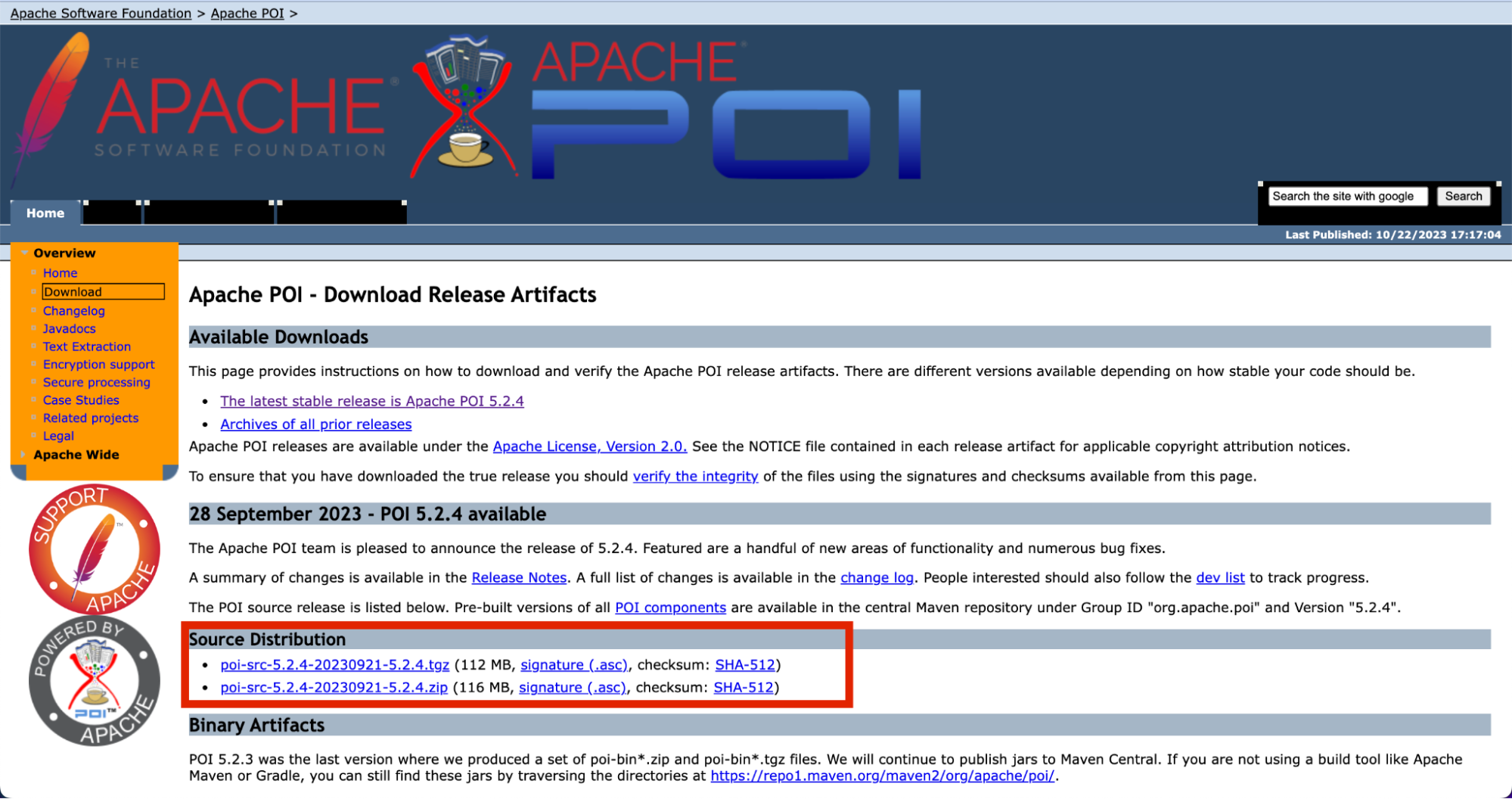
Step 2: Install the libraries
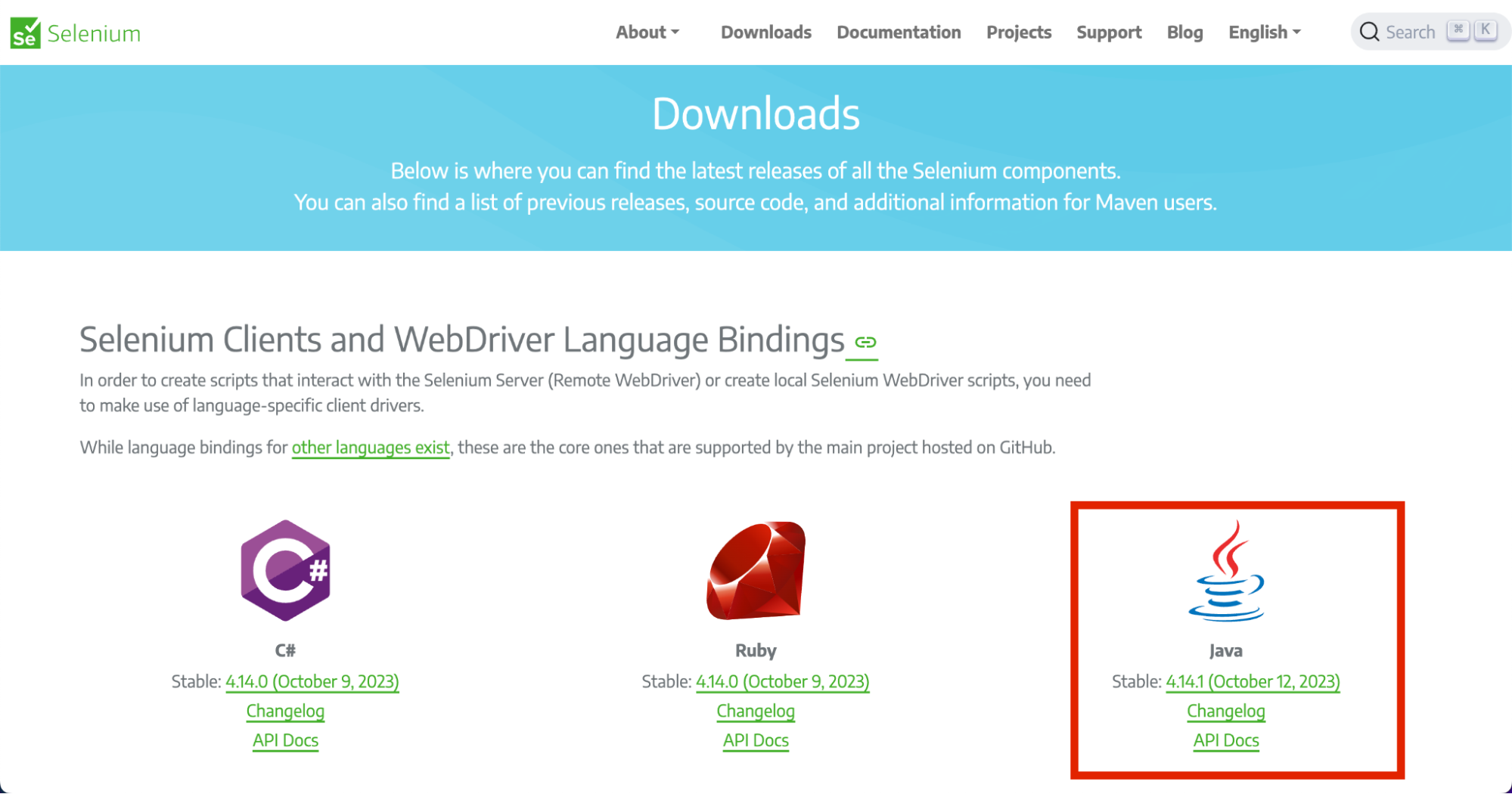
In Eclipse:
- Right-click on your project in the Project Explorer.
- Select "Build Path" > "Configure Build Path."
- In the "Libraries" tab, click on the "Add External JARs" button.
- Browse to the location where you saved the downloaded JAR files and add them to your project.
- Click "Apply" and then "OK" to save the changes.
In IntelliJ IDEA:
- Go to File > Project Structure.
- Select Libraries in the left panel.
- Click the + button and choose Java.
- Select the JAR files you downloaded and click OK, and IntelliJ will add them to your project.
You are now ready to use Selenium WebDriver to automate web tests and Apache POI to work with Excel files in your project.
Step 3: Create a test data Excel file
Simply prepare your test data in a spreadsheet. Each row represents a different test case, and the data in each column corresponds to the parameters you want to pass to your test cases. To know what type of data you should populate your sheet with, it is recommended to write out your test plan and test strategy document first. They give you a comprehensive view over your testing objectives.
Step 4: Create a data-driven test script
Once it’s ready, you can write your Selenium test script to automate your test cases, but instead of hard-coding the test data, you can read it from the Excel file you prepared. To do it, you need to create Workbook and Sheet objects to read the data.
Here’s an example of a test script written in Java using Selenium and Apache POI to test the login feature. Let’s assume that you have a ‘username’ and ‘password’ field in your XLSX file called “data.xlsx”, and the site you want to test the login feature is called “https://testwebsite.com”:
import org.apache.poi.ss.usermodel.DataFormatter;
import org.apache.poi.ss.usermodel.Row;
import org.apache.poi.ss.usermodel.Sheet;
import org.apache.poi.ss.usermodel.Workbook;
import org.apache.poi.xssf.usermodel.XSSFWorkbook;
import org.openqa.selenium.By;
import org.openqa.selenium.WebDriver;
import org.openqa.selenium.chrome.ChromeDriver;

import java.io.FileInputStream;
import java.io.IOException;

public class DataDrivenTest {
    public static void main(String[] args) throws IOException {
        // Selenium 4.6+ downloads a matching ChromeDriver automatically (Selenium Manager)
        WebDriver driver = new ChromeDriver();
        DataFormatter formatter = new DataFormatter();

        try (FileInputStream file = new FileInputStream("path/to/your/excel/data.xlsx");
             Workbook workbook = new XSSFWorkbook(file)) {

            Sheet sheet = workbook.getSheet("Sheet1");

            // Row 0 holds the headers, so start at row 1
            for (int rowNum = 1; rowNum <= sheet.getLastRowNum(); rowNum++) {
                Row row = sheet.getRow(rowNum);
                if (row == null) continue;

                // DataFormatter reads text and numeric cells as strings
                String username = formatter.formatCellValue(row.getCell(0));
                String password = formatter.formatCellValue(row.getCell(1));

                // Execute the test with the current set of data
                driver.get("https://testwebsite.com");
                driver.findElement(By.id("username")).sendKeys(username);
                driver.findElement(By.id("password")).sendKeys(password);
                driver.findElement(By.id("login-button")).click();

                // Add verification/assertion steps here
            }
        } finally {
            driver.quit();
        }
    }
}
Note that the previous script doesn't include a test reporting mechanism. The updated version below uses the built-in java.util.logging package to record each result. It also waits for the dashboard URL instead of checking it immediately after the click, and it logs only the username so passwords never end up in log files:
import org.apache.poi.ss.usermodel.DataFormatter;
import org.apache.poi.ss.usermodel.Row;
import org.apache.poi.ss.usermodel.Sheet;
import org.apache.poi.ss.usermodel.Workbook;
import org.apache.poi.xssf.usermodel.XSSFWorkbook;
import org.openqa.selenium.By;
import org.openqa.selenium.TimeoutException;
import org.openqa.selenium.WebDriver;
import org.openqa.selenium.chrome.ChromeDriver;
import org.openqa.selenium.support.ui.ExpectedConditions;
import org.openqa.selenium.support.ui.WebDriverWait;

import java.io.FileInputStream;
import java.io.IOException;
import java.time.Duration;
import java.util.logging.FileHandler;
import java.util.logging.Level;
import java.util.logging.Logger;
import java.util.logging.SimpleFormatter;

public class DataDrivenTest {
    private static final Logger logger = Logger.getLogger(DataDrivenTest.class.getName());

    public static void main(String[] args) throws IOException {
        // Write readable log entries to test_report.log
        FileHandler fileHandler = new FileHandler("test_report.log");
        fileHandler.setFormatter(new SimpleFormatter());
        logger.addHandler(fileHandler);

        WebDriver driver = new ChromeDriver();
        WebDriverWait wait = new WebDriverWait(driver, Duration.ofSeconds(10));
        DataFormatter formatter = new DataFormatter();

        try (FileInputStream file = new FileInputStream("path/to/your/excel/data.xlsx");
             Workbook workbook = new XSSFWorkbook(file)) {

            Sheet sheet = workbook.getSheet("Sheet1");

            for (int rowNum = 1; rowNum <= sheet.getLastRowNum(); rowNum++) {
                Row row = sheet.getRow(rowNum);
                if (row == null) continue;

                String username = formatter.formatCellValue(row.getCell(0));
                String password = formatter.formatCellValue(row.getCell(1));

                driver.get("https://testwebsite.com");
                driver.findElement(By.id("username")).sendKeys(username);
                driver.findElement(By.id("password")).sendKeys(password);
                driver.findElement(By.id("login-button")).click();

                // Verify the login by waiting for the dashboard URL
                try {
                    wait.until(ExpectedConditions.urlToBe("https://testwebsite.com/dashboard"));
                    logger.log(Level.INFO, "Test case PASSED: username=" + username);
                } catch (TimeoutException e) {
                    logger.log(Level.SEVERE, "Test case FAILED: username=" + username);
                }
            }
        } finally {
            driver.quit();
            fileHandler.close();
        }
    }
}
Conclusion
Data-driven testing is a great way to improve efficiency in highly repetitive test scenarios. You can build a data-driven testing framework from scratch with Selenium and supporting libraries, which is highly customizable but takes real effort to maintain when scripts break. Or you can use an automated testing tool with a prebuilt data-driven testing framework that's ready to use right away.
Frequently asked questions
It's a test automation setup where test data lives in external sources such as Excel, CSV, or a database, and the same test script reads each row and runs once per data set.
Apache POI is the most common Java library for reading and writing Excel files in Selenium data-driven tests. For CSV files, OpenCSV is a popular option.
No. You can import a data file, attach it to a test suite, and map its columns to test case variables without writing code, though you can also script it if you prefer.

Test everything. Ship with confidence.
From generating test cases to spotting failures, Katalon's AI works across your entire pipeline, automatically.
