


A step-by-step cookbook for Katalon AI Assistant in Katalon Studio: generate custom keywords from plain-language prompts, reuse them in new scripts, and generate CSV test data for data-driven testing.
As a software tester, you constantly look for ways to streamline your workflow and enhance your testing capabilities. Katalon AI Assistant, an intelligent feature in Katalon Studio, is designed to make your life easier by automating repetitive tasks and generating efficient test scripts. This blog will serve as your cookbook, providing you with step-by-step instructions on how to get the most out of Katalon AI Assistant. We'll cover two key use cases: data-driven testing with custom keywords and reusing AI-generated test cases and custom keywords.
Data-driven testing with Katalon AI Assistant
Data-driven testing allows you to execute test scripts with multiple sets of data, making your tests more comprehensive and reliable. Here's how you can generate and reuse a custom keyword with Katalon AI Assistant:
Step 1: Generate a custom keyword
Start by navigating to the Script tab. In the Keywords folder, create a new class named MyCustomKeyword.
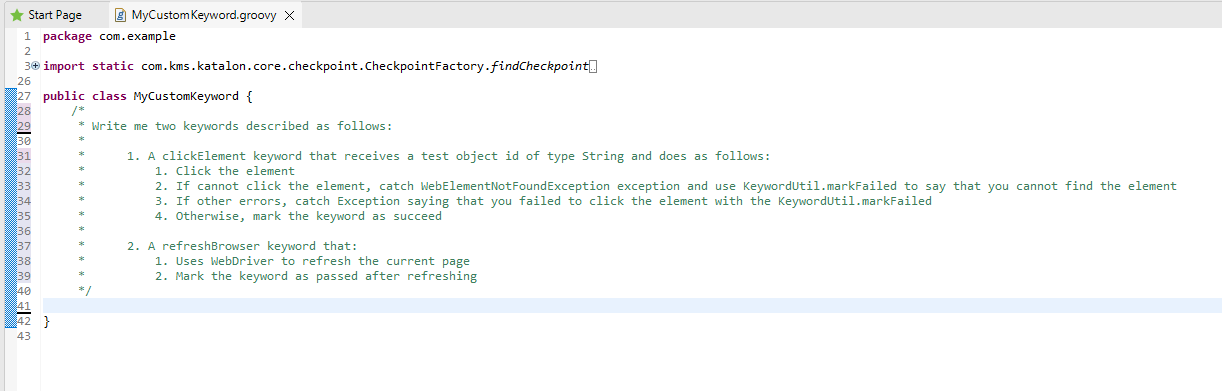
Prepare a prompt that explains the behavior of your custom keyword in plain language. Here is an example.
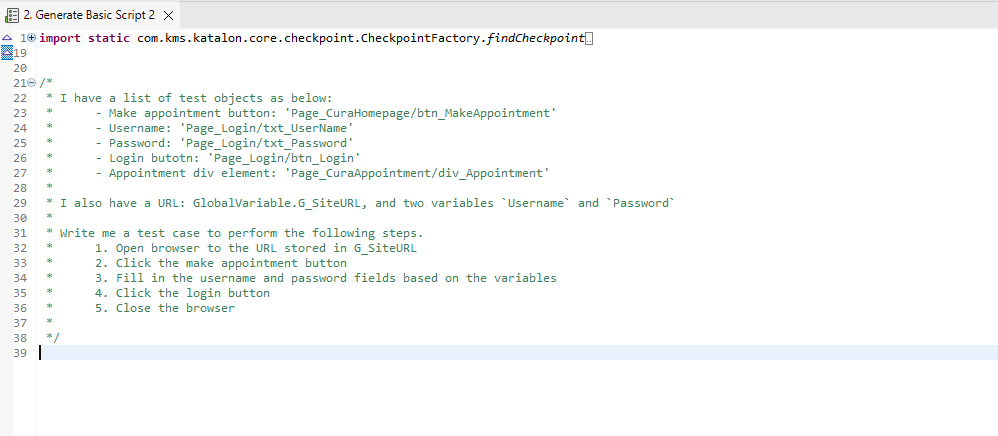
Step 2: Generate the code
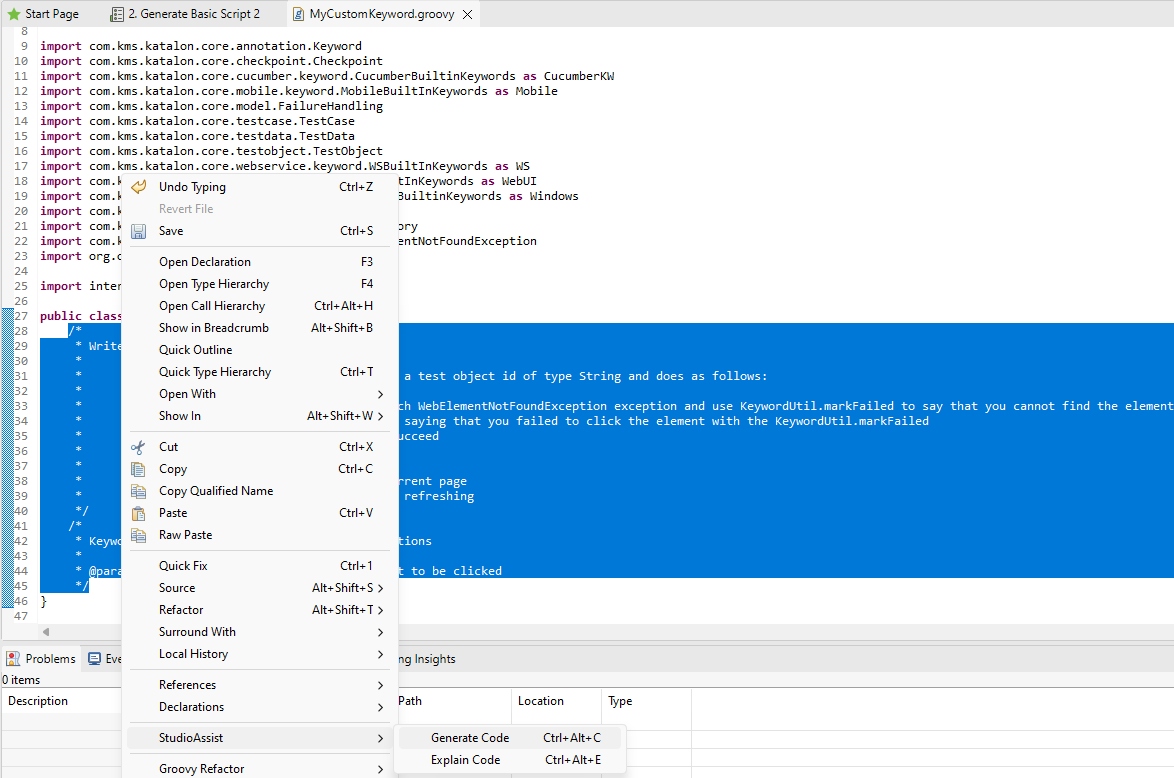
Highlight your prompt and trigger Katalon AI Assistant to generate the code. You can do this by right-clicking and selecting Katalon AI Assistant → Generate Code or using the hotkeys Ctrl + Shift + C for Windows or ^ + ⌥ + C for macOS.
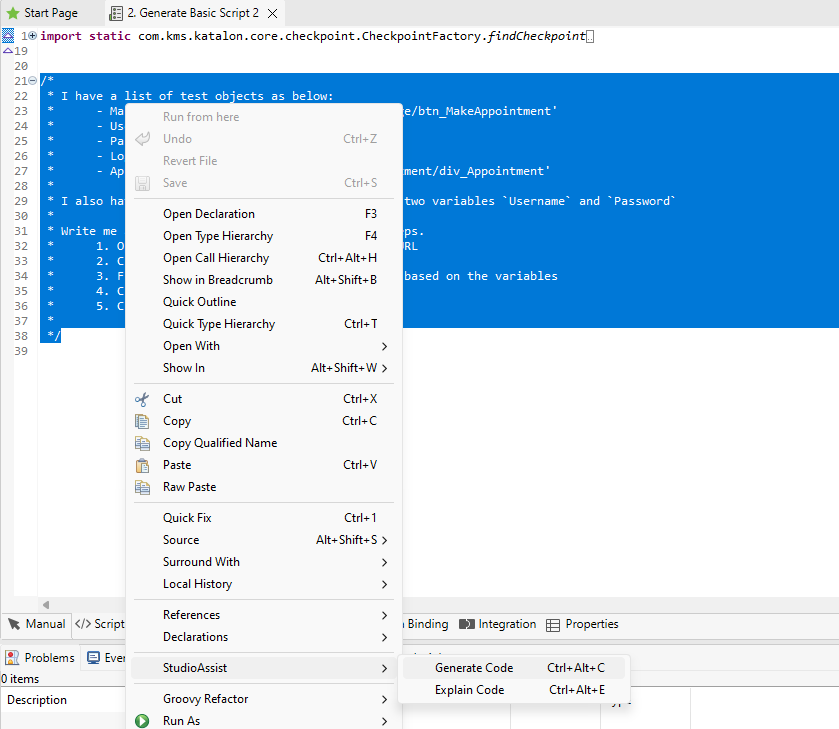
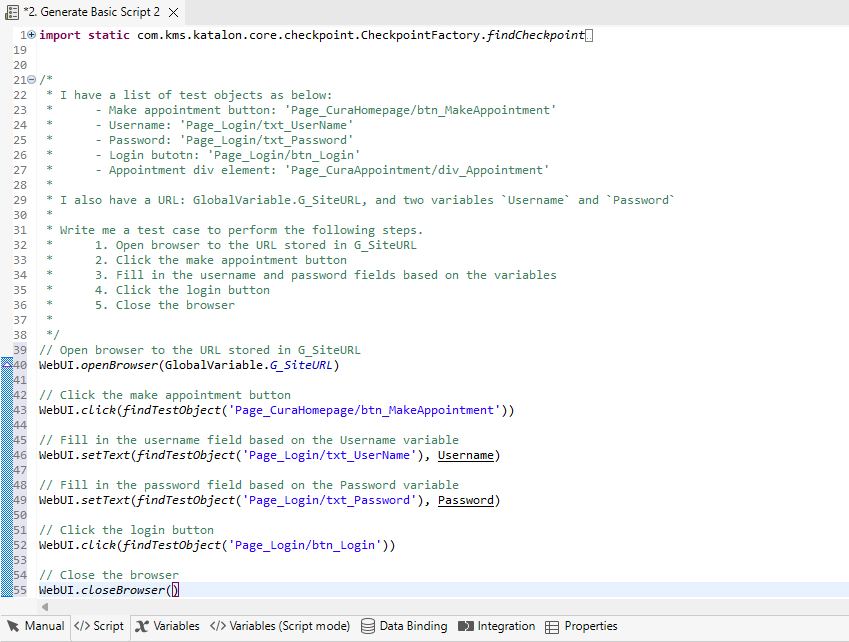
Step 3: Review the generated keyword
Katalon AI Assistant will generate the custom keyword and place it right below your prompt.
Step 4: Execute the script
Now execute the script in Studio to ensure it works as expected.
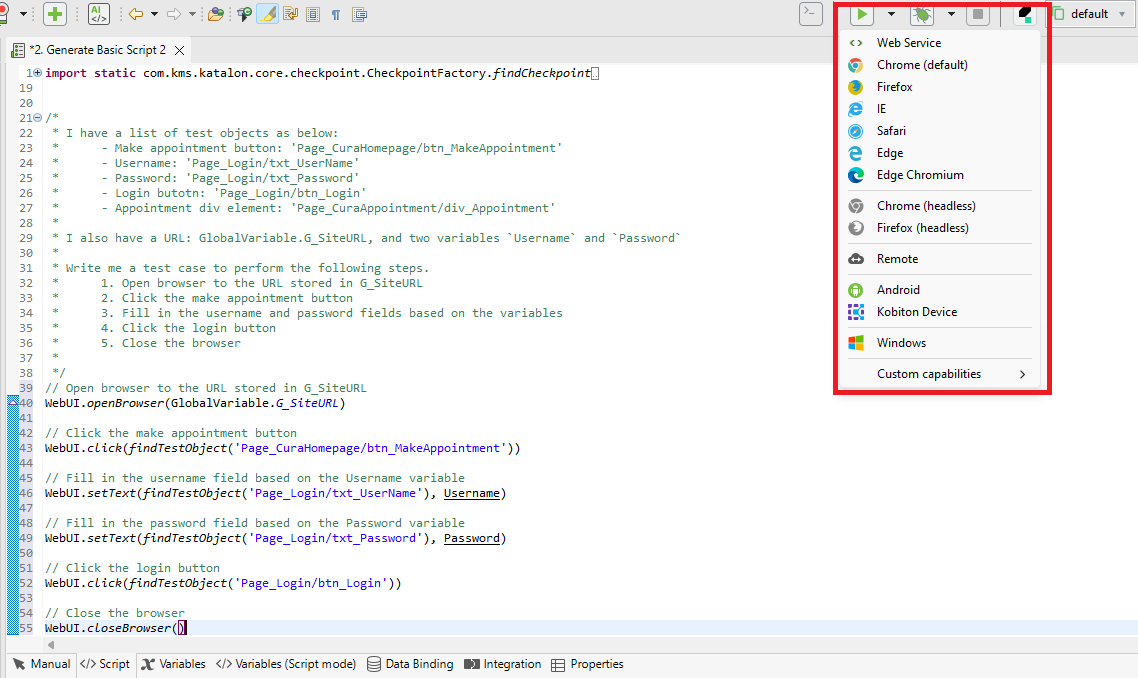
Reusing AI-generated test cases and custom keywords
Reusability is key to efficient testing. Katalon AI Assistant enables you to reuse generated custom keywords across different test scripts, saving you time and effort. Here’s how:
Step 1: Prepare your prompt
Prepare a prompt that mentions the custom keyword you want to reuse. For example, to reuse the clickElement custom keyword, your prompt could be:
Use the clickElement custom keyword to click on the submit button of the login form.
Step 2: Generate the test script
Highlight your prompt and trigger Katalon AI Assistant to generate the code, just as you did before.
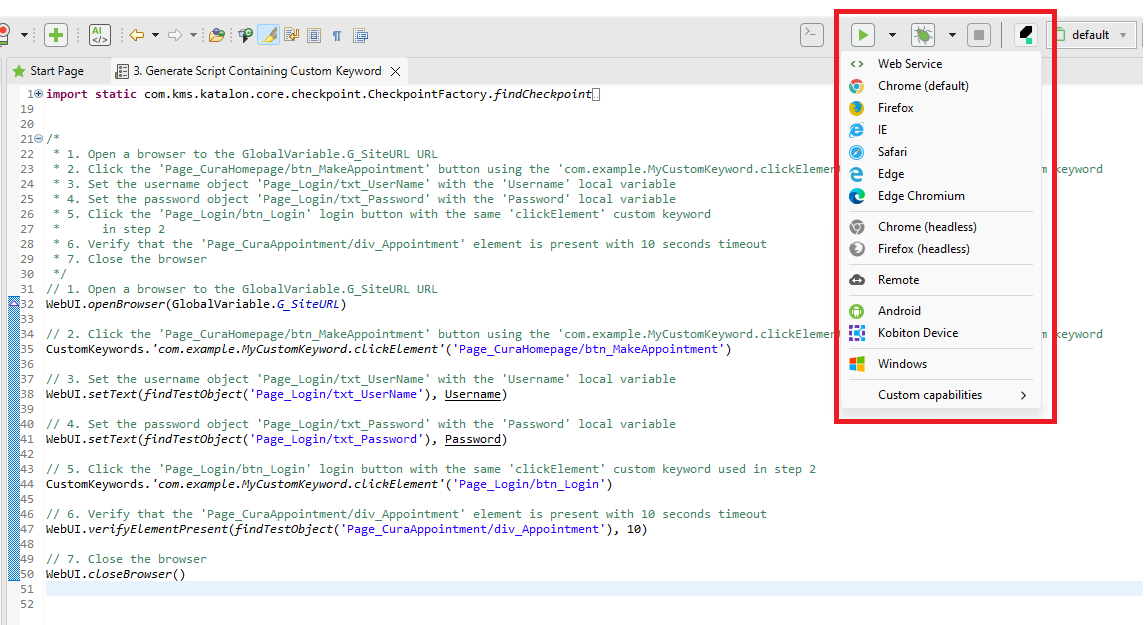
Katalon AI Assistant will generate a test script that incorporates the previously created custom keyword.
Step 3: Execute your test script
Finally, execute your test script to ensure it works as expected.
Advanced use case: Generate test data and perform data-driven testing
In this advanced use case, you'll learn how to generate test data and perform data-driven testing using Katalon AI Assistant.
Step 1: Generate test data
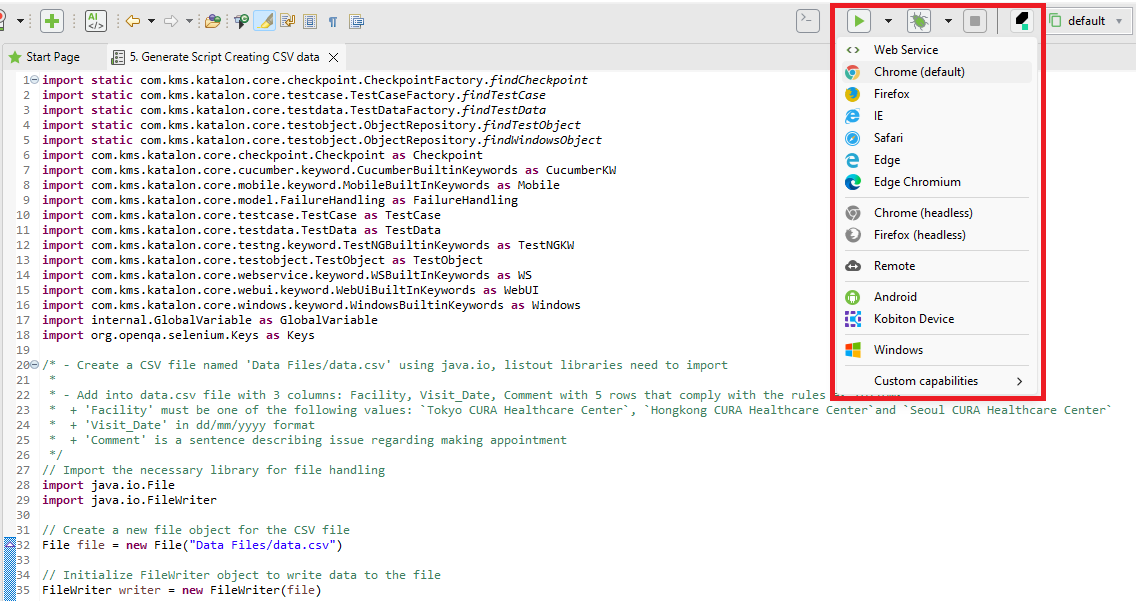
Prepare a prompt in plain language requesting Katalon AI Assistant to generate test data in CSV form. For example:
Generate test data for user login credentials and save it in CSV format.

Step 2: Generate the code
Highlight your prompt and trigger Katalon AI Assistant to generate the code.
Step 3: Execute the script
Once the script is generated, execute it to create the test data. The data will be saved as Data Files/data.csv inside your project. You can access the data in the Data Files folder.
Prompt Katalon AI Assistant to reuse the generated test data for Data-driven testing
For more details on Data-driven testing at test case level in Katalon Studio, see here.
Step 4: Create test data in Katalon Studio
In the Test Explorer, create a Test Data by right-clicking on the Data Files folder and selecting New Test Data. Browse to the generated test data, and it will be loaded into a table.
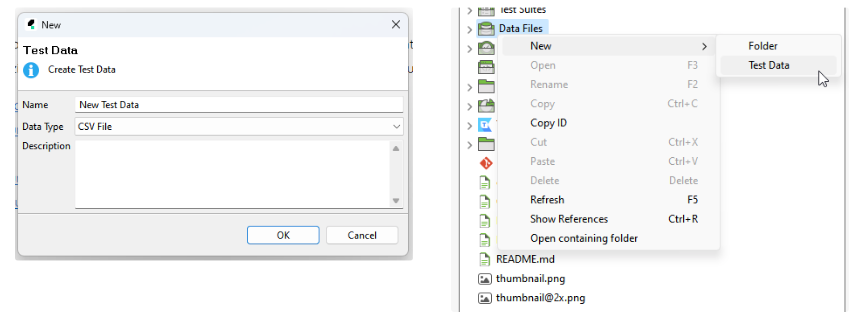
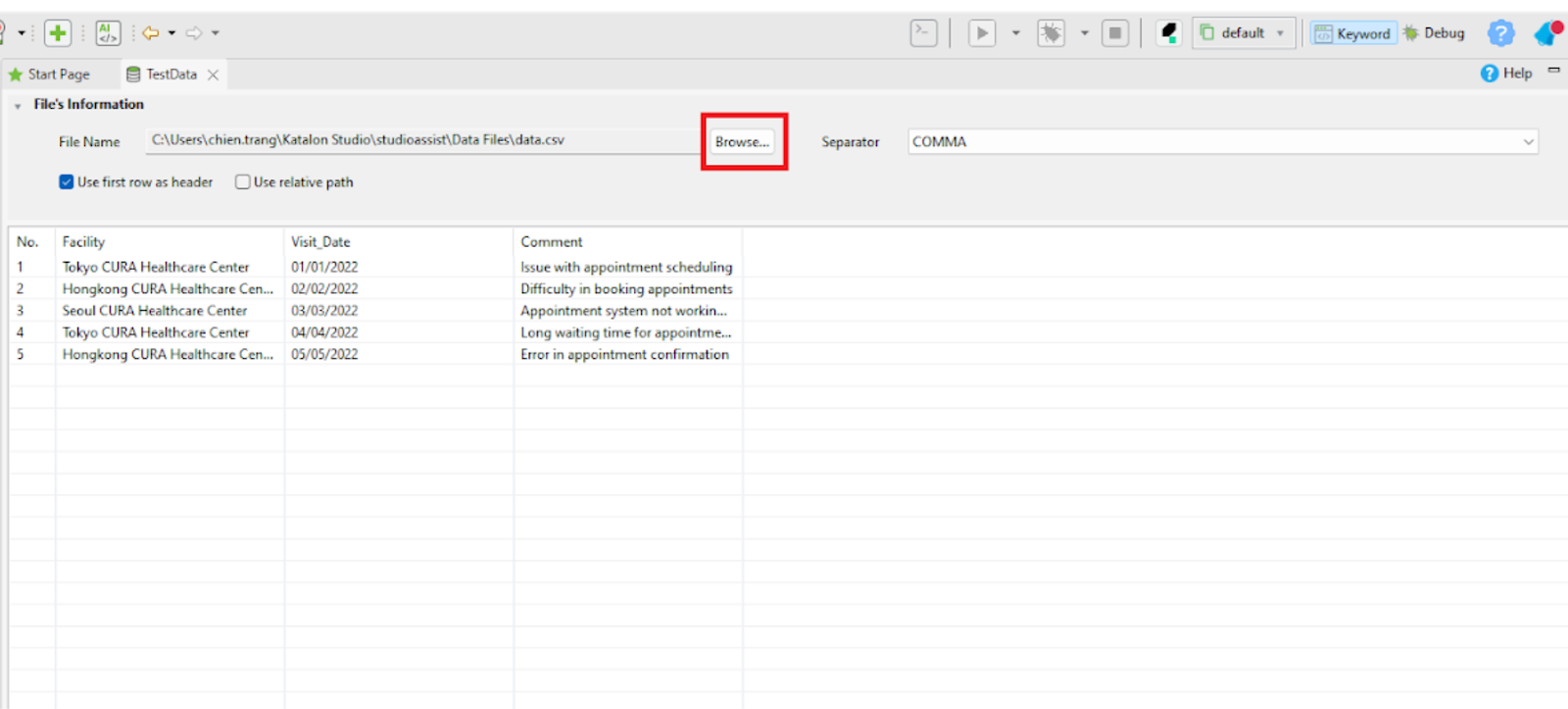
Step 5: Create a new test case
Create a new test case and go to the Data Binding tab. Click Add to bind the test data to your test case. Select the test data you created in the Data Files folder and click OK.
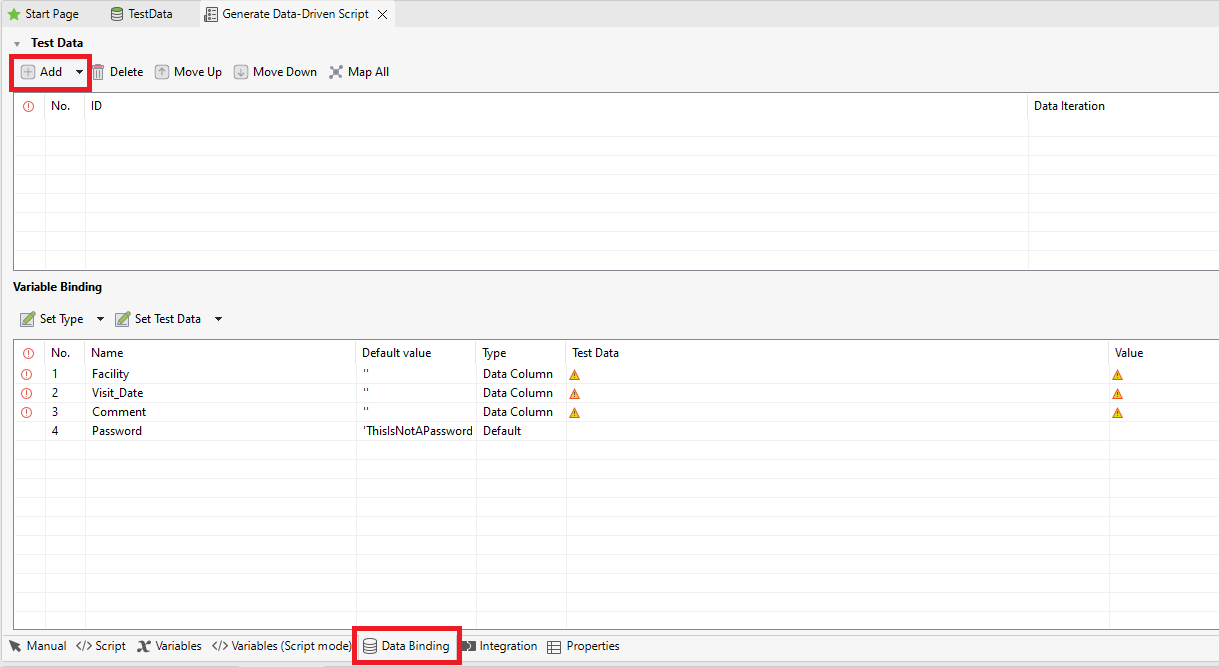
Step 6: Map all variables
Click Map All to populate the data in the Variable Binding table.
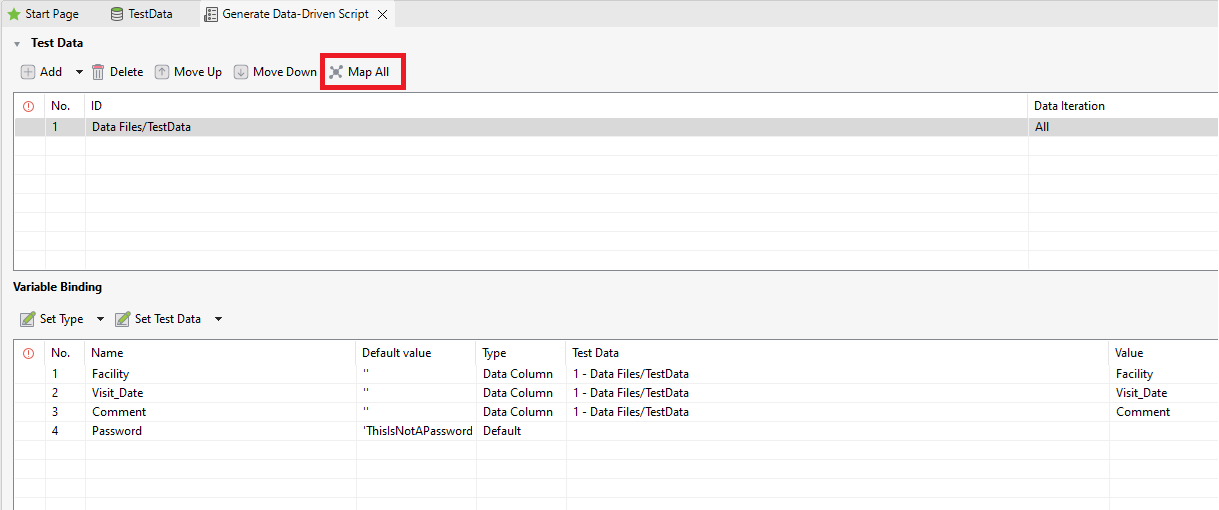
Step 7: Write a prompt for data-driven testing
Go to the Script tab and write a prompt in plain language to use the test data. For example:
Use the test data to perform a login test for multiple users.
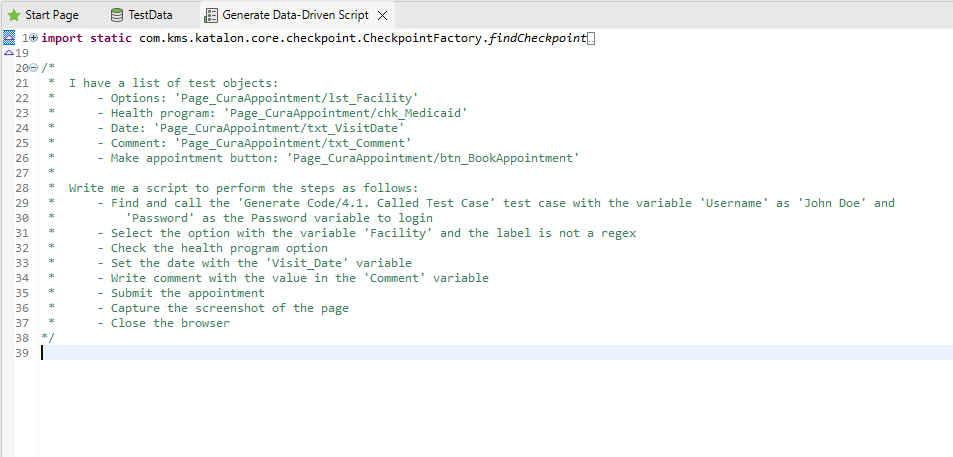
Step 8: Generate the test script
Highlight the prompt and trigger Katalon AI Assistant to generate the code. Katalon AI Assistant will generate a test script using the previously created test data.
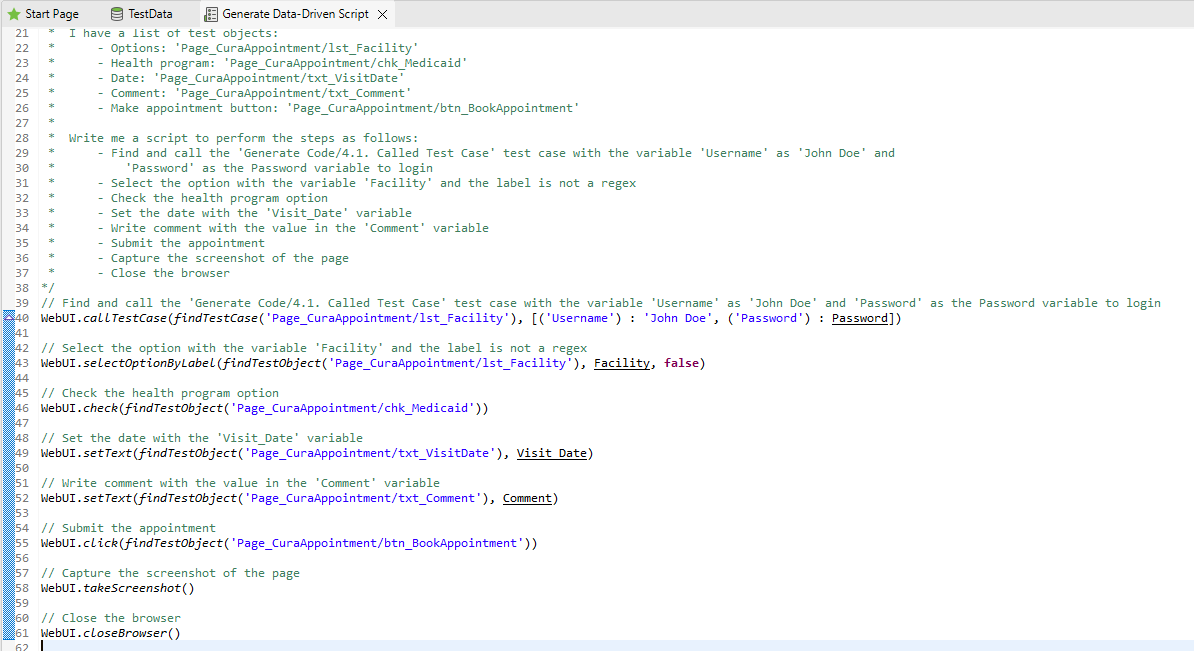
Step 9: Execute your test script
Execute your test script to verify it works as expected.
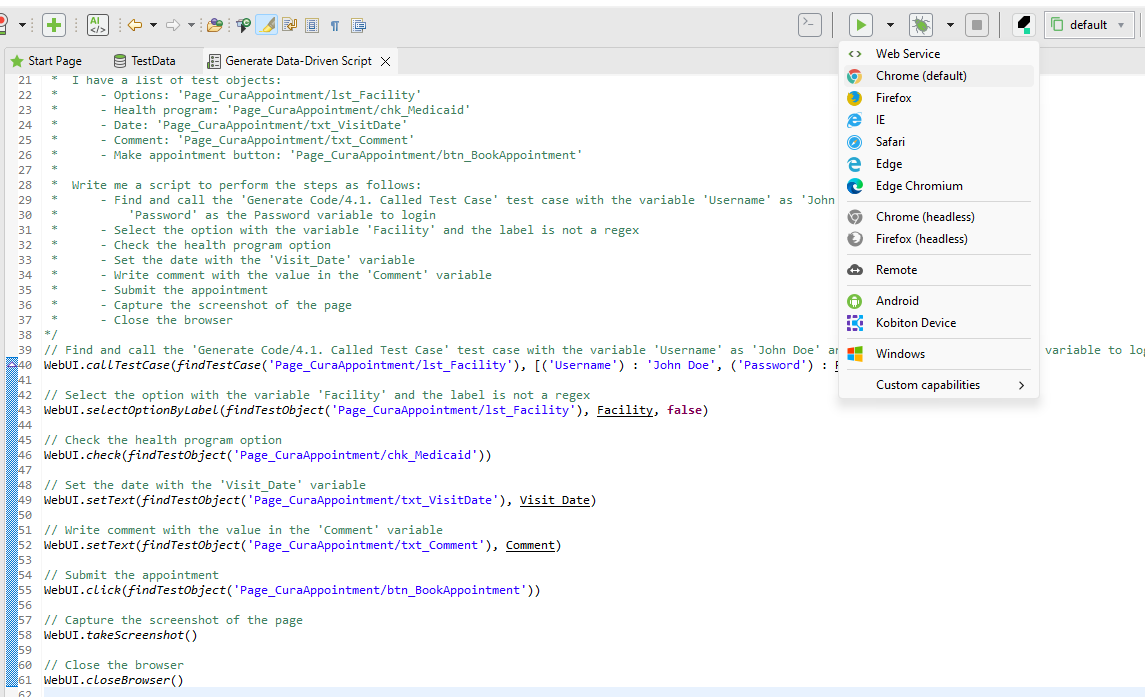
You May Be Interested In:
Conclusion
Katalon AI Assistant can significantly improve your testing efficiency. By using its capabilities for data-driven testing and reusing AI-generated test cases, you can save time and ensure your tests are thorough and reliable.
Ready to streamline your testing process? Try Katalon AI Assistant now and experience the difference.
Frequently asked questions
You write a natural-language prompt inside a keyword class, highlight it, and let Katalon AI Assistant automatically generate the corresponding custom keyword code, which you can immediately review and execute.
By referencing the previously created keyword in new prompts, Katalon AI Assistant generates scripts that incorporate the existing keyword, making reuse easier and reducing repetitive work.
Katalon AI Assistant can generate test data in CSV format via prompt and store it in the project’s Data Files. Test cases can then bind these data rows to variables for multi-user or multi-input scenarios.
Create a Test Data object in the Data Files folder, bind it in the test case’s Data Binding tab, map variables, and use Katalon AI Assistant to generate a script that consumes the data set.
It automates keyword creation, script generation, test data production, and reuse patterns, reducing manual coding effort and making data-driven and reusable test architectures faster to implement.


Test everything. Ship with confidence.
From generating test cases to spotting failures, Katalon's AI works across your entire pipeline, automatically.
