


Screenshots make test failures easier to debug. Here's how to take one in Selenium with Java and Python, plus a no-code option in Katalon Studio.
Screenshots make test failures much easier to debug. Selenium WebDriver can capture the browser at any point during a test run.
This guide covers 3 ways to take a screenshot:
- Guide 1: Selenium with Java
- Guide 2: Selenium with Python
- Guide 3: Katalon Studio
You'll need the Selenium library installed first. If you don't have it yet, follow the Selenium installation guide.
Why take a screenshot in Selenium?
When a test fails, you need to know why, without rerunning it by hand. A screenshot shows exactly what the browser displayed at the moment of failure. You can spot a broken component, an error message, or the wrong page at a glance.
Screenshots also prove that each step of a flow looked right, which speeds up reviews and debugging.
Take a screenshot when:
- The application behaves unexpectedly
- An assertion fails
- Selenium can't find an element
- A wait times out before an element loads
- You need a visual record of the UI
What you need before you start
Before you start, you need:
- Selenium WebDriver: drives the browser. You need a running WebDriver instance to take a screenshot.
- A browser driver: such as ChromeDriver for Chrome or GeckoDriver for Firefox. Since Selenium 4.6, Selenium Manager downloads the right driver automatically, so you don't need to set a driver path or install a separate driver manager.
- The screenshot method for your language: getScreenshotAs() in Java, or save_screenshot() in Python.
- A save location: a folder your script can write to.
How does Selenium take a screenshot?
- Your script asks WebDriver for a screenshot.
- The browser driver captures the visible page as a PNG.
- Selenium returns the image, and your script saves it or attaches it to a report.
The screenshot shows exactly what's on screen at that moment, including pop-ups, error messages, overlays, or a page that hasn't finished loading.
Guide 1. Take a screenshot in Selenium using Java
In Java, use Selenium's TakesScreenshot interface:
TakesScreenshot screenshot = (TakesScreenshot) driver;
File srcFile = screenshot.getScreenshotAs(OutputType.FILE);
Here's a complete example:
import java.io.File;
import java.io.IOException;

import org.apache.commons.io.FileUtils;
import org.openqa.selenium.OutputType;
import org.openqa.selenium.TakesScreenshot;
import org.openqa.selenium.WebDriver;
import org.openqa.selenium.chrome.ChromeDriver;

public class ScreenshotExample {
    public static void main(String[] args) {
        // Selenium Manager (Selenium 4.6+) finds and downloads ChromeDriver for you
        WebDriver driver = new ChromeDriver();

        try {
            driver.get("https://katalon.com/katalon-studio");

            TakesScreenshot screenshot = (TakesScreenshot) driver;
            File srcFile = screenshot.getScreenshotAs(OutputType.FILE);

            File destFile = new File("/path/to/screenshot.png");
            FileUtils.copyFile(srcFile, destFile);

            System.out.println("Screenshot saved successfully!");
        } catch (IOException e) {
            System.out.println("An error occurred while saving the screenshot.");
            e.printStackTrace();
        } finally {
            driver.quit();
        }
    }
}
What the code does:
- Starts Chrome. Selenium Manager handles the driver.
- Opens the page with driver.get.
- Casts the driver to TakesScreenshot and captures the page as a file.
- Sets the output path. Replace /path/to/screenshot.png with your own location.
- Saves the file with FileUtils.copyFile (from Apache Commons IO).
- Catches any IOException while saving.
- Closes the browser in the finally block.
Guide 2. Take a screenshot in Selenium using Python
In Python, use the save_screenshot() method:
driver.save_screenshot("screenshot.png")Here's a complete example:
from selenium import webdriver

# Selenium Manager (Selenium 4.6+) finds and downloads ChromeDriver for you
driver = webdriver.Chrome()

try:
    driver.get("https://katalon.com/katalon-studio")

    screenshot_path = "screenshot.png"
    driver.save_screenshot(screenshot_path)

    print("Screenshot saved successfully!")
finally:
    driver.quit()
What the code does:
- Starts Chrome. Selenium Manager handles the driver.
- Opens the page with driver.get.
- Saves the screenshot with driver.save_screenshot(), using the path in screenshot_path.
- Closes the browser in the finally block, even if something fails.
Guide 3. Take a screenshot with Katalon Studio
The free version of Katalon Studio includes Record-and-Playback. You perform the steps by hand, and Katalon turns them into an automated test. You can then add keywords from Katalon's library or switch to Script mode for full control.
Download Katalon Studio for free
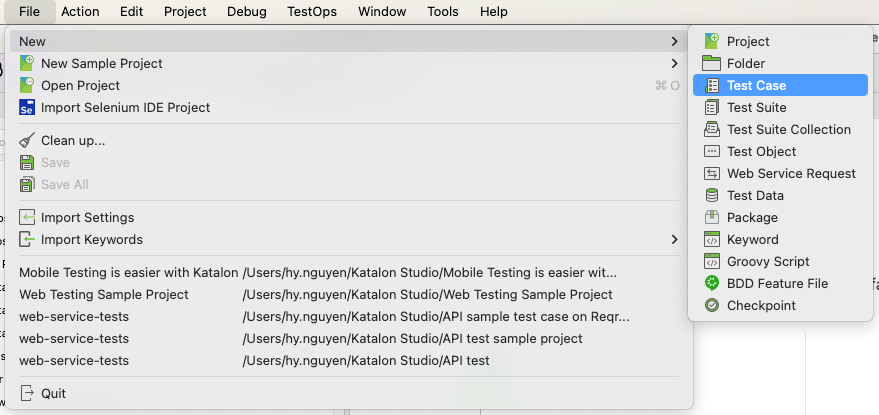
Here's how to build a test that takes a screenshot of a YouTube search. After you install Katalon Studio, go to File > New > Test Case.
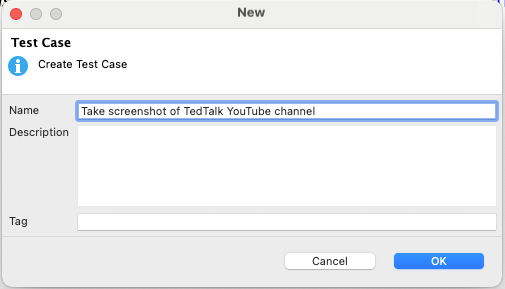
Give your test case a name:
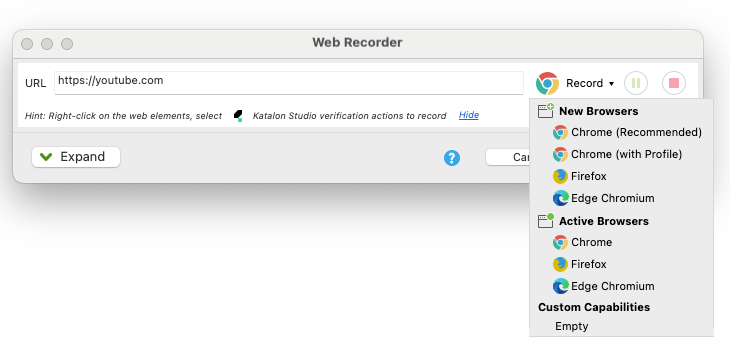
Next, open Record-and-Playback. Enter the URL to record, choose a browser, and click Start.
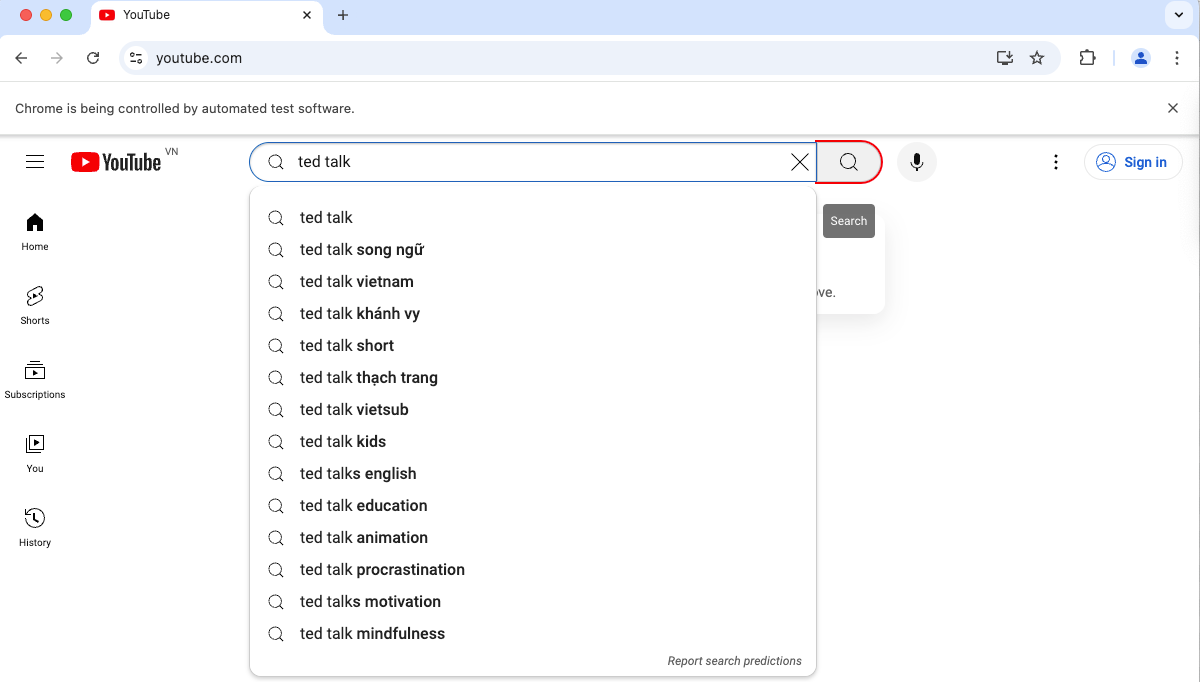
Now perform your steps. Katalon records each one and turns it into an editable test. In this example, we recorded:
- Go to YouTube
- Type "Ted Talk"
- Click Search
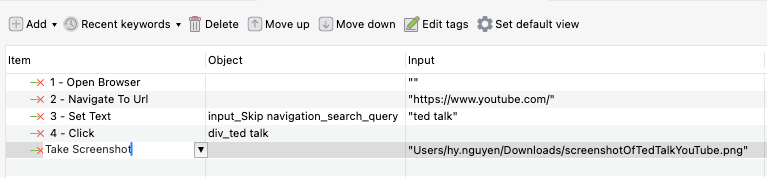
Here's the recorded test in Katalon Studio. To add a step, click Add and fill in the Input column. Here we added the Take Screenshot keyword with the file path for the screenshot. If screenshots don't appear in your reports, see how to fix screenshots in Katalon reports.
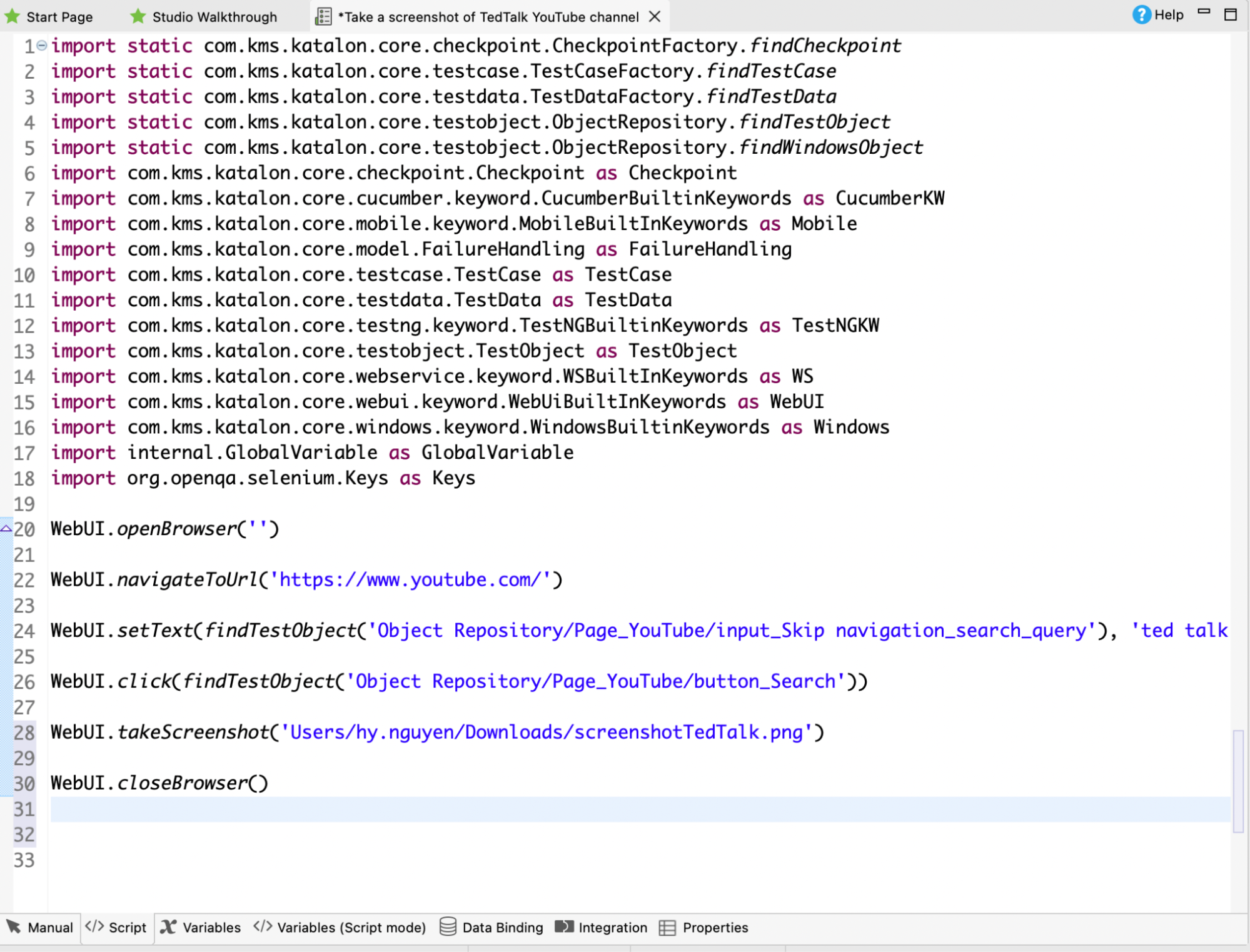
Prefer code? Switch to Script mode with the tab at the bottom. Here we added a TakeScreenshot command with the file path, followed by CloseBrowser.
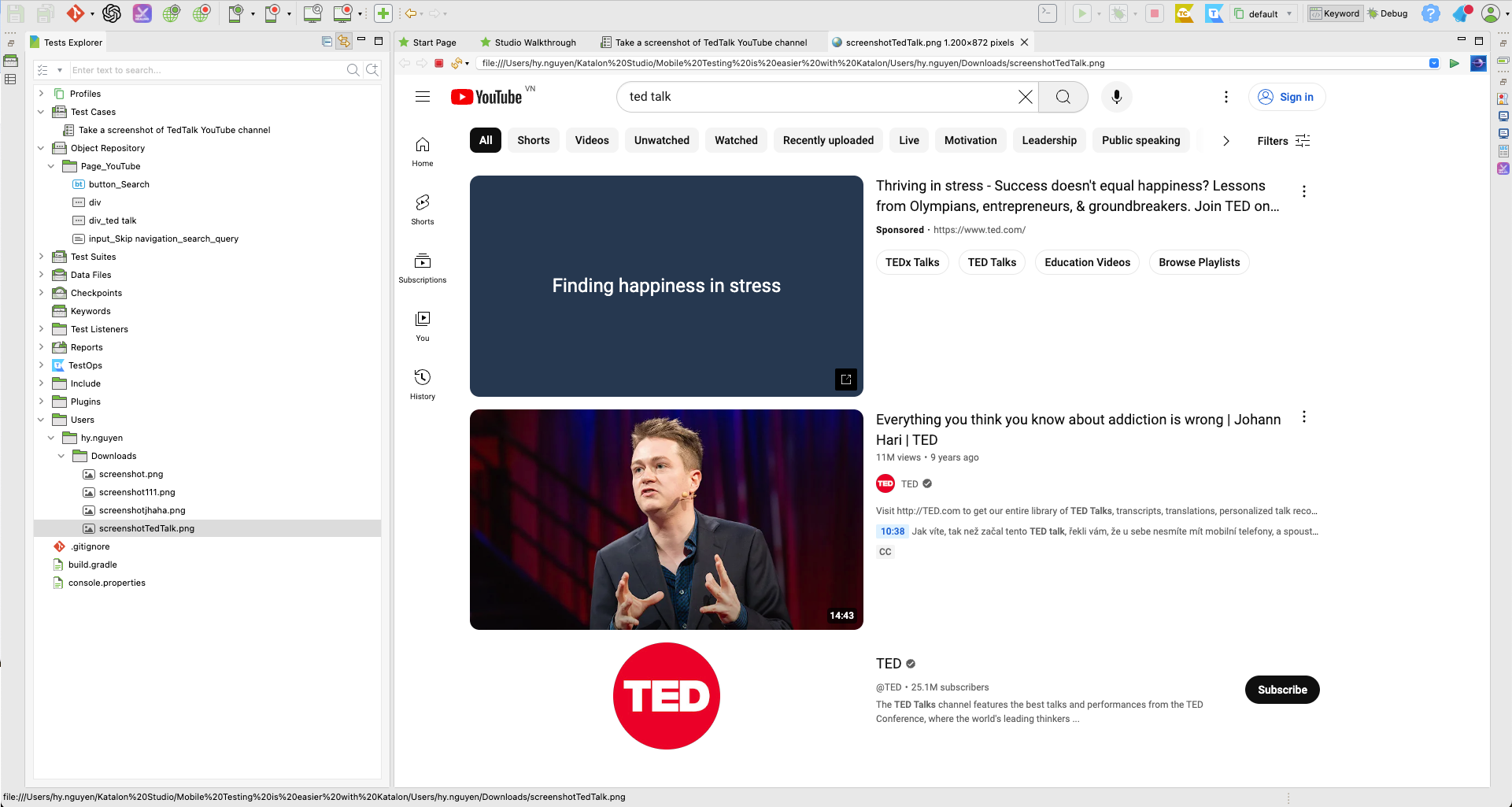
Every object you record is saved in the Object Repository, so you can reuse it across test cases. Test suites, data files, and screenshots are organized for you:
Screenshots help you:
- Capture the page when a test fails
- Check UI elements visually
- Document test progress and results
- Provide evidence for audits and compliance
Try it: capture screenshots of a real login flow in Katalon Studio
The fastest way to see the value is to test a flow your team already cares about, like logging in. In about 10 minutes, you can:
- Record the flow: open Record-and-Playback, sign in to your app, and stop the recording.
- Add checkpoints: insert a Take Screenshot step after the login page loads and another after the dashboard appears.
- Capture failures automatically: in Project Settings > Execution, turn on screenshots for failed steps, so every failure comes with a picture.
- Run it in more than one browser: run the same test in Chrome and Firefox, then compare the screenshots in the test report.
You get a reusable login test, plus visual proof of what each browser showed at every step. No Selenium setup or driver management needed.
Frequently asked questions
Screenshots help you debug failures, check the UI, document test results, and provide evidence for audits. They're most useful when a test fails intermittently or the UI changes often.
Cast the driver to TakesScreenshot, call getScreenshotAs(OutputType.FILE), then copy the file to your target path, for example with FileUtils.copyFile. Wrap it in try/catch/finally to handle errors and close the browser.
Call driver.save_screenshot("/your/path/screenshot.png"). Since Selenium 4.6, Selenium Manager handles ChromeDriver for you, so you don't need webdriver-manager.
Record your steps with Record-and-Playback, add the Take Screenshot keyword with a save path, and switch to Script mode if you want more control. Recorded objects are saved in the Object Repository for reuse.
Capture screenshots on failure and at key checkpoints. Use unique file names with the test name and a timestamp. Save them to a folder your CI/CD pipeline archives, pair them with logs, and avoid hardcoded OS-specific paths.


Test everything. Ship with confidence.
From generating test cases to spotting failures, Katalon's AI works across your entire pipeline, automatically.
