


The Katalon Studio and Perfecto integration lets you run web and mobile tests on Perfecto Cloud devices and browsers, sync results to Perfecto Smart Reporting, and run suites in parallel. Here's how to set it up.

We're excited to introduce our newest collaboration with Perfecto, a smart continuous testing platform for web and mobile applications. The new integration between Katalon Studio and Perfecto lets you run web and mobile test scripts against devices and browsers in the Perfecto Cloud and analyze results from a unified dashboard.
Perfecto is a continuous testing platform that provides access to a host of browser, device, and OS combinations for mobile and web app testing. This plugin is free and accessible to users from both platforms. You can install it to try out at Katalon Store.
Read more: Katalon web app testing and mobile app testing solutions
How the Perfecto Plugin Can Enhance Your Testing Experience
Automatically create custom capabilities
Use Perfecto Cloud devices to automate web, mobile web, and native or hybrid mobile apps. The plugin automatically creates custom capabilities, so connecting remote drivers to Perfecto Cloud takes a single step.
Synchronize with Perfecto Smart Reporting
If you are a user of Perfecto already, this integration supports updating test name, tags, result status, failure reason, reporting assertions, project name, and steps in Perfecto Smart Reporting.
Run parallel automated tests
You can also use the plugin to run multiple test cases, test suites, and test suite collections in parallel or sequentially across both platforms.
Integrate with CI/CD systems
The plugin also extends Katalon's CI/CD integrations by supporting the CI Dashboard in Perfecto Smart Reporting. You can combine Katalon's ability to run test cases, test suites, and test suite collections in parallel or sequentially with Perfecto's cloud-based continuous testing platform.
How to Integrate Katalon Studio with Perfecto
Prerequisites
For the plugin to work correctly, make sure you've completed the following configuration:
- For Web testing:
Change WebUI.openBrowser("URL") to PerfectoKeywords.openBrowser("URL"), and remove the WebUI.closeBrowser() call at the end of the test.
- For Native or Hybrid testing:
Change Mobile.startApplication("app-path") to PerfectoKeywords.startApplication("app-path"), and remove the Mobile.closeApplication() call at the end of the test.
Note: Import com.kms.katalon.keyword.perfecto.PerfectoKeywords in the Script view.
Create a custom Perfecto profile
Below are the steps to create a new custom Perfecto profile:
- In Katalon Studio, select Project > Settings.
- In the left pane, expand the Plugins section and select Perfecto Integration.
- In the Perfecto Integration form, fill in all mandatory fields (marked with an asterisk). The value in the Config Name field must be unique.
- (Optional) To add more capabilities in the Additional Capabilities field, separate them with a semicolon (;), for example:
resolution=1024x768;location=US East;report.tags=smoke,regression - To generate the profile, click Generate Perfecto Custom Profile.
Note: To save the changes, you need to click Generate Perfecto Custom Profile each time you edit a new or existing profile.
When generated, the custom profile is created based on the unique Config Name field and is displayed under Custom Capabilities. Therefore, to edit an existing profile, navigate to the Config Name field, enter the name of the profile you want to edit, then provide the required capabilities, and generate the profile. This overrides the previous capabilities.
By default, each profile created with the Perfecto plugin has a prefix of perfecto_. This helps uniquely identify Perfecto profiles.
Add global variables
The Perfecto plugin requires global variables to integrate with the CI Dashboard in Perfecto’s Test Analysis tab. The available variables are listed in the table below:
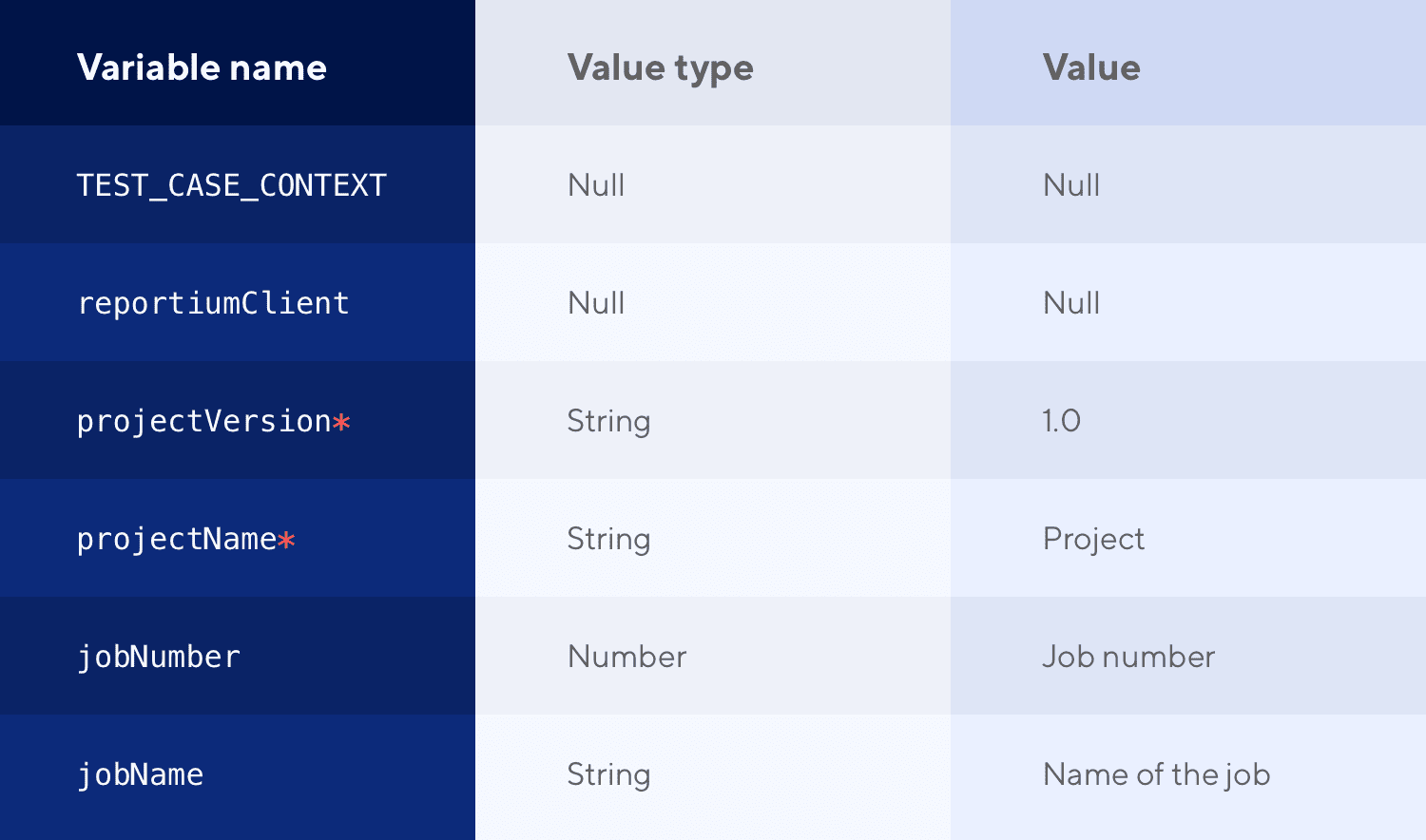
- To add global variables in Katalon Studio, go to Profiles in the Test Explorer pane, open the default file, and click Add.
- Enter the name, select the default type, and enter the default value.
- Click OK.
- Save the profile.
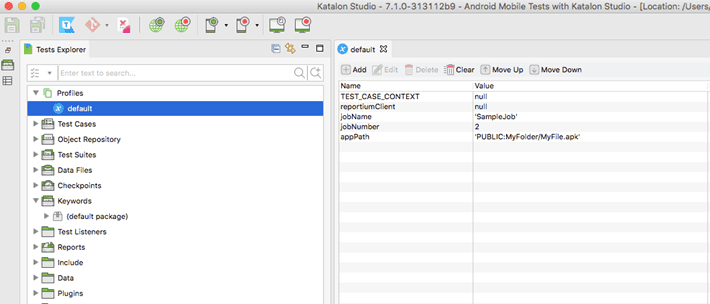
To access global variables in the code, use the following syntax:
GlobalVariable.variableNameRun tests in Katalon Studio
To execute a test case:
- Open a test case.
- Click the Run button.
- From the Custom Capabilities dropdown menu, choose perfecto_<profile_name>.
To execute a test suite:
- Open a test suite.
- Click the Run button.
- From the Custom Capabilities dropdown menu, choose perfecto_<profile_name>.
To execute a test suite collection:
- Open a test suite collection.
- In the Execution Information form:
- Add a profile for each test suite
- Select the Execution Mode as Sequential or Parallel
- Set the max concurrent instance as applicable
- Click Execute to run the entire suite collection
Check out our Katalon Partnership Program to explore all Katalon partnerships. Moreover, you can be a part of our growing community by becoming a Katalon business or technology partner.
Frequently asked questions
It connects Katalon Studio to Perfecto Cloud so you can run web, mobile web, and native or hybrid app tests on Perfecto's devices and browsers and view results in Perfecto Smart Reporting.
Yes. The plugin is free on the Katalon Store, though you need a Perfecto account to run tests in the Perfecto Cloud.
Replace WebUI.openBrowser or Mobile.startApplication with the matching PerfectoKeywords method, remove the closing browser or application call at the end of the test, and import the PerfectoKeywords class.





Test everything. Ship with confidence.
From generating test cases to spotting failures, Katalon's AI works across your entire pipeline, automatically.
