


This guide walks you through the steps to test Android mobile apps secured by Appdome using the Katalon cloud testing platform. Follow these instructions to verify that your application functions correctly under secured conditions without triggering unintended security protocols.
Use Appdome’s Build2Test Service (Recommended)
Customers with an Appdome SRM license can take advantage of the Build2Test service for smooth testing of Appdome-secured mobile apps using Katalon. This service eliminates the need for multiple Fusion Sets by enabling Appdome’s in-app defense model to recognize the unique signature of testing services. As a result, you can conduct tests without triggering security alerts or app shutdowns, even when using tools like Magisk or Frida.
Detailed Guide to Using Build2Test
For step-by-step instructions, refer to Appdome’s guide: How to Use Appdome Mobile App Automation Testing.
Understanding Security Triggers When Testing Android Apps on Katalon
Appdome feature | Reason |
|---|---|
Block Android Debug Bridge (ADB) | Activated if the app detects ADB commands running on the device. |
Anti-Tampering | Activated if any unauthorized changes to the app’s code or resources are detected. |
Detect VPN | Activated if the app detects a VPN connection. |
Detect Developer Options | Activated if developer options are enabled on the device. |
Detect App is Debuggable | Activated if the app is set to a debuggable state. |
Runtime Bundle Validation | Activated if there are discrepancies in the app bundle. |
Enforce Cipher Suites | Activated if insecure cipher suites are used for network connections. |
URL Whitelisting | Activated if the app accesses URLs not on the app’s approved whitelist. |
Block Memory Editing Tools | Activated if memory editing tools attempt to modify the app’s memory during runtime. |
Ensure you have the following set up before beginning:
- Appdome Account: create a free Appdome account here
- Mobile App (.ipa for iOS, or .apk or .aab for Android)
- Appdome Fused App with Build2Test: Required to initiate testing with Katalon.
- Katalon Account: Necessary for accessing testing features.
- Physical Device: Required for real (live) app testing on Android.
Setting Up Your Testing Environment in Katalon
Access and Setup for Live App Testing
- Sign in to Katalon TestOps.
- Click the “Open TestOps” button to access the dashboard.
- Click “View all projects” to see a list of your current projects.
Repository and Project Configuration
- Navigate to Settings > Script Repository > Connect Git Repository to integrate your Git repository.
- Create a new Git repository in your preferred service (e.g., GitHub, GitLab).
- Enter your source type, repository URL, username, and personal access token, then click “Connect”.
- To use your own Git repository with your test cases, create them in Katalon Studio, which you can download from katalon.com.
- You can use the following demo repository from Katalon as an example: Katalon Studio Samples.
Katalon Studio Setup
- Open your Katalon Studio application.
- Click “Clone Project”.
- Enter the repository URL, username, and password, then click “Finish”.
Note: If you want to run tests locally from Katalon Studio and see the report in TestOps, watch this video to turn on TestOps integration: Katalon Studio & Katalon TestOps: Quick Integration Tutorial.
Create and Run Your Test Case
- Create your mobile app test case by clicking the record button.
- Choose the type of device you are recording on (Android, iOS, remote device on LambdaTest, or Katalon Test Cloud devices).
- Follow the instructions provided in the Katalon Recording Guide.
- Ensure your mobile device is connected if using the recording option for Android or iOS.
- Select the relevant app. For using LambdaTest devices in Katalon Studio, see LambdaTest Integration.
- Create your test case using the recording window, then click “Save Script” at the bottom left corner.
Complete Your Test Setup
- Enter your test case name and click “Add Test suite”.
- Select “Add to a new test suite”.
- Name your test suite and give it a description.
- Click OK.
- Click the play button and select from the dropdown menu: Android, iOS, or Remote Device.
- Run the test, then add your new test case to a test suite by clicking the “Add to test suite” button.
- Push the changes to your Git repository.
- Click Next.
- Enter your login credentials.
- Click Finish.
Running Tests From TestOps
- Open Katalon TestOps
- Navigate to Executions > Application Repository > Upload Application.
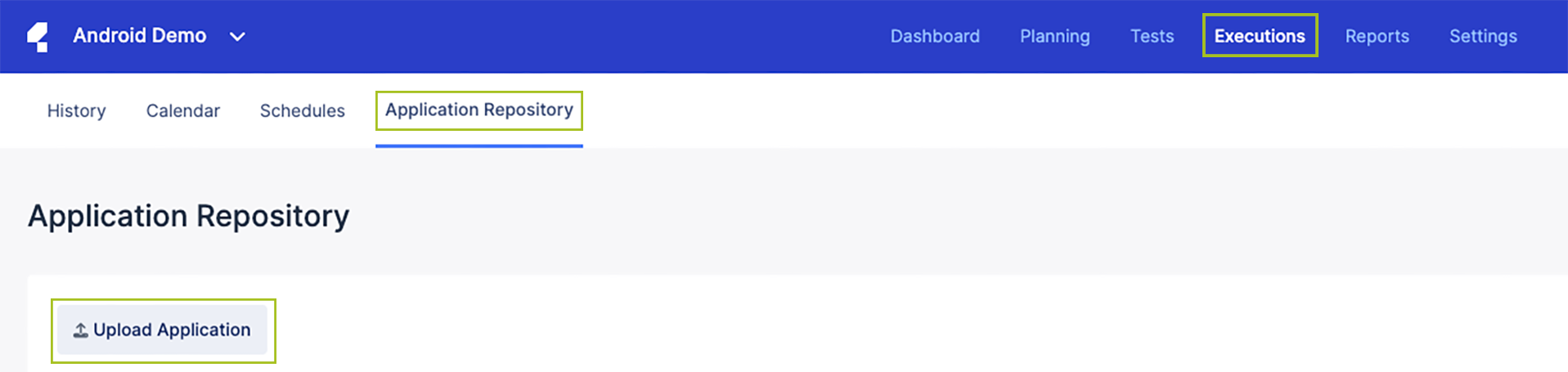
- Go back to the repository settings in the Katalon TestOps
- Go to Settings > Script Repositories
- Select the relevant repository.
- Click on Refresh Script Repository to pull your changes.
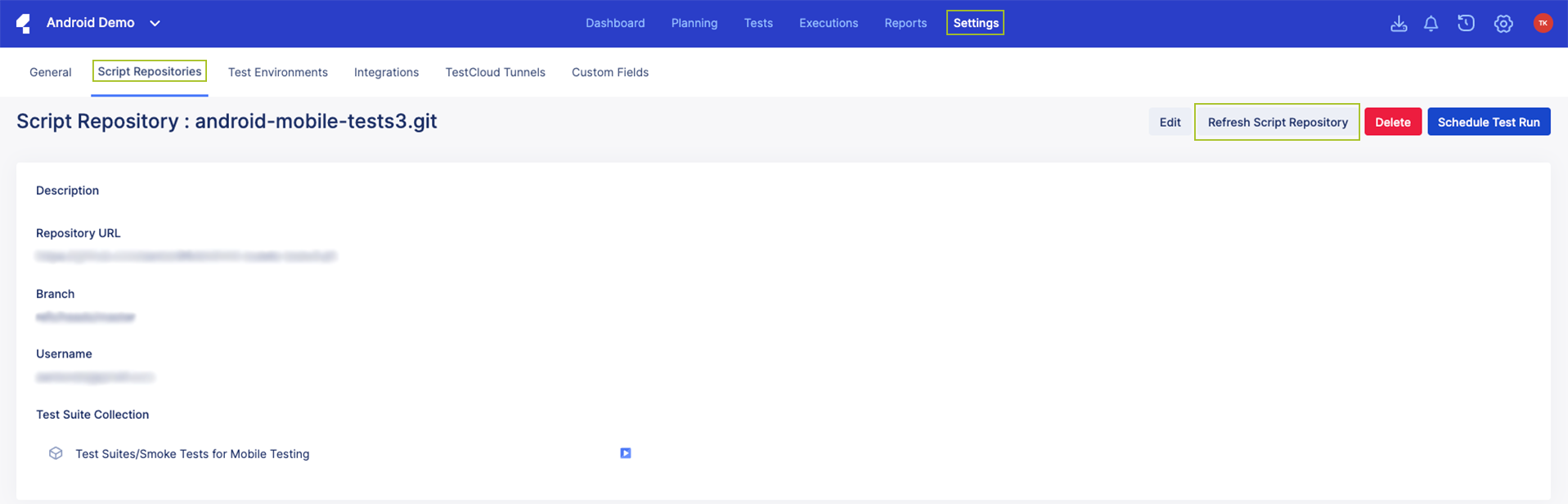
- Navigate to the Executions > History.
- Click Schedule Test Run.

- In the Schedule Test Run popup window, enter your test name.
- Select your Script repository.
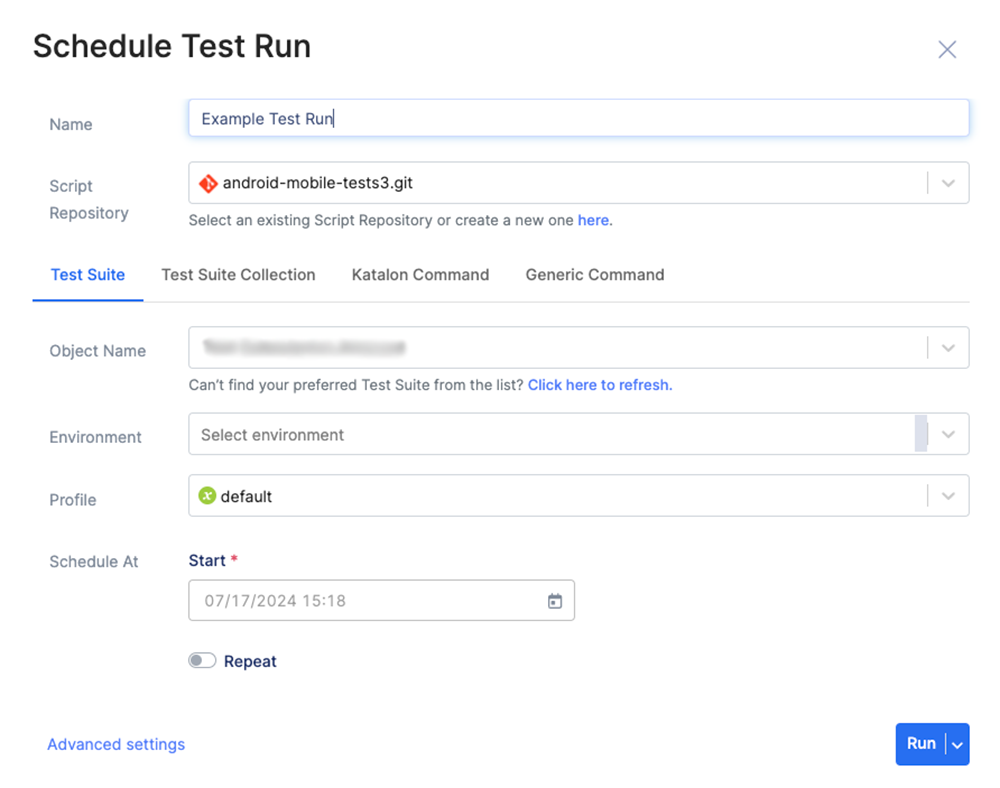
- Select Environment > Click more options
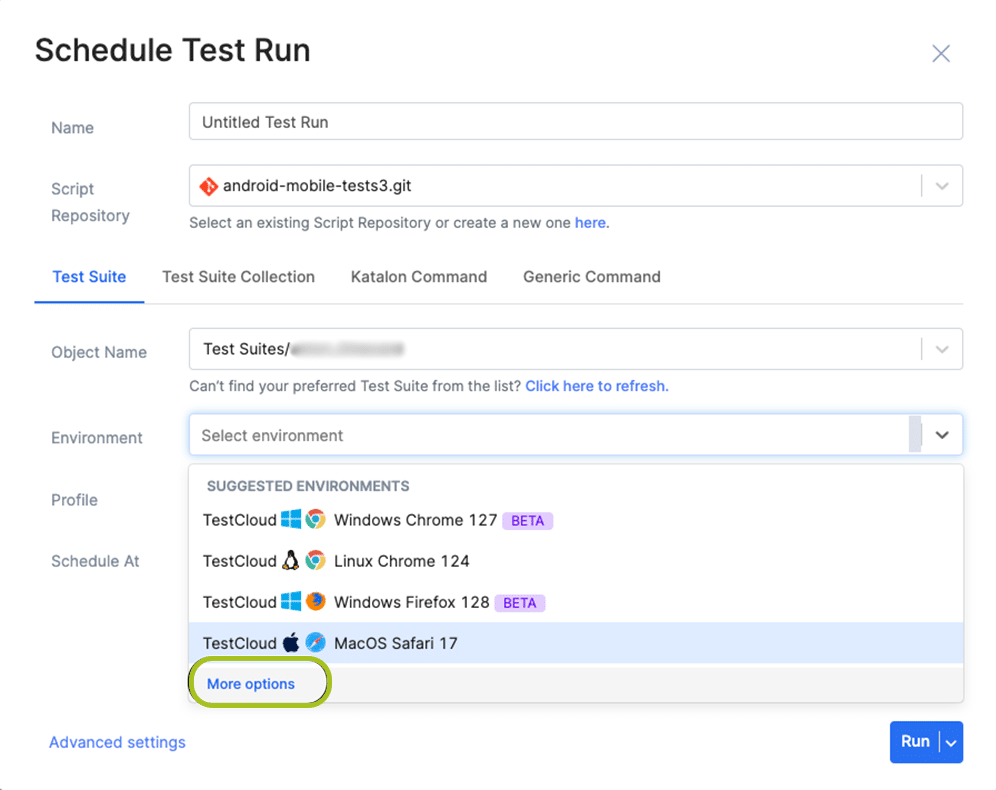
- Click on the Mobile Native App tab.
- Choose the device and model.
- Choose the application that you uploaded for your test.
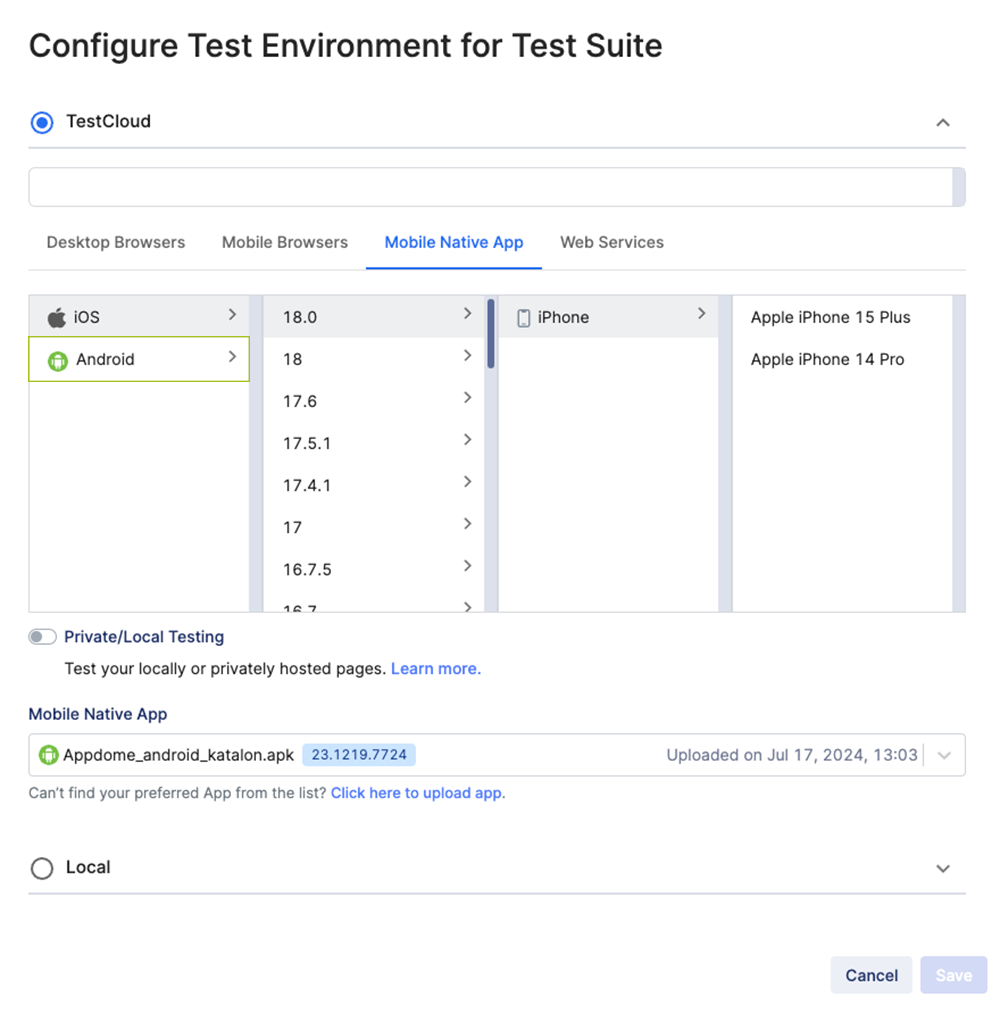
- Click save when you’re done.
- Click Run
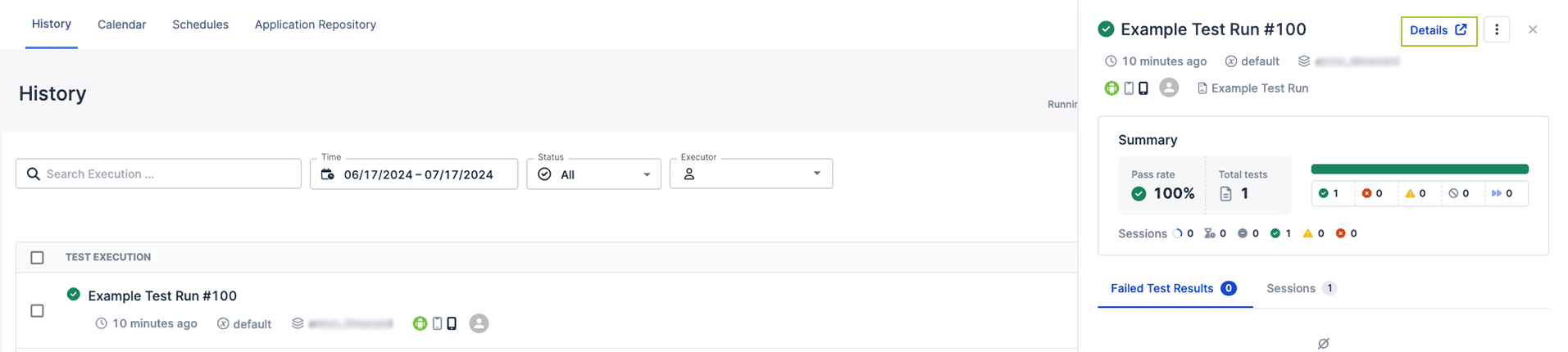
For more information about the run, click on your test run and on ‘Details’ at the top right corner.
Frequently asked questions
Build2Test allows the app to recognize automation tools like Katalon without triggering Appdome security defenses, preventing false shutdowns or alerts during testing.
Features may trigger due to ADB usage, tampering detection, VPN presence, developer options, debuggable state, runtime bundle inconsistencies, insecure cipher suites, URL restrictions, or memory editing—though Build2Test allows testing to continue.
You need an Appdome account, a fused app with Build2Test enabled, a Katalon account, the app APK/AAB, and a physical Android device for real execution.
You connect a Git repository in TestOps, clone it into Katalon Studio, create and save mobile test scripts, push them back to Git, and refresh the repository in TestOps for execution.
Upload the application, schedule a test run, select the device and model, choose the uploaded secured app, save the configuration, and execute the test while viewing details in the run history.

Test everything. Ship with confidence.
From generating test cases to spotting failures, Katalon's AI works across your entire pipeline, automatically.
