


How to handle dropdowns in Selenium with the Select class, using selectByIndex, selectByVisibleText, selectByValue and deselectAll, plus a faster way to do the same in Katalon Studio with Spy Web and built-in keywords.
In this article, we’ll quickly cover the core Selenium commands for dropdowns and then show how Katalon Studio streamlines the same process - letting you capture a dropdown with Spy Web and select options using built-in keywords like selectOptionByValue or selectOptionByIndex, so you can automate dropdown interactions without writing boilerplate code, but first...
What is dropdown in Selenium?
In a web application, a dropdown menu (also called a dropdown list) is a graphical control element that lets users pick one option from a list. When inactive, it shows a single selected value. When clicked, it expands to display all available options. A dropdown is presented as follows in HTML:
<!DOCTYPE html>
<html>
  <head>
    <meta charset="UTF-8" />
    <title>Select Element Example</title>
  </head>
  <body>
    <h1>The select element</h1>
    <p>The select element is used to create a drop-down list.</p>

    <form action="/action_page.php">
      <label for="cars">Choose a car:</label>
      <select name="cars" id="cars">
        <option value="volvo">Volvo</option>
        <option value="saab">Saab</option>
        <option value="opel">Opel</option>
        <option value="audi">Audi</option>
      </select>
      <br /><br />
      <input type="submit" value="Submit" />
    </form>

    <p>
      Click the "Submit" button and the form-data will be sent to a page on
      the server called "action_page.php".
    </p>
  </body>
</html>
What is Select class in Selenium?
The Select class provides convenient methods to interact with <select> HTML elements. You must first locate the dropdown element, then use Select to select or deselect items.
Common <select> class methods
1. selectByIndex()
Select the option at the given index. the Index starts from `0`.
Example Java code:
Select dropdown = new Select(driver.findElement(By.id("cars")));
dropdown.selectByIndex(2);
What it does: This code selects the option at index 2, which corresponds to the third option in the list.
2. selectByVisibleText()
Select all options that display text matching the argument.
Example Java code:
Select dropdown = new Select(driver.findElement(By.id("cars")));
dropdown.selectByVisibleText("Audi");
What it does: The code finds the dropdown by its ID, wraps it with the `Select` class, and selects the option with displayed text matching "Audi".
3. selectByValue()
Select all options that have a value matching the argument.
Example Java code:
Select dropdown = new Select(driver.findElement(By.id("cars")));
dropdown.selectByValue("saab");
What it does: The code selects the option with value attribute as "saab".
4. deselectAll()
Clear all selected items. Note that this method only works on a multi-select dropdown.
Example Java code:
// Only works when the <select> element has the multiple attribute
Select dropdown = new Select(driver.findElement(By.id("cars")));
dropdown.deselectAll();
Handle dropdown with Katalon Studio
Katalon Studio provides built-in keywords for the Select class that simplify dropdown handling and automate your testing workflow.
Let’s give it a try! First we’ll need to capture some objects that we can use in the test case.
📄 Learn more in our documentation: How to handle dropdown menu in Katalon Studio
Capture objects with Spy Web
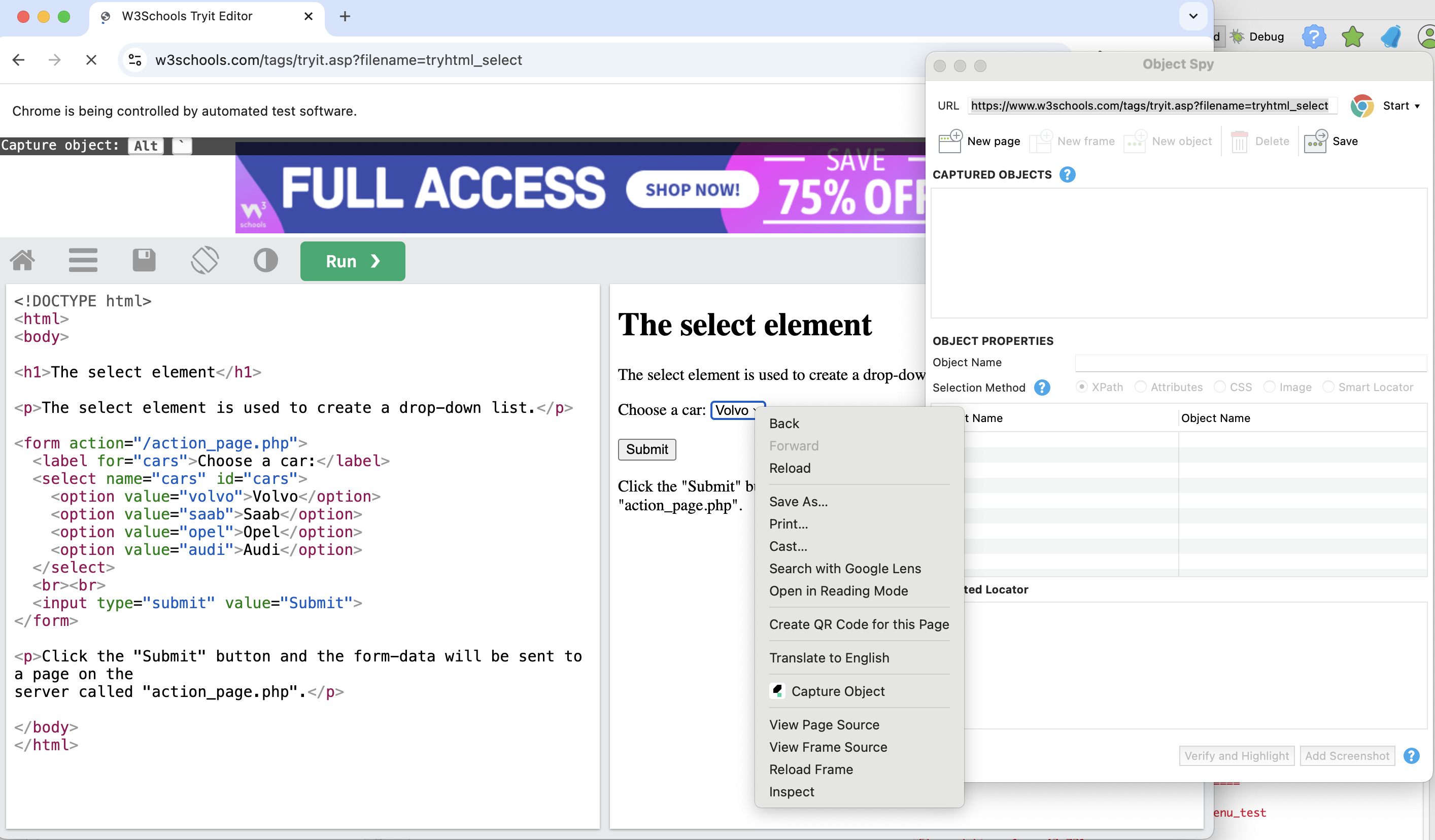
Step 1. In your test project, open the Spy Web tool.

Step 2. Provide a link in the URL field. Here we’re using the https://www.w3schools.com/tags/tryit.asp?filename=tryhtml_select site that contains a drop-down list.
Step 3. Click Start to launch your session. Navigate your cursor to the dropdown and right-click > Capture Object.
The object we captured is a <select> HTML element, and its XPath attributes are displayed in the Object Spy dialog. 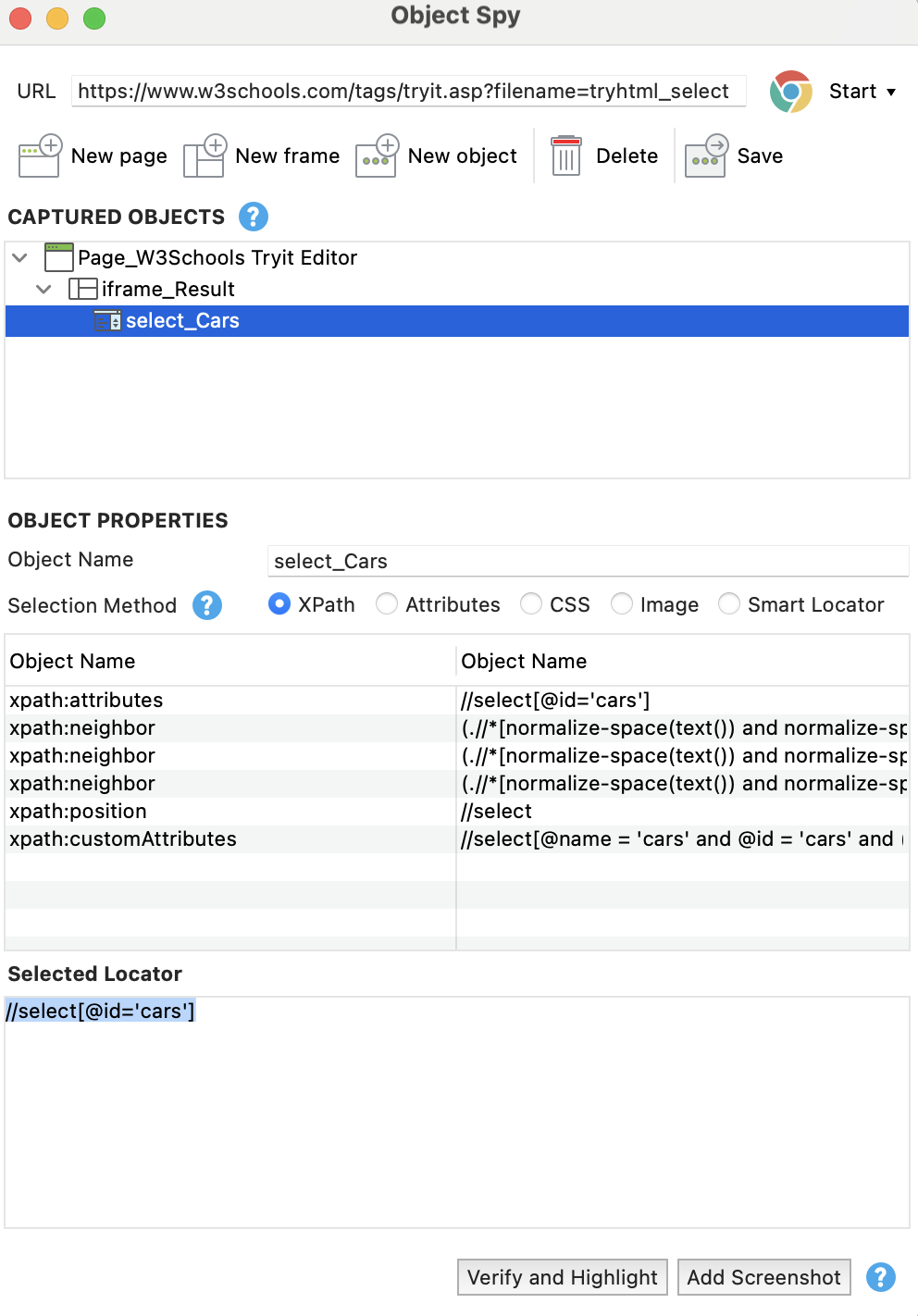
Click Save > OK in the Add Element to Object Repository dialog.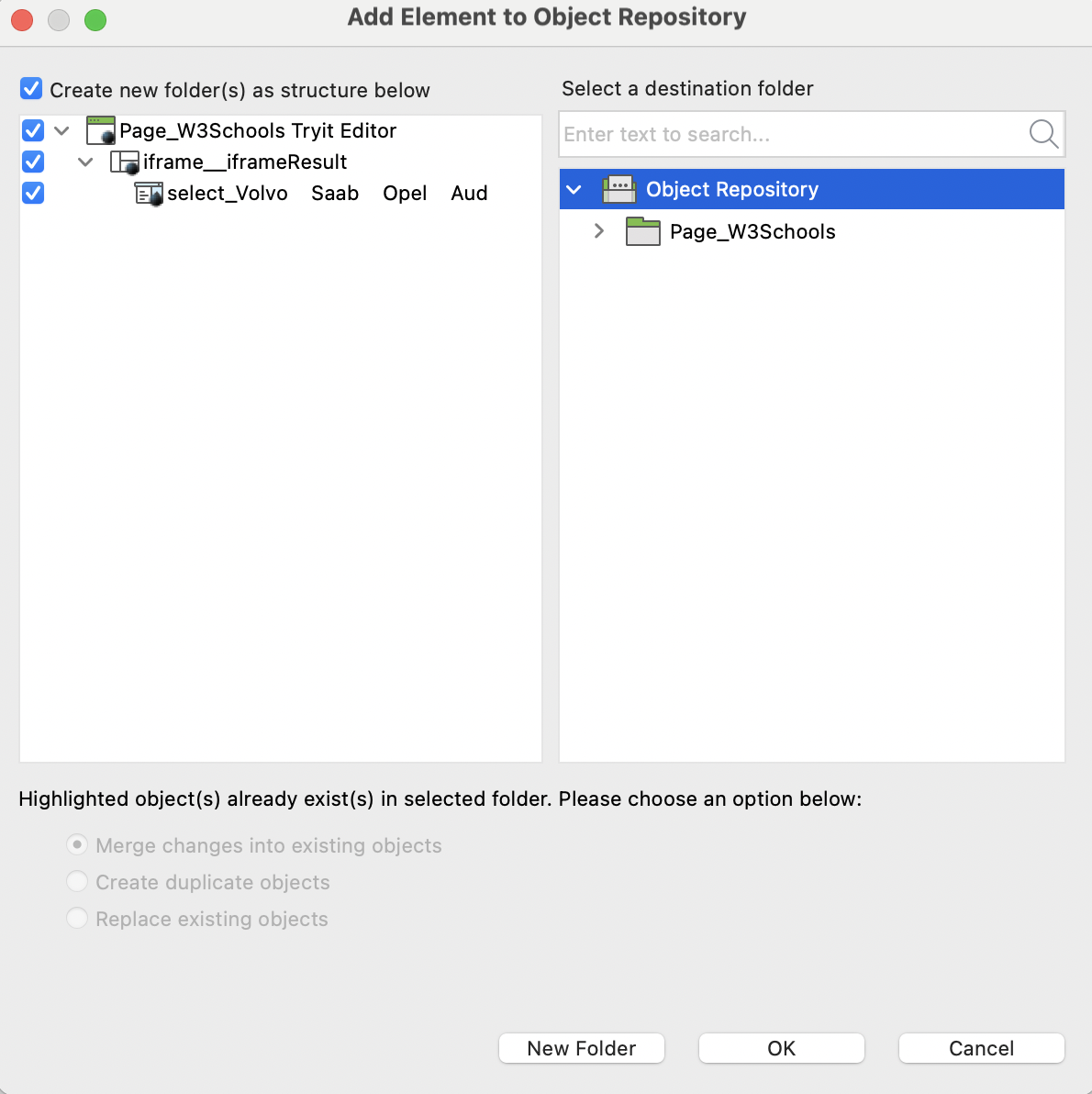
Use Katalon built-in keywords
With the objects you have captured, you can start creating test steps with Katalon Studio built-in keywords.
Open your test case in the Manual view, create a test case using the WebUI.selectOptionByValue keyword that finds the value="saab”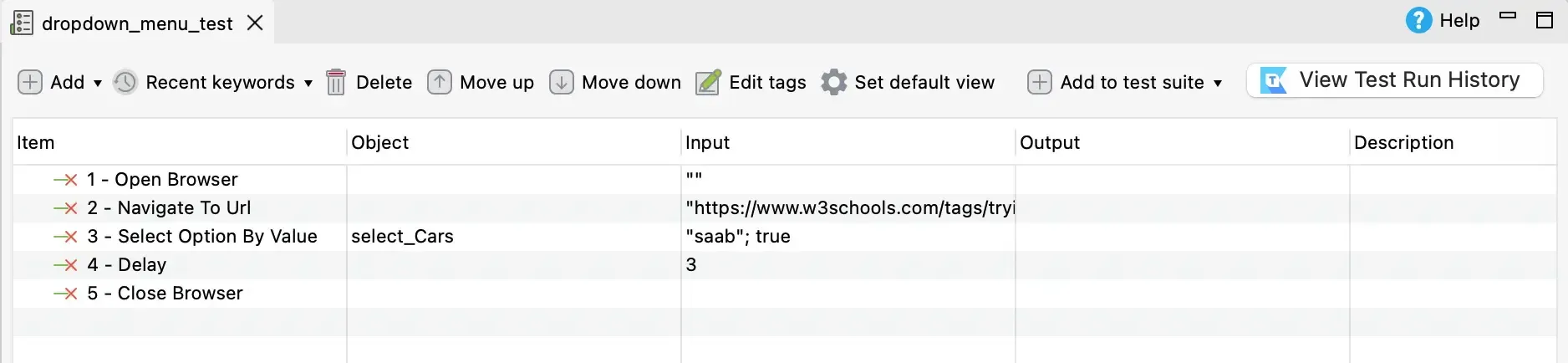
You can test it out with this script:
import static com.kms.katalon.core.testobject.ObjectRepository.findTestObject
import com.kms.katalon.core.webui.keyword.WebUiBuiltInKeywords as WebUI

WebUI.openBrowser('')
WebUI.navigateToUrl('https://www.w3schools.com/tags/tryit.asp?filename=tryhtml_select')

// The third argument (isRegex) is false: match the value exactly
WebUI.selectOptionByValue(findTestObject('Object Repository/Page_W3Schools/select_Cars'), 'saab', false)
WebUI.verifyOptionSelectedByValue(findTestObject('Object Repository/Page_W3Schools/select_Cars'), 'saab', false, 10)

WebUI.closeBrowser()
If you want to use another keyword, for example WebUI.selectOptionByIndex, try:
import com.kms.katalon.core.model.FailureHandling

WebUI.selectOptionByIndex(findTestObject('Object Repository/Page_W3Schools/select_Cars'), 2, FailureHandling.STOP_ON_FAILURE)
Conclusion
Handling dropdowns is straightforward with Selenium’s Select class - just locate the <select> element and call methods like selectByIndex, selectByVisibleText, or selectByValue - but maintaining those scripts can become tedious over time. Katalon Studio streamlines the same workflow by letting you capture the dropdown with Spy Web and then call keywords like selectOptionByValue or selectOptionByIndex without writing extra boilerplate. Whether you prefer full control through Selenium code or a faster, low-code approach in Katalon, both paths ensure your dropdown interactions stay reliable and easy to maintain.
Frequently asked questions
Locate the <select> element, wrap it in Selenium's Select class, then call selectByIndex, selectByVisibleText or selectByValue with the option you want.
Use selectByVisibleText when you know the exact text users see, such as "Audi". Use selectByValue when you know the option's value attribute, which is often more stable if the display text changes. Use selectByIndex only when the option order is fixed, because a reordered list will point the index at the wrong option.
It starts at 0, so selectByIndex(2) selects the third option in the list.
Call the Select methods more than once to pick several options, and call deselectAll to clear them. The deselect methods only work on multi-select dropdowns; on a single-select dropdown, Selenium throws an UnsupportedOperationException.
Capture the dropdown with Spy Web and save it to the Object Repository, then use built-in keywords such as WebUI.selectOptionByValue or WebUI.selectOptionByIndex in your test case. You don't need to create a Select object in your script.


Test everything. Ship with confidence.
From generating test cases to spotting failures, Katalon's AI works across your entire pipeline, automatically.
