


A quick, practical guide to drag and drop in Selenium, with working examples in Java, Python, and JavaScript, plus how to drag and drop objects in Katalon Studio using built-in keywords instead of code.
Here’s an easy-to-understand and straight-to-the-point guide to drag and drop in Selenium.
Command to do drag-and-drop in Selenium
Drag and drop always involves 2 objects: source object (the object that is dropped) and the target object (the destination). Make sure to define those objects before you write the drag-and-drop.
One caveat: Selenium’s drag-and-drop simulates mouse events, so it may not trigger native HTML5 drag-and-drop events on some pages. If the drop doesn’t register, try a JavaScript-based workaround or a tool keyword built for that case.
Guide 1. Drag and drop in Selenium in Java
The command for you:
Actions actions = new Actions(driver);
actions.dragAndDrop(sourceElement, targetElement).perform();
Here’s the full example code:
import org.openqa.selenium.By;
import org.openqa.selenium.WebDriver;
import org.openqa.selenium.WebElement;
import org.openqa.selenium.chrome.ChromeDriver;
import org.openqa.selenium.interactions.Actions;

public class DragAndDropExample {
    public static void main(String[] args) {
        // Selenium Manager (Selenium 4.6+) downloads the matching driver automatically
        WebDriver driver = new ChromeDriver();
        try {
            driver.get("https://example.com"); // Replace with your target URL

            // Locate the elements to drag and drop
            WebElement sourceElement = driver.findElement(By.id("source-element-id"));
            WebElement targetElement = driver.findElement(By.id("target-element-id"));

            // Perform drag and drop
            new Actions(driver).dragAndDrop(sourceElement, targetElement).perform();
        } finally {
            // Close the browser
            driver.quit();
        }
    }
}
Guide 2. Drag and drop in Selenium in Python
Here’s the command you need to use:
ActionChains(driver).drag_and_drop(source_element, target_element).perform()In Python, you need to import ActionChains (and By for locators) to perform drag and drop. Here’s the full code:
from selenium import webdriver
from selenium.webdriver.common.by import By
from selenium.webdriver.common.action_chains import ActionChains

# Selenium Manager downloads the matching driver automatically
driver = webdriver.Chrome()

try:
    # Open the target webpage
    driver.get("https://example.com")  # Replace with your target URL

    # Locate the elements to drag and drop
    source_element = driver.find_element(By.ID, "source-element-id")
    target_element = driver.find_element(By.ID, "target-element-id")

    # Perform drag and drop
    ActionChains(driver).drag_and_drop(source_element, target_element).perform()
finally:
    # Close the browser
    driver.quit()
Guide 3. Drag and drop in Selenium in JavaScript
Here’s the command you need to use:
await driver.actions({ async: true })
    .dragAndDrop(sourceElement, targetElement)
    .perform();
Here’s a full example:
const { Builder, By } = require('selenium-webdriver');

async function dragAndDrop() {
    // Selenium Manager downloads the matching driver automatically
    const driver = await new Builder().forBrowser('chrome').build();
    try {
        await driver.get('https://example.com'); // Replace with your target URL
        const sourceElement = await driver.findElement(By.id('source-element-id'));
        const targetElement = await driver.findElement(By.id('target-element-id'));
        await driver.actions({ async: true })
            .dragAndDrop(sourceElement, targetElement)
            .perform();
    } finally {
        await driver.quit();
    }
}

dragAndDrop();
Guide 4. Drag and drop objects in Katalon Studio
In the Katalon Studio, you can use built-in keywords to do the drag-and-drop for you instead of writing code.
Download and Start Testing With Katalon For Free
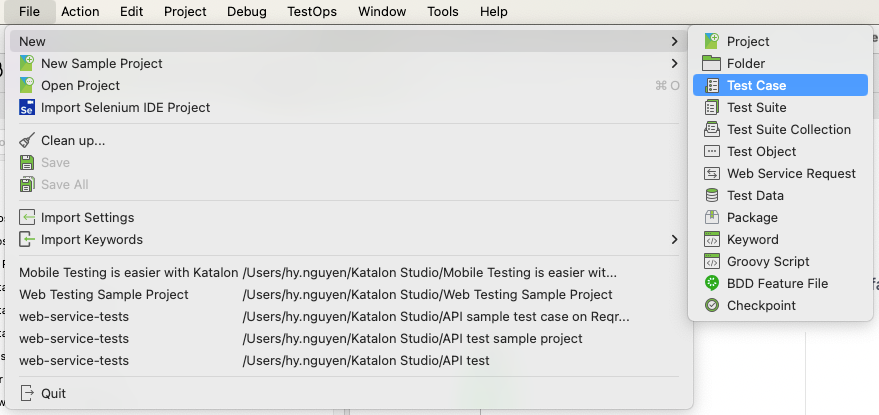
Let’s give our test case a name, a description, and some tags to categorize it:
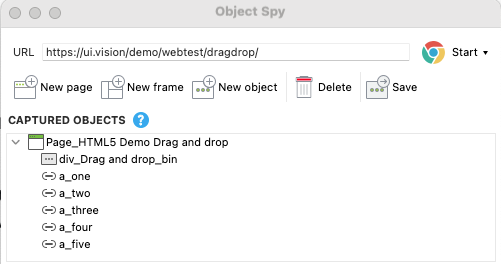
Katalon follows the Page Object Model framework. All test objects are stored in a centralized Object Repository that you can access whenever you want. As you can see here, we are testing the HTML5 Demo Drag and Drop page. In this page, there are 5 objects that will be dropped into the bin.
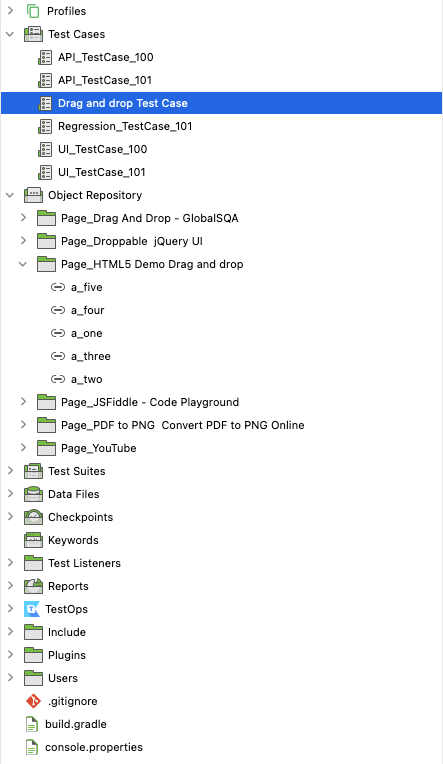
As you capture and add more and more objects to the Repository, test authoring becomes easier and faster. Test suites, data files, and test reports are also stored here for a unified view.
To capture those objects, you can navigate to the Spy Web utility on the nav bar of Katalon Studio:

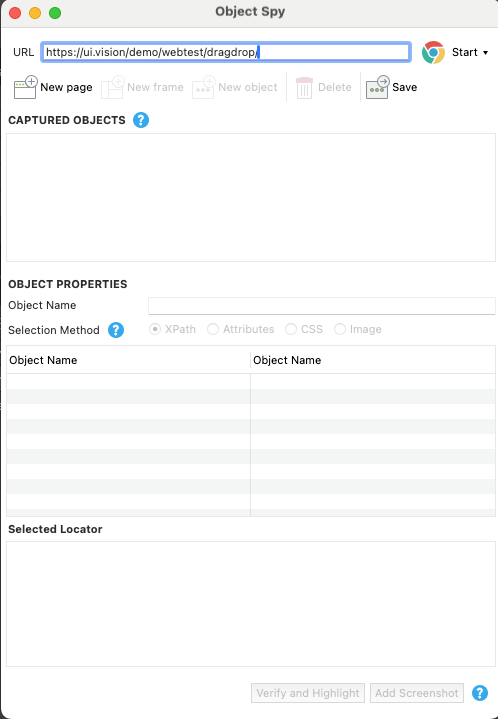
Enter the URL of the webpage you want to capture objects, choose your desired browser, and click Start.
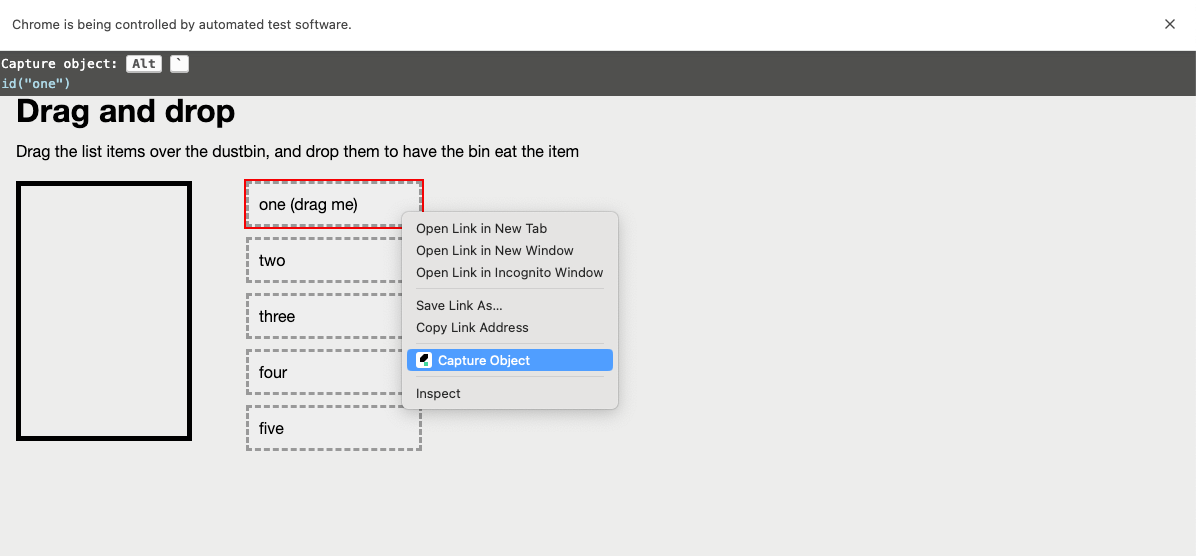
Katalon then opens up an instance of the browser for you. As you right-click on an object (or hover on it then press Alt + ` on Windows or Options + ` on Mac), you capture it into Katalon Studio’s Object Repository.
Click Save and you are ready to create any tests with these objects.
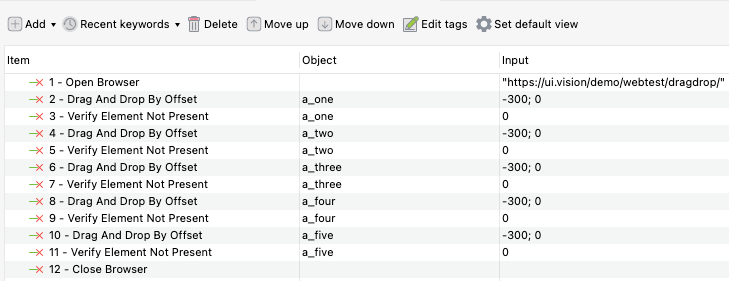
Now you can start to use Katalon’s extensive keyword library to craft a full test case. Simply choose Add to browse keywords. Here we are using:
- OpenBrowser: open up a browser to a certain URL (which is the UI.Vision drag-and-drop demo page in our case)
- Drag And Drop By Offset: drag the object (a_one) by a certain number of pixels (which is -300 pixels horizontally and 0 pixel vertically)
- Verify Element Not Present: check that the object we’ve just dropped has disappeared
- CloseBrowser: close the browser, clean the environment, and exit the test.
You may notice that we are using the same pair of 2nd and 3rd keywords for 5 objects. You can effortlessly drag-and-drop the objects from the Object Repository and put them in the IDE to create this test case.
Now let’s run the test case:
Frequently asked questions
Use the built-in user interaction API: Actions (Java), ActionChains (Python), or WebDriver Actions (JavaScript) to simulate click-hold → move → release.
You must identify two elements: the source element (the one you drag) and the target element (where you drop it), using reliable locators (id, css, xpath, etc.).
Java: new Actions(driver).dragAndDrop(source, target).perform(); Python: ActionChains(driver).drag_and_drop(source, target).perform() JavaScript: await driver.actions({ bridge: true }).dragAndDrop(source, target).perform();
Modern apps often use HTML5 drag-and-drop or custom JS frameworks where the basic dragAndDrop may be flaky. In those cases, try clickAndHold → moveToElement → release, add explicit waits, or use a framework/tool that supports HTML5 DnD more reliably.
Capture source/target objects into the Object Repository, then use built-in keywords like Drag And Drop or Drag And Drop By Offset, and verify the result with assertions (e.g., element moved/removed).


Test everything. Ship with confidence.
From generating test cases to spotting failures, Katalon's AI works across your entire pipeline, automatically.
