


Manually entering data into web forms is slow and error-prone. Follow this four-step tutorial to automate form filling with Katalon Recorder: record a flow, parameterize fields, and run it with data from a CSV file.
For almost every website or web application you visit, web forms are the most popular method to collect information.
Many companies still rely on legacy CRM (customer relationship management) and ERP (enterprise resource planning) systems. Unfortunately, some of these do not let users import data with numerous variables into the portal, leaving employees with only one option: entering thousands of records one by one.
At the start of a business, manual form filling may be easy and convenient. However, as your business expands and the number of customers multiplies, manually doing such tasks will become inefficient, time-consuming, and error-prone.
With that problem in mind, switching from a manual process to an automated solution is essential to boost your productivity, and it is ultimately more cost-effective.
Why Automated Form Filling Is Difficult
Although automated form filling can be highly effective, existing problems of current solutions hold teams back from adopting automation.
Most automated form-filling solutions require programming, coding, or VBA (Visual Basic for Applications) knowledge. On top of that, some have limited or no dedicated support team for updates, while others are not user-friendly, which makes them difficult for non-technical users.
Katalon Recorder: Automated Form Filling Made Easy
Katalon Recorder is a popular, free choice for web automation.
It is a free, lightweight web extension for Record and Playback. Available on Chrome, Firefox, and Edge, this simple solution helps automate the web form-filling process.
Some of Katalon Recorder highlight features are:
- Built for non-technical users. Katalon Recorder is an easy-to-use productivity tool with a friendly UI that does not require programming or coding skills.
- Smart Record and Playback. Katalon Recorder quickly captures the correct web components and objects for a smooth automation flow of any given scenario or action.
- Complete tutorials and samples. Katalon Recorder’s example workflows are easy to follow, so you can create your own flow in no time. There are also a dozen sample projects to help you get started with automation.
- A dedicated development team. The Katalon team maintains Katalon Recorder through stable releases and offers help via its community forum.
Using Katalon Recorder to Automate Form Filling
To see the tool in action, here’s a step-by-step example of how Katalon Recorder helps Susan, a clinic clerk, automate web form filling.
The scenario
A clinic uses an outdated web-based CRM system to manage patient appointments and share calendars with doctors. Susan, the clinic clerk, regularly needs to manually input data from various sources into the CRM, such as appointment notes and Excel and CSV files supplied by corporate clients.
However, as the number of patients and data grows, this work has become harder to manage. This has led Susan to occasionally enter incorrect data into the system, causing conflicts and friction in her overall workflow.
As a result, she needs an automation solution with minimal technicalities to help her quickly and precisely input large amounts of data, thus freeing up her time for other essential activities.
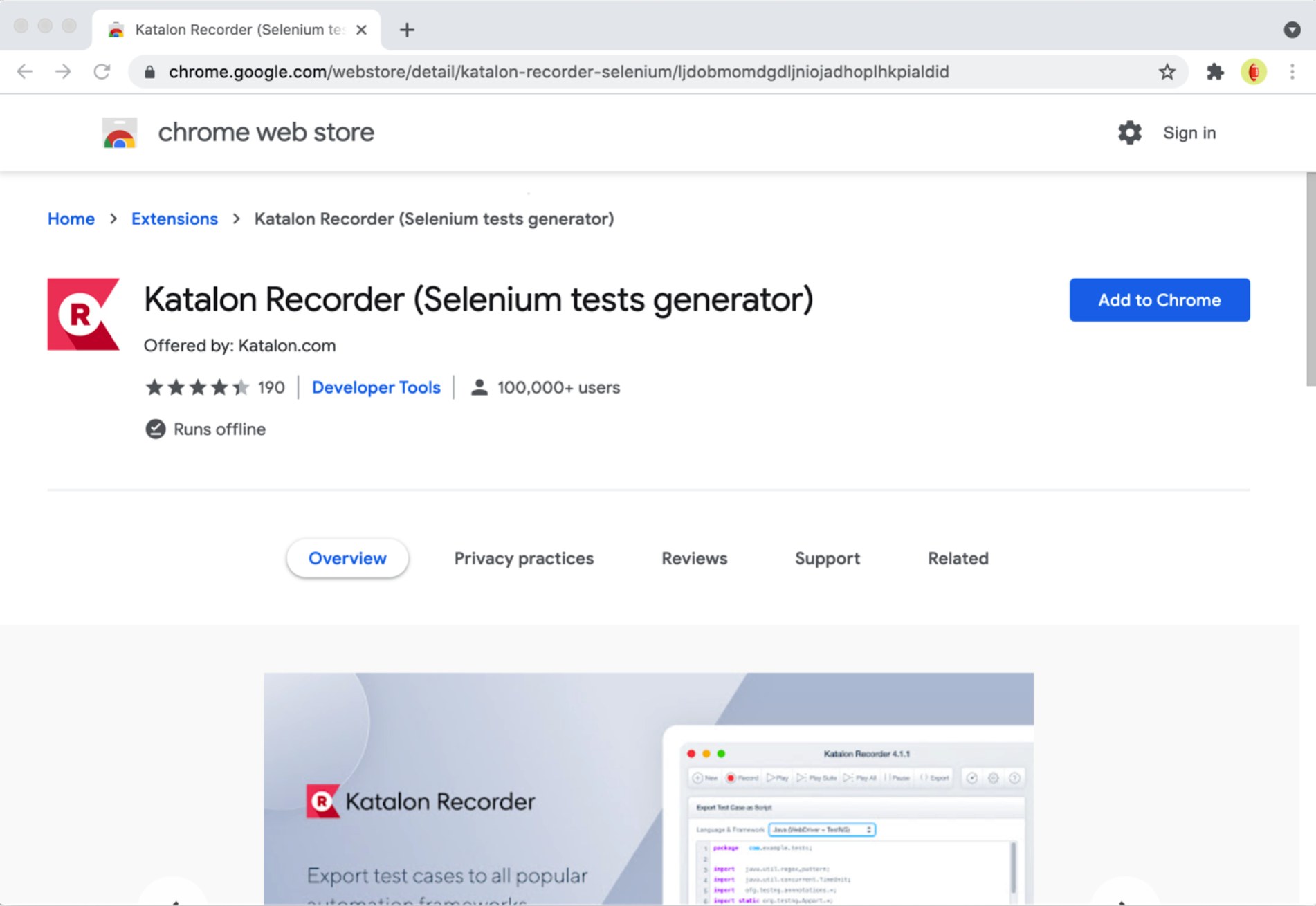
Step 1: Install Katalon Recorder on your preferred browser (Chrome/Firefox/Edge)
Make sure you download and install the latest Katalon Recorder on Chrome, Firefox, or Edge.
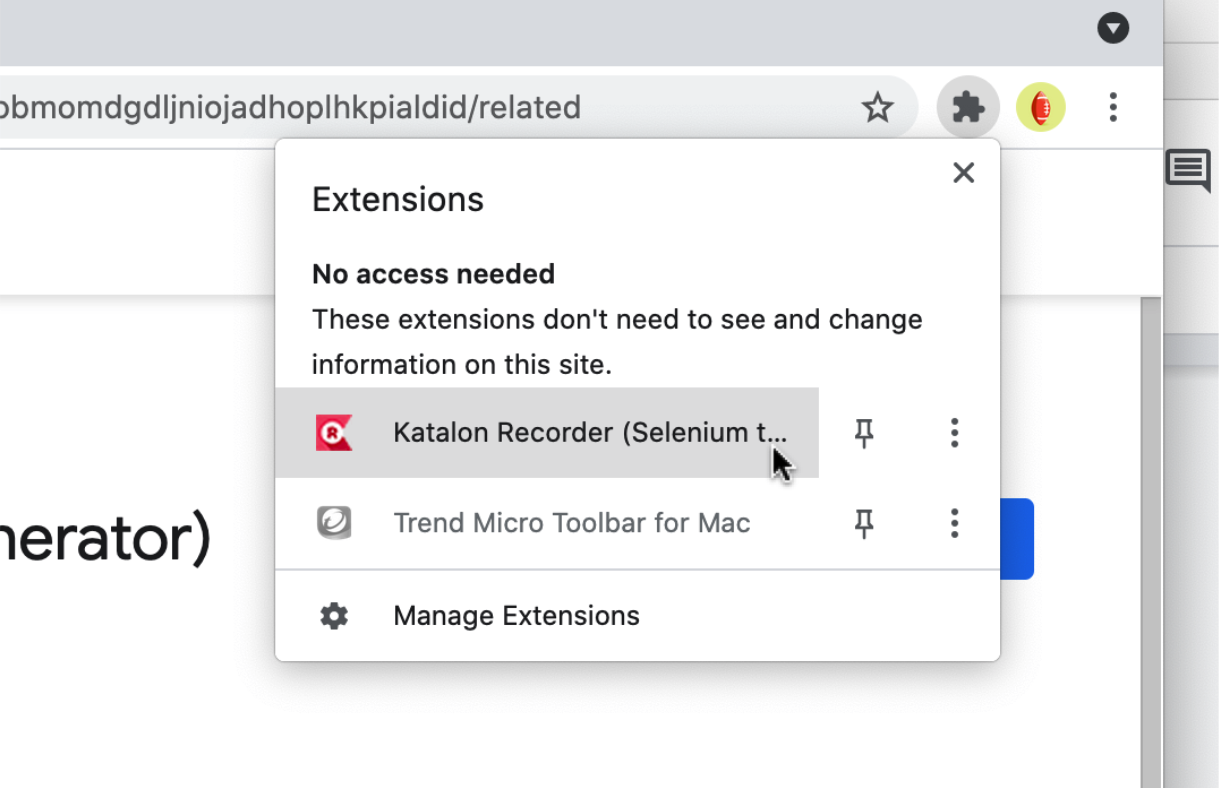
After installing, click on the Extensions icon on your browser to open Katalon Recorder.
Step 2: Record the desired flow.
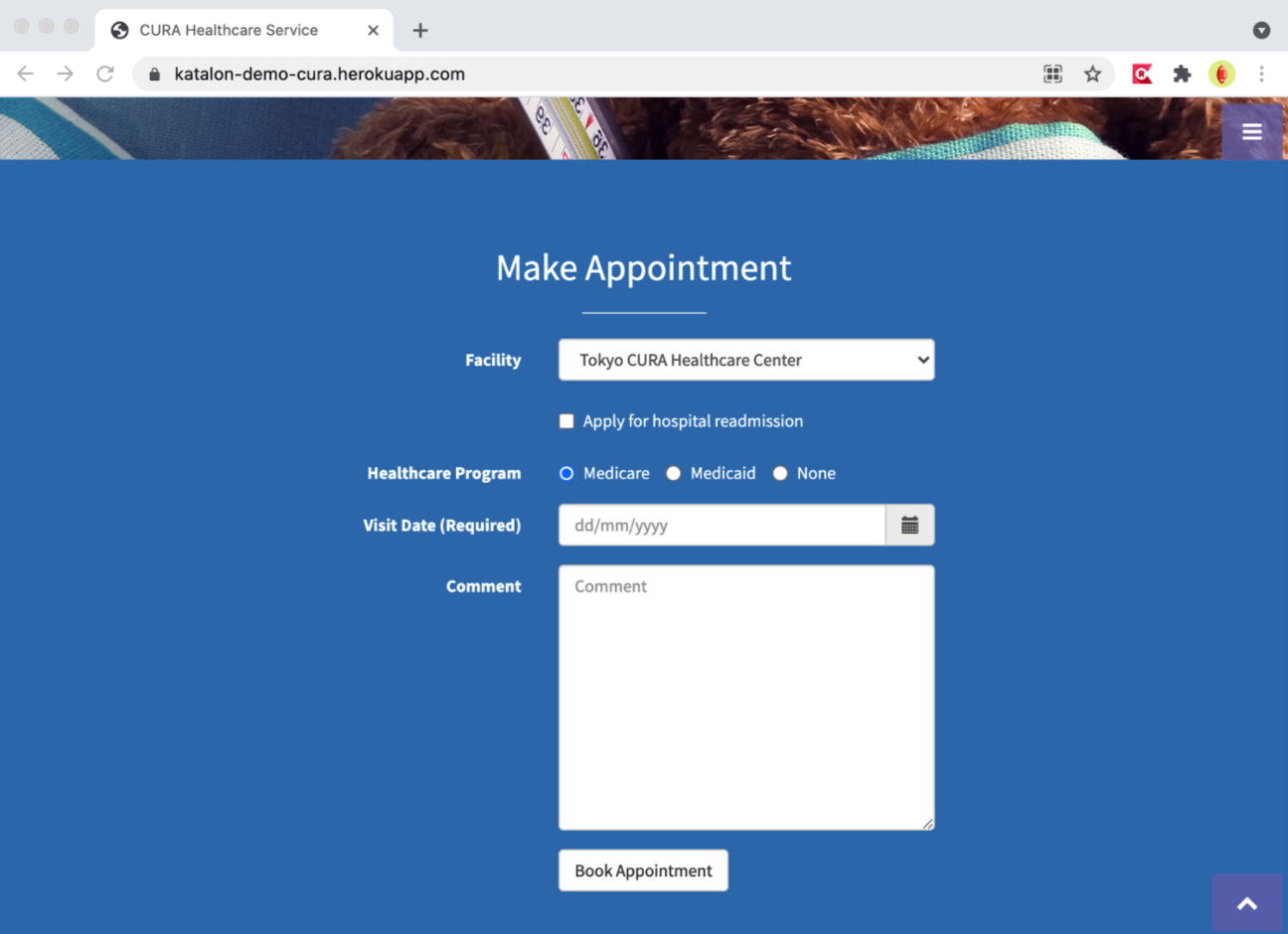
You will now record the actions that an end-user would perform on this website into a repeatable flow to be reused for multiple scenarios.
In this case, it would be a series of steps to fill in an appointment form on this sample site.
Start recording
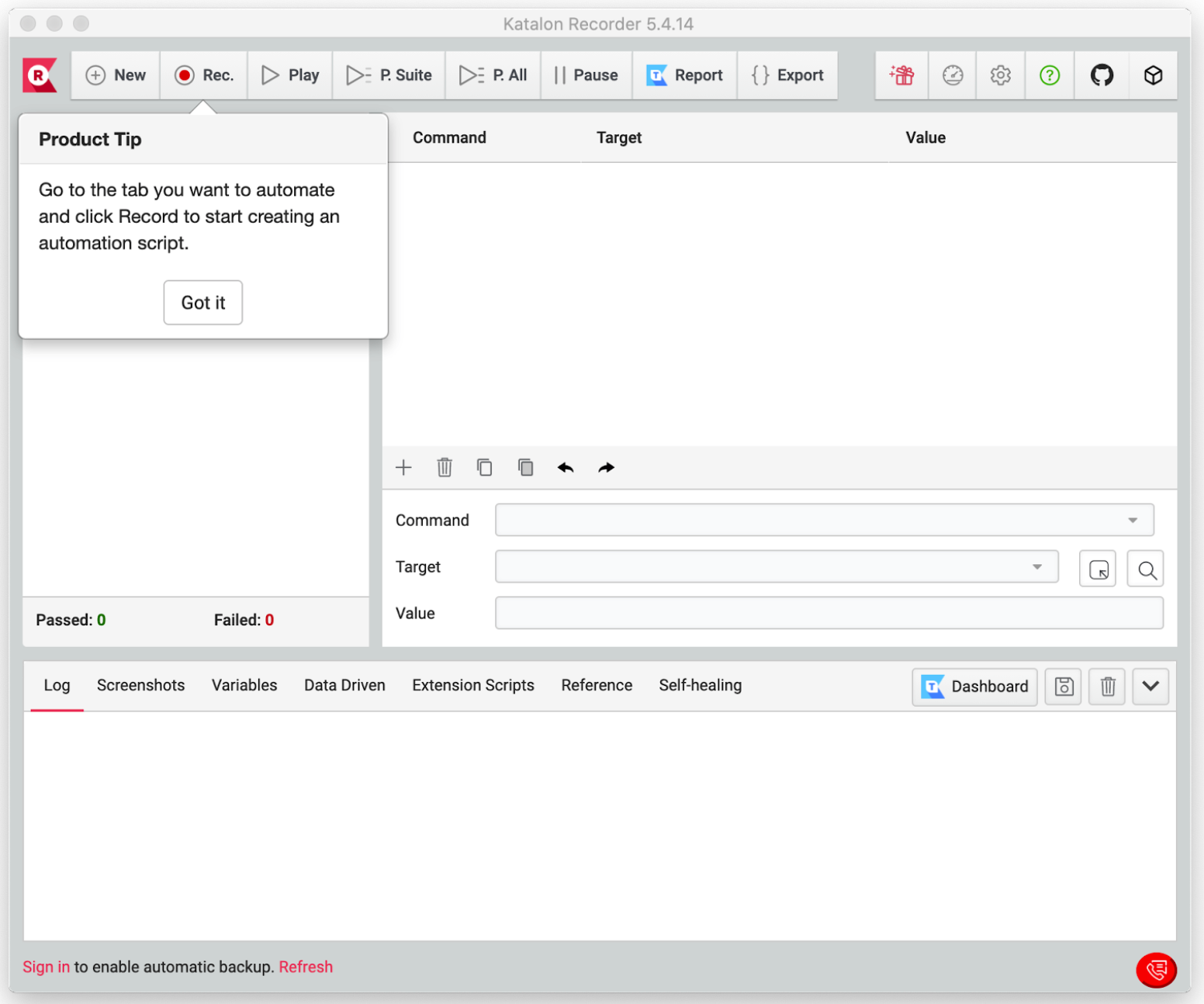
First, click the Rec button on the menu bar.
Then, perform the typical actions that your patients would when submitting a form to book an appointment. Katalon Recorder will record all of your steps into scripts.
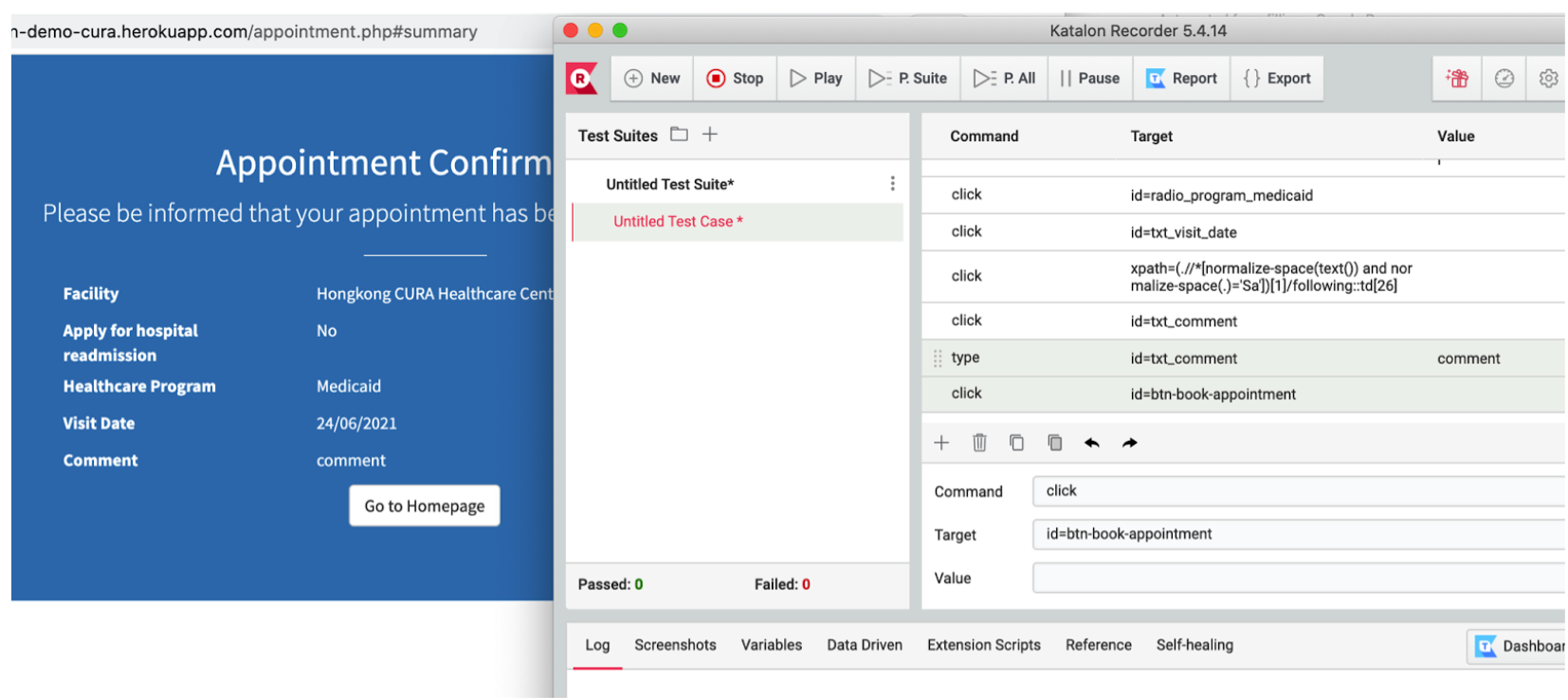
Stop recording
Once you’ve reached the final step, clicking on the “Submit Appointment” button, click the Stop button on the navigation bar.
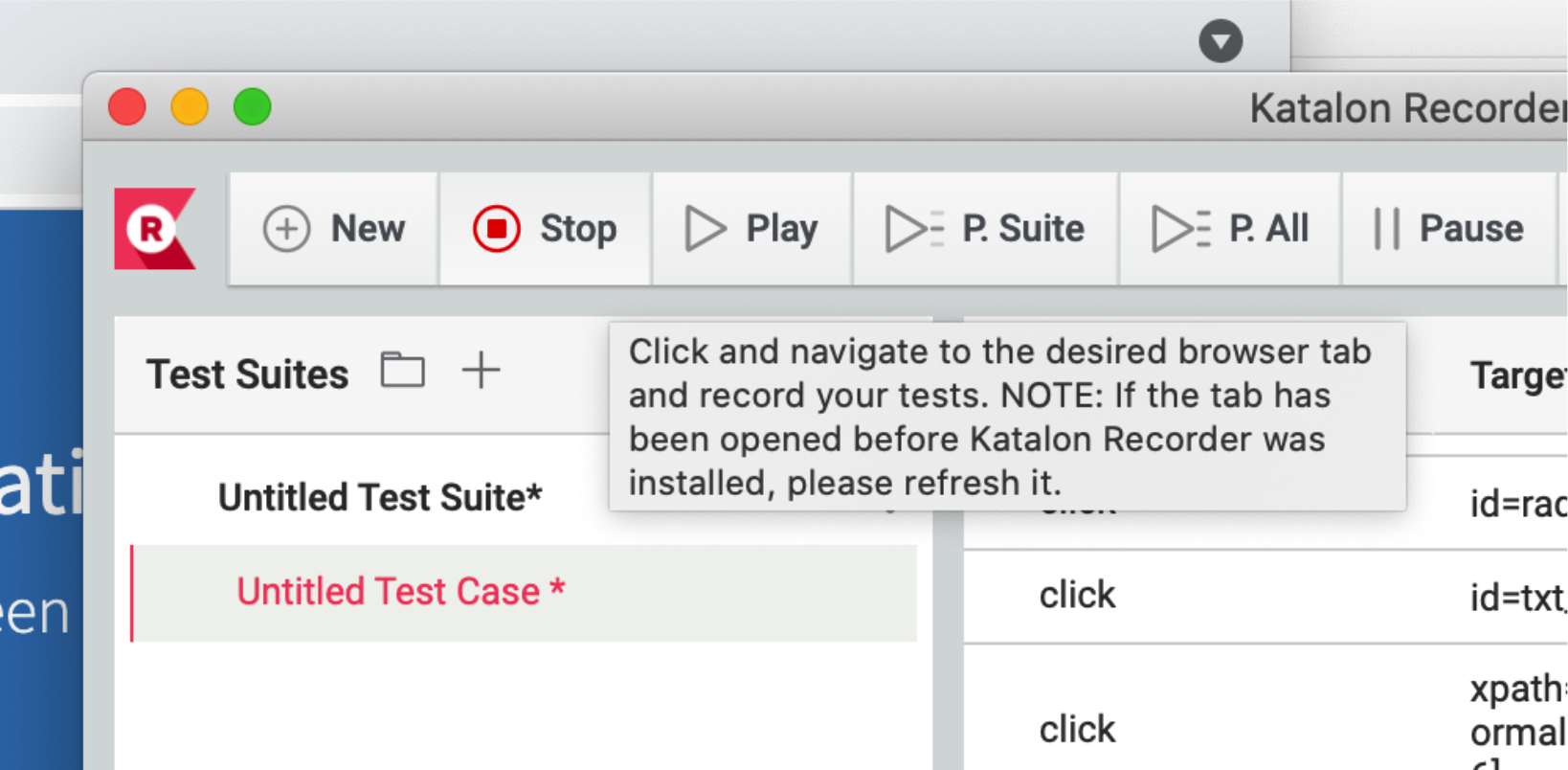
Playback the flow
To check if the steps you have followed are correct, you can click Play to rerun the flow.
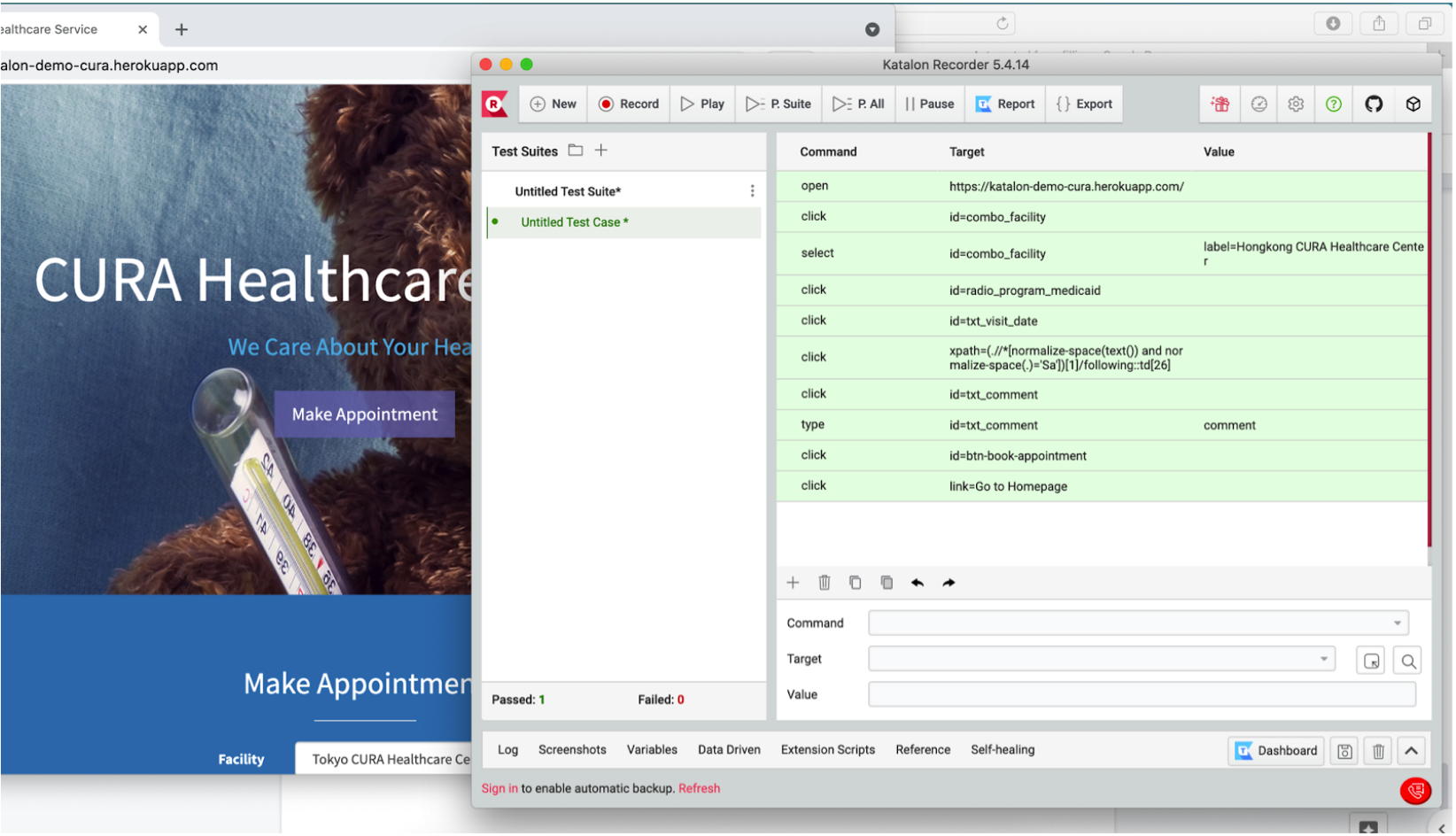
If the fields are colored green after the rerun, your recorded flow is working and can be reused for multiple scenarios. If you run into any problems at this stage, open a thread on the Katalon forum for help.
Step 3: Prepare data for automating form filling.
With Data-Driven automation support, you can automate the form submission process by importing variables from external data sources into Katalon Recorder.
This means performing the same steps you have recorded in Step 2 but inputting different values and data from your CSV file.
Here, you’ll see how Katalon Recorder can automatically fill out and submit the appointment form with different facility names, healthcare programs, and patient conditions.
Before doing this, you will need to prepare a CSV file that Katalon Recorder can read.
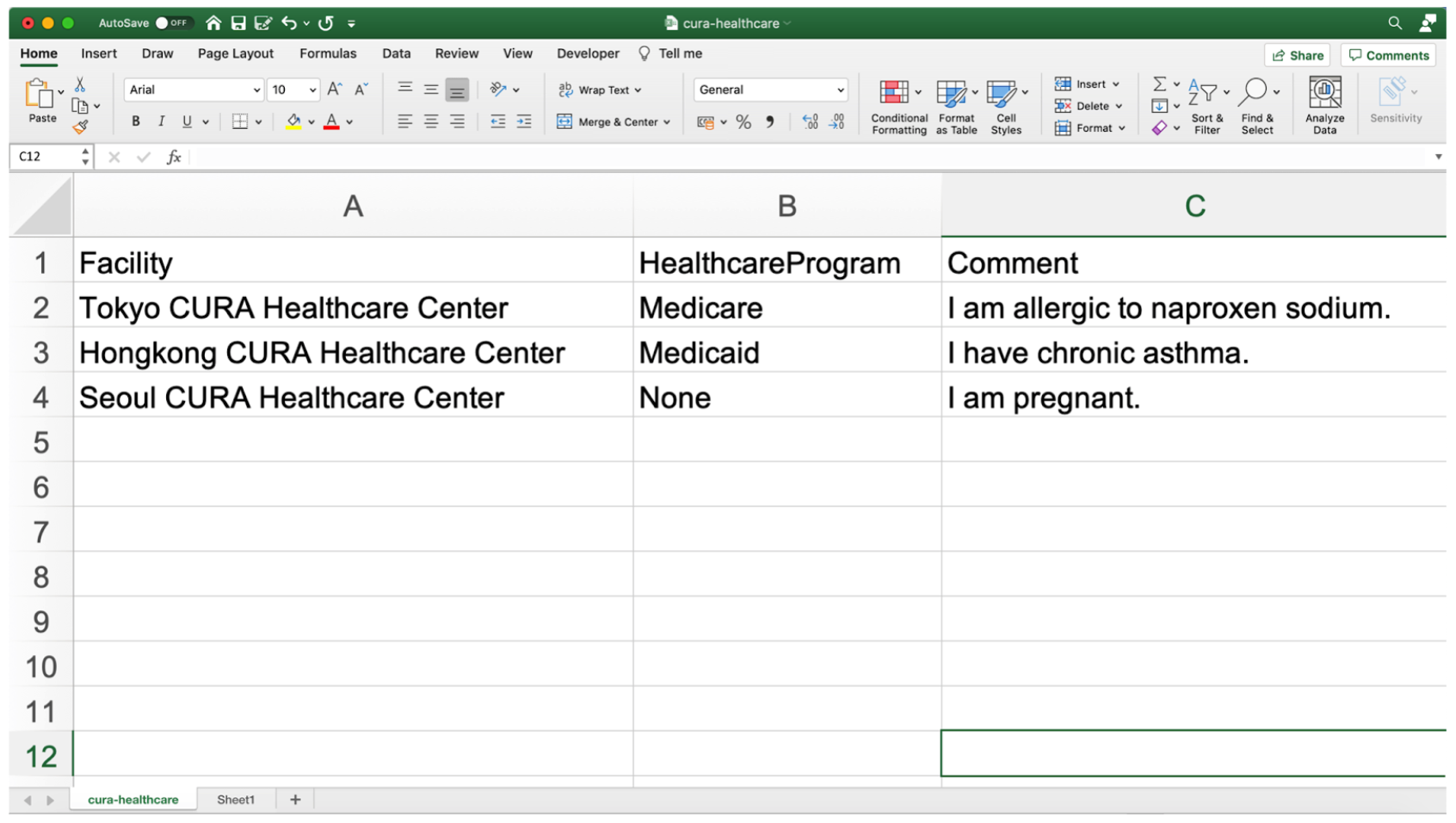
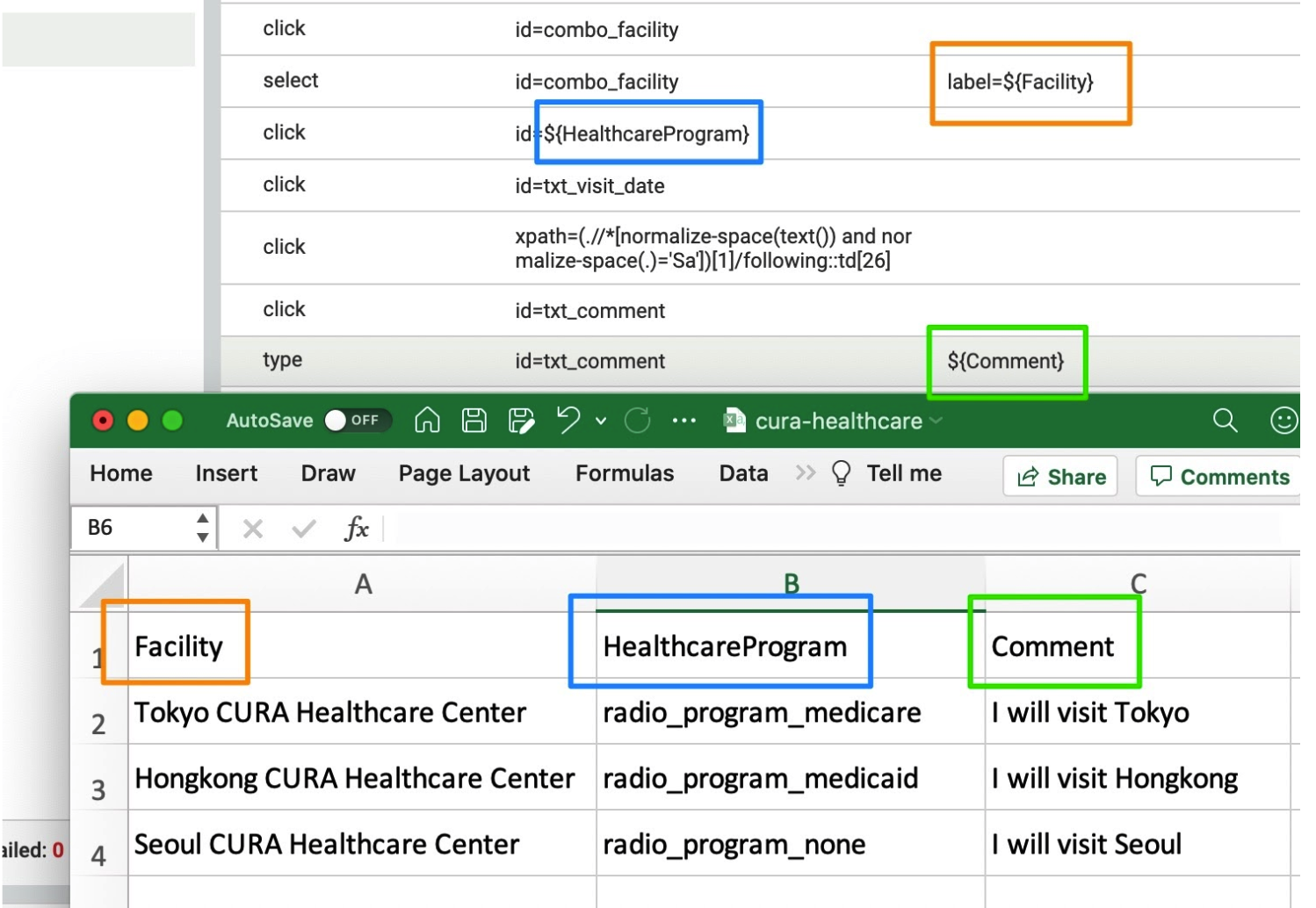
As shown in this CSV file, the first row will be the name of the 3 variables: Facility, HealthcareProgram, and Comment. Be sure to delete any space in the name to avoid errors.
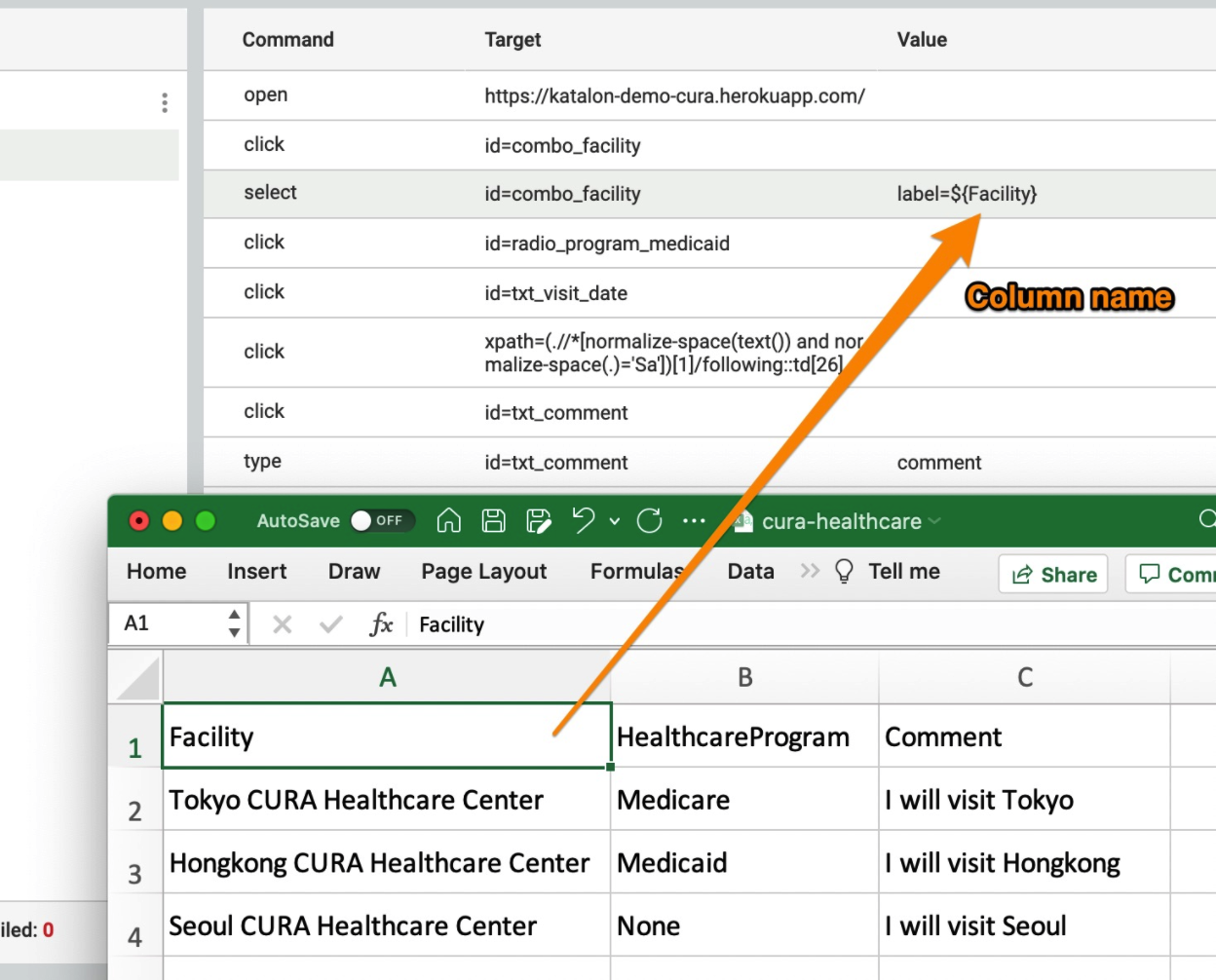
Next, you need to parameterize or turn the values from each row into variables.
Go back to the Katalon Recorder window and click on the Value column that says “label=Hongkong CURA Healthcare Center” and change it to label=${Facility}
Now, when you run the flow in Katalon Recorder, the 3 values in the “Facility” column (Tokyo, Hong Kong, and Seoul) in the CSV file will be sequentially transferred into the script.
Similarly, you will replace the “Comment” variable to label=${Comment}.
But for the “HealthcareProgram” column or parameter, it will be a bit different.
This is because the “Facility” and “Comment” variables are text fields, whereas the “HealthcareProgram” includes 3 radio buttons and variables (Medicare, Medicaid, and None).
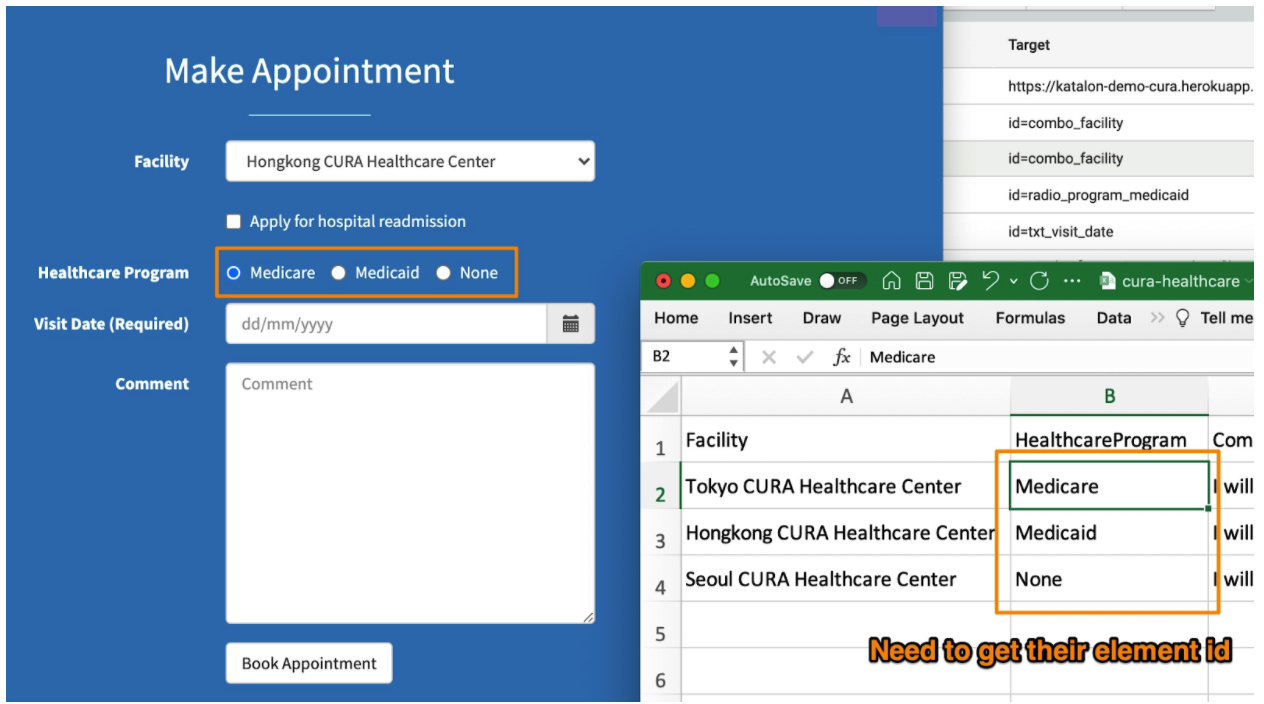
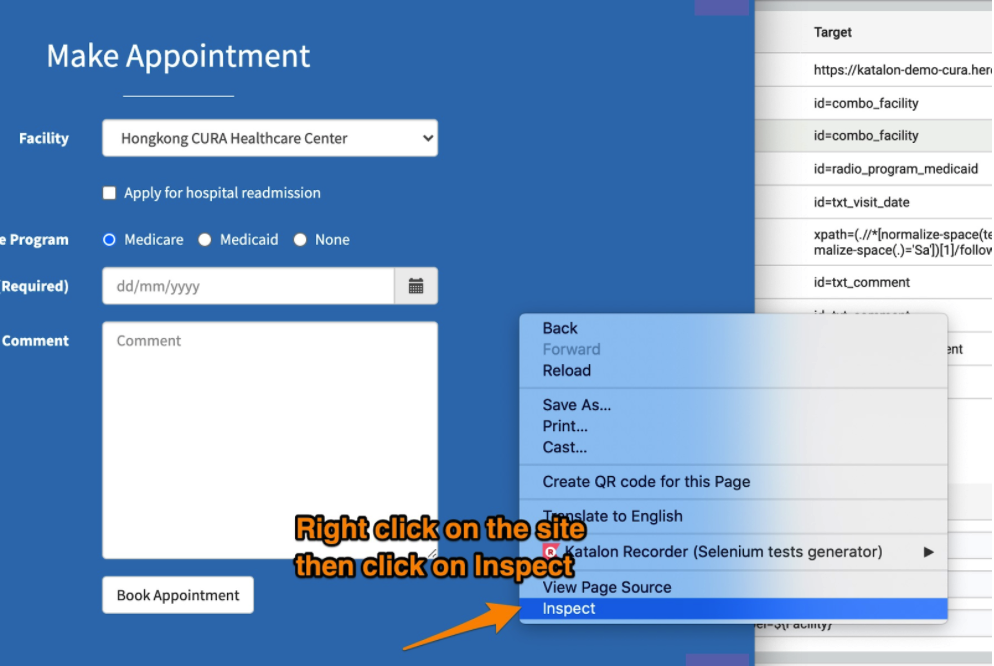
To get the object IDs, go back to the form, right-click on the window and choose Inspect.
You can find <label class="radio-inline"> rows that contain the object IDs for the corresponding options of “HealthcareProgram.”
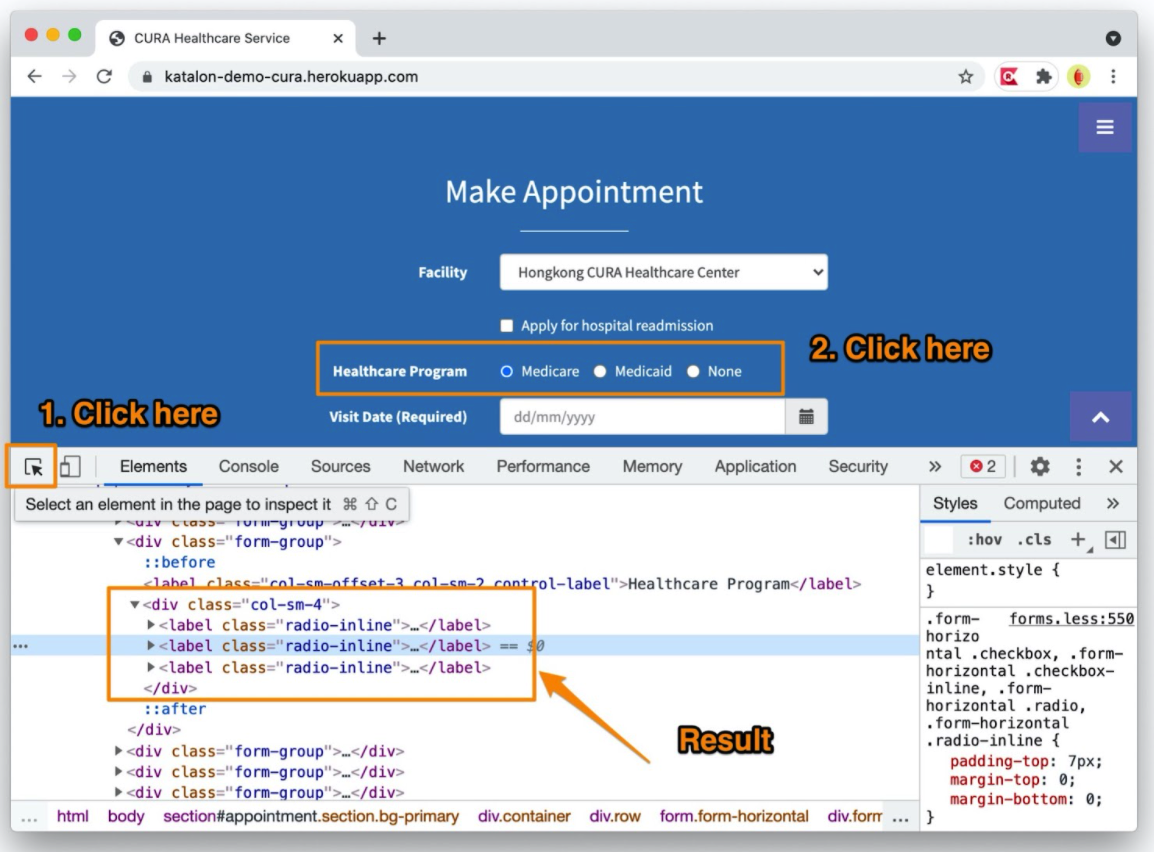
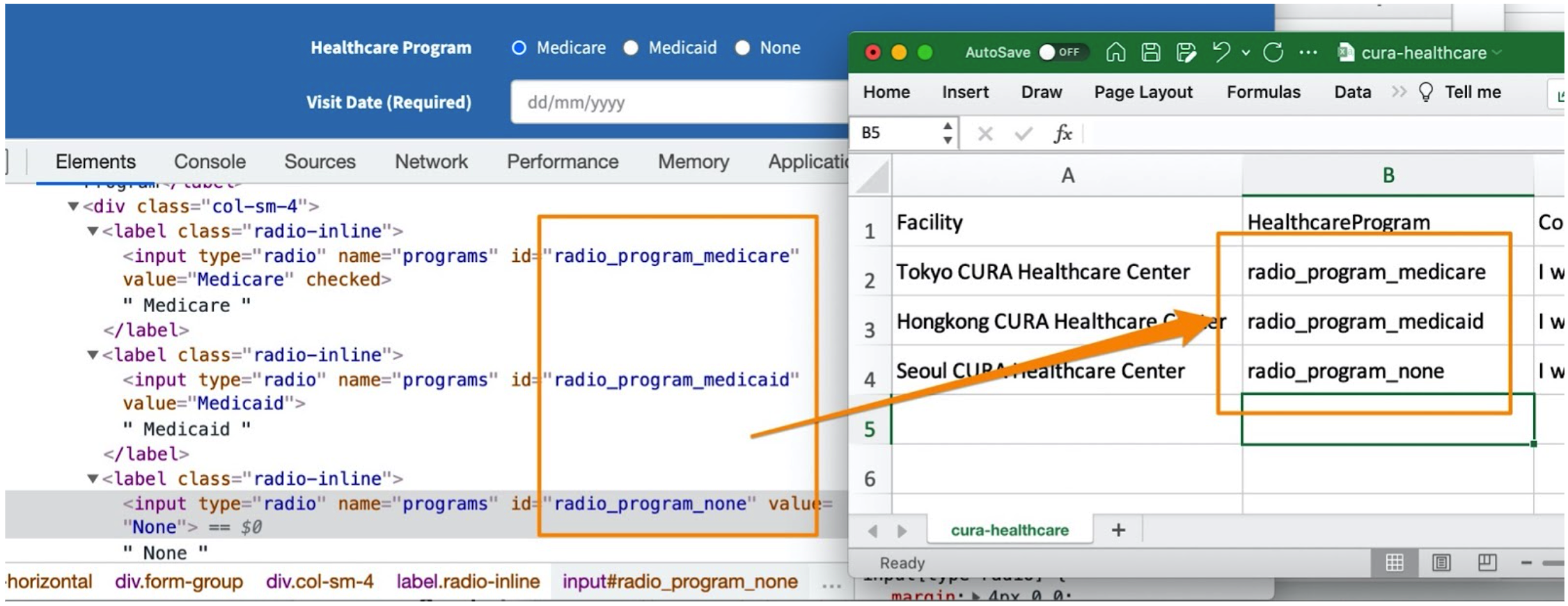
Click the down arrow to expand the code. You’ll see the line id="radio_program_xxx", where xxx is one of the 3 values in the CSV file (Medicare, Medicaid, and None).
Now, replace your old variables’ name with the IDs to your “HealthcareProgram.”
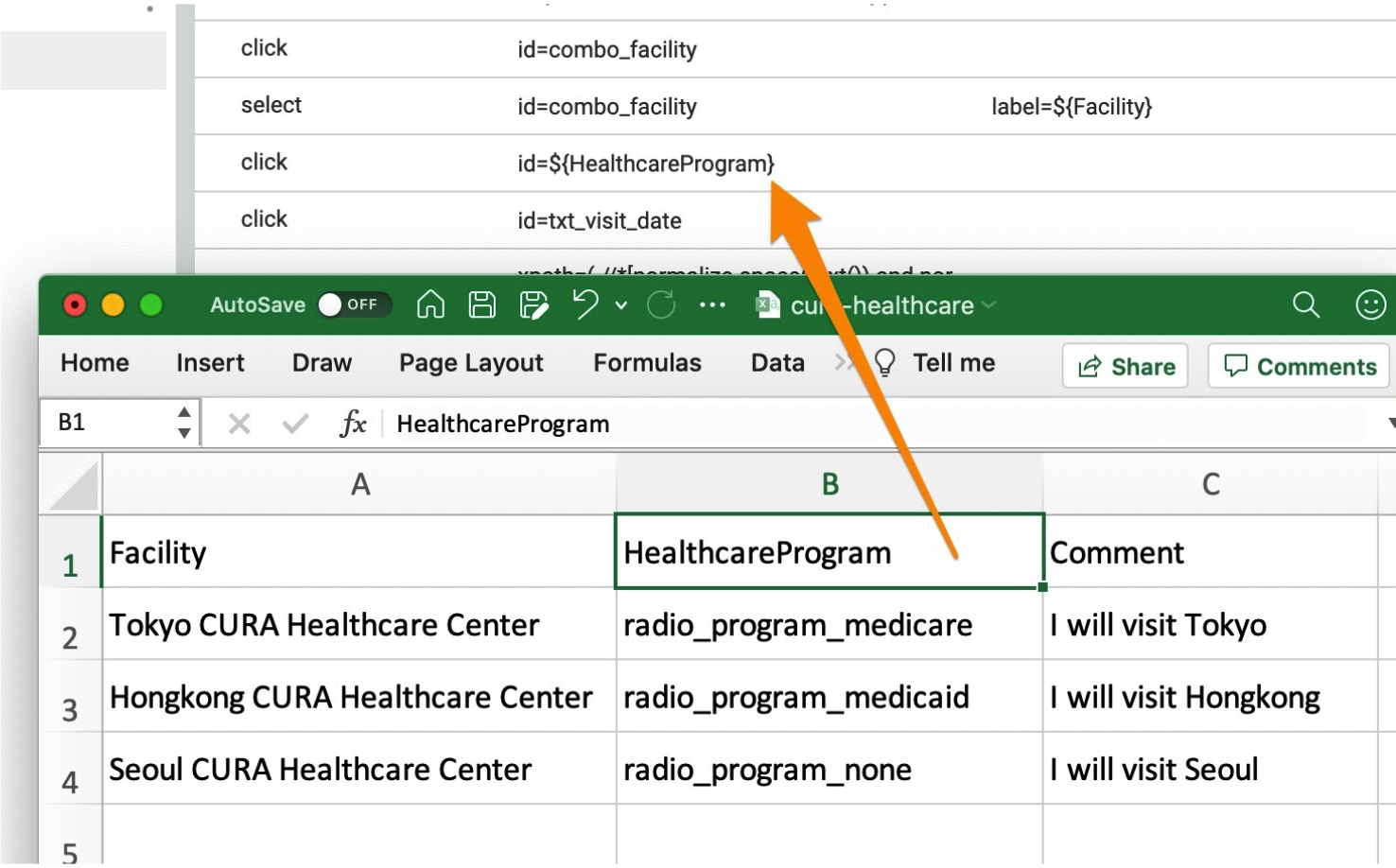
Then go back to the Katalon Recorder window. In the Target column, replace id=radio_program_medicaid with the corresponding column name from the CSV file. In this case, it is id=${HealthcareProgram}.
After parameterizing your Facility, HealthcareProgram, and Comment variables in Katalon Recorder, your script should look like the screenshot below.
Step 4: Import the CSV file and Run
Now that your CSV file is readable, the last step is to import it to Katalon Recorder and run it.
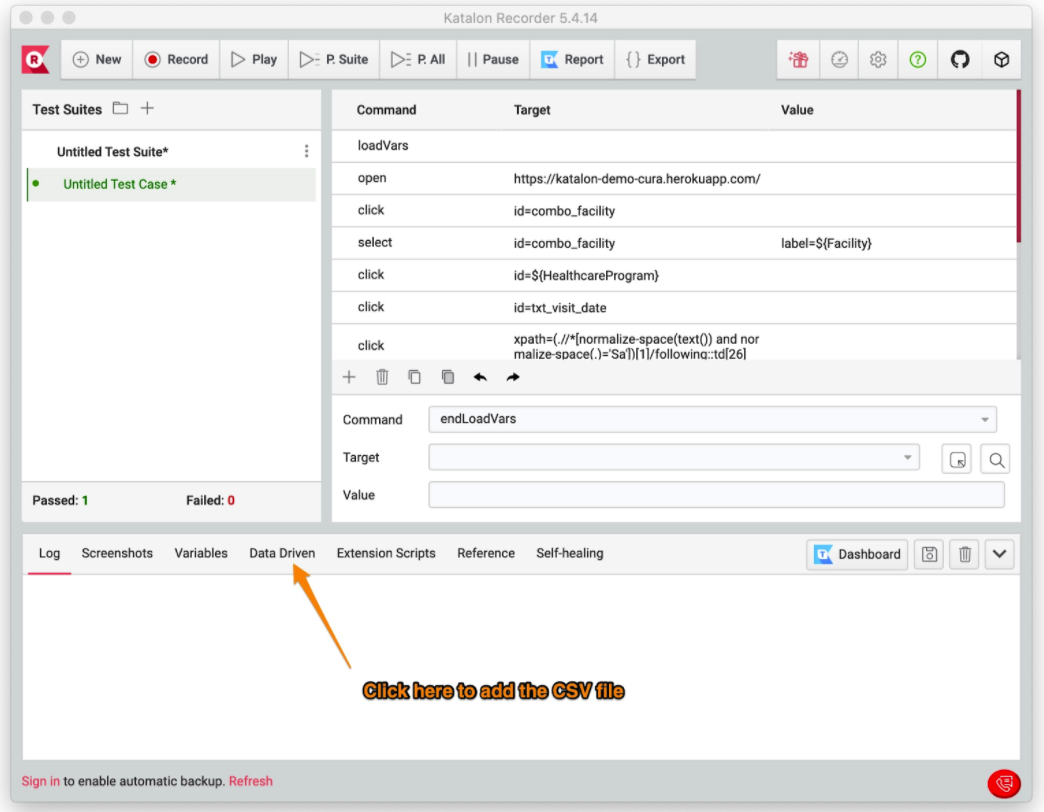
On the Katalon Recorder window, click on the ‘Data Driven’ tab.
Then click on the ‘Add CSV’ button.
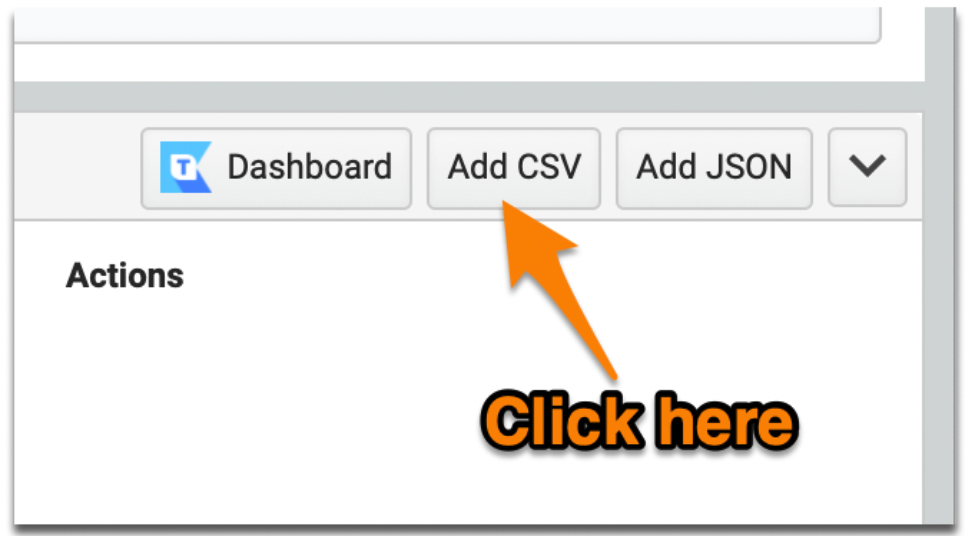
Browse to the folder where your CSV file is located. In this case, the file’s name is cura-healthcare.csv
Note: If you’ve made any edits to the data in your CSV file, make sure to save it and import the newest version.

Next, you will need to add 2 commands to let Katalon Recorder know where to start and stop reading your file.
- loadVars to start reading data from the CSV files
- endLoadVars to finish reading
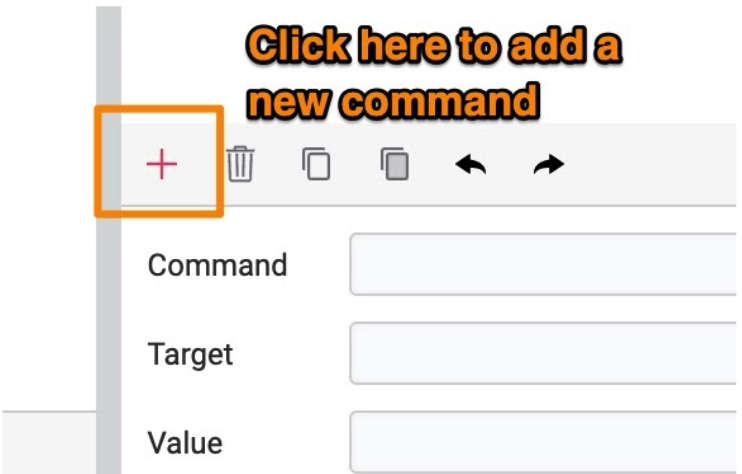
Click on the plus button on Katalon Recorder to add a new command. Choose loadVars in the command field.
In the target field, type the CSV file’s name. (The loadVars command should be the 1st in the command list).
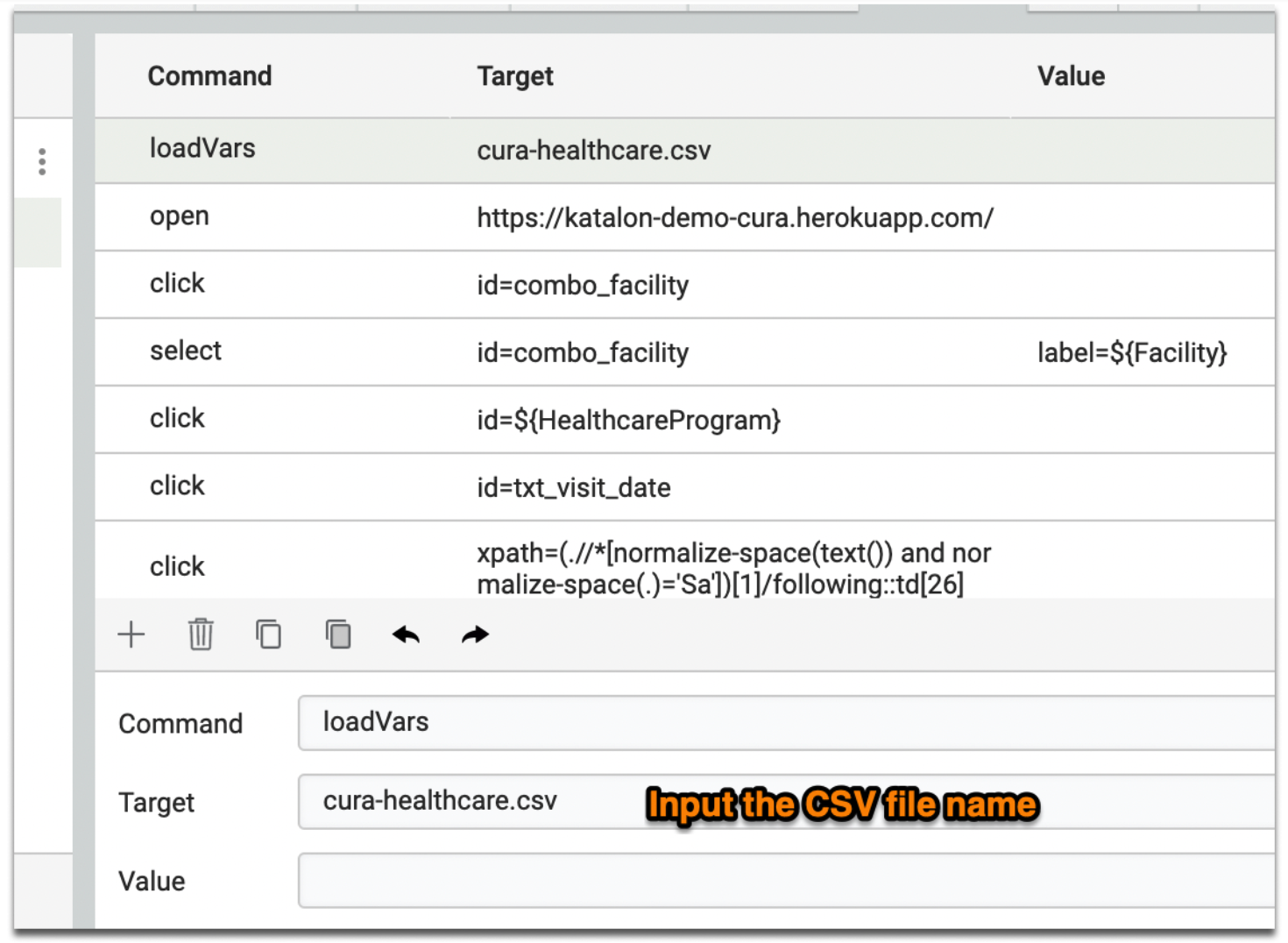
Similar to loadVars, add endLoadVars as the last command.
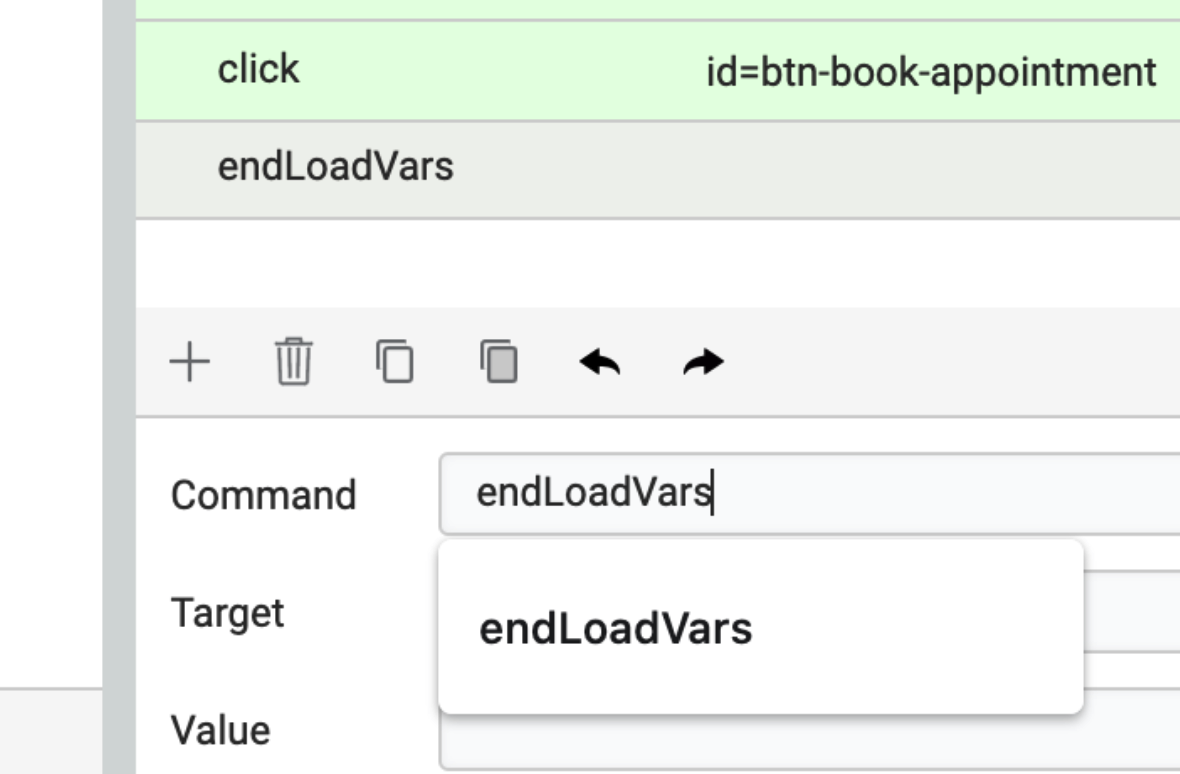
You do not need to add a Target value for endLoadVars.
This is the final result:
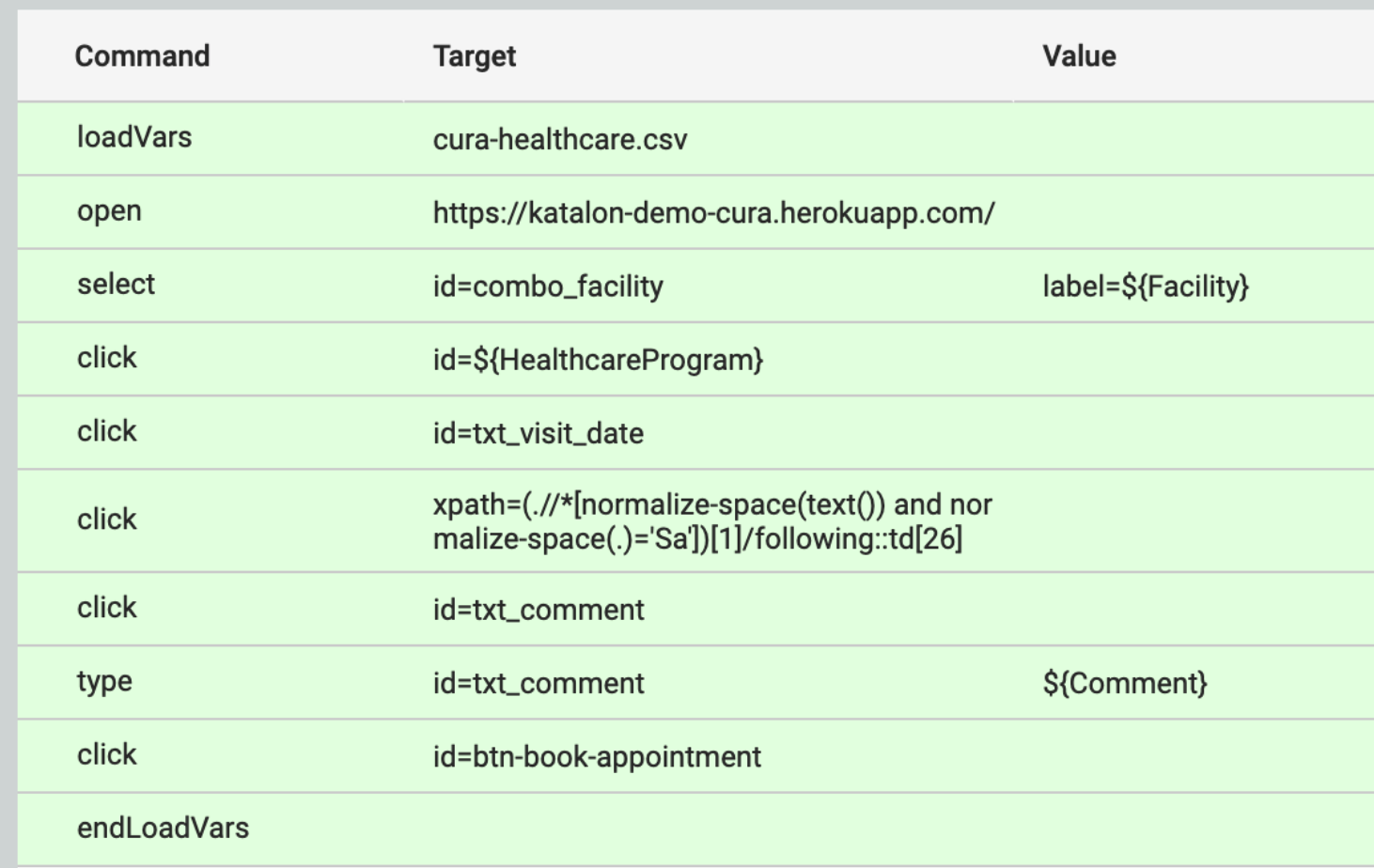
Now let’s click on the Play button and enjoy the automation.
What Now?
Businesses need automated solutions that boost productivity and save time on manual processes like form filling. However, many current solutions require coding skills that are hard for non-technical users to pick up.
If you’re tired of spending hours filling out forms one by one, try automating that process for free with Katalon Recorder. It’s lightweight and hassle-free, even for non-technical users, which makes it an ideal way to start automating your workflow.

Frequently asked questions
Automated form filling is the process of using tools to automatically input data into web forms, replacing manual, repetitive, and often error-prone data entry. It helps streamline tasks that involve filling out large numbers of forms.
Automating form filling is crucial for businesses as it significantly boosts productivity, saves time and effort, and reduces errors associated with manual data entry. This allows employees to focus on more critical tasks, especially as the volume of data and customers grows.
Many existing automated form-filling solutions often require programming, coding, or VBA knowledge, making them inaccessible for non-technical users. They may also lack dedicated support teams for updates and can have complex, non-user-friendly interfaces.
Katalon Recorder is a free, lightweight web extension designed for codeless form automation. It features a user-friendly UI, smart record and playback capabilities to capture web components accurately, and provides complete tutorials and sample projects, making it accessible even for non-technical users.
The process involves 4 main steps: 1) Install Katalon Recorder on your browser (Chrome, Firefox, or Edge). 2) Record the desired form-filling flow by performing the actions manually. 3) Prepare external data in a CSV file and parameterize the values in Katalon Recorder.4) Import the CSV file into Katalon Recorder and run the automated flow.





Test everything. Ship with confidence.
From generating test cases to spotting failures, Katalon's AI works across your entire pipeline, automatically.
